Git and GitHub Blueprint - Free 3.5-Hour Course Companion (17 Chapters with Timestamps and the Commands for Each - Branching, Pull Requests, Reset, Amend, Cherry-Pick, Squash, Interactive Rebase, Bisect, Stash, Diff, Log, .gitignore, Merge Conflicts)
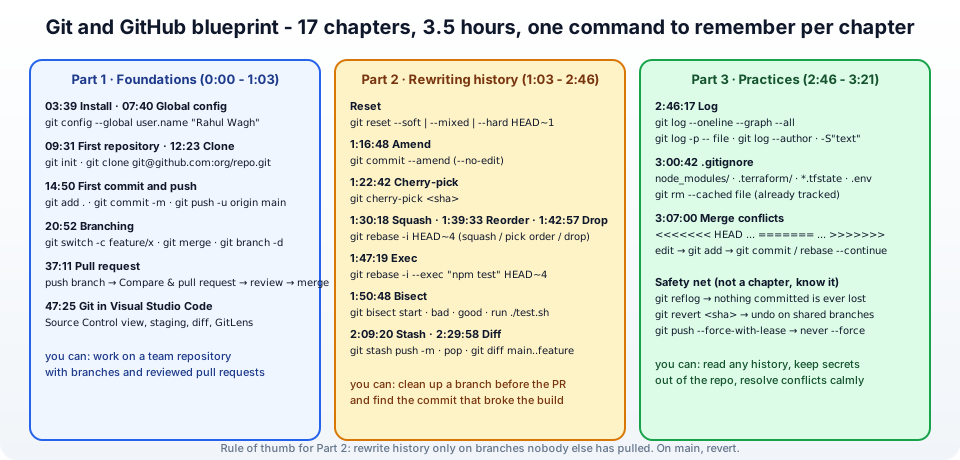
This is the companion page to my Git and GitHub blueprint - a free three-hour-twenty-minute course that starts at git init and ends with you rewriting history on purpose and resolving merge conflicts without sweating. Everything on this blog - Terraform, Ansible, Kubernetes manifests, this very site - lives in Git, and the course is the Git I wish somebody had taught me in my first job.
The video shows every command being typed; this page is the cheat sheet: for each of the 17 chapters the timestamp, the commands, the one thing to remember, and a link to the official Git reference page. At the end there is the part the video leaves implicit - the rules for when rewriting history is safe.
Table of Content
- Part 1 - Foundations
- Part 2 - Rewriting history
- Part 3 - Practices
- The safety net - reflog, revert, force-with-lease, and when rewriting is allowed
- The GitHub errors everybody hits
- Conclusion
1. Part 1 - Foundations
Chapter 1 - What is GitHub, install and configure (0:00 - 0:14)
Git is the version control system on your machine - every commit, branch and diff happens locally, offline. GitHub is a hosting service for Git repositories plus the collaboration layer - pull requests, issues, actions, permissions. You can use Git without GitHub; you cannot use GitHub without Git.
 1# install
 2winget install Git.Git            # Windows (ships Git Bash)
 3brew install git                  # macOS
 4sudo apt install git              # Ubuntu / Debian
 5git --version
 6
 7# one-time global config (0:07:40)
 8git config --global user.name "Rahul Wagh"
 9git config --global user.email "rahul@jhooq.com"
10git config --global init.defaultBranch main
11git config --global core.editor "code --wait"
12git config --global pull.rebase false          # or true if your team rebases
13git config --global --list
Authenticate to GitHub with SSH keys (ssh-keygen -t ed25519, add the public key under Settings → SSH and GPG keys - the GitHub guide) or with a personal access token over HTTPS - passwords stopped working in 2021, which is the error in support for password authentication was removed.
Chapter 1b - First repository, clone, commit, push (0:09 - 0:20)
 1# new project (0:09:31)
 2mkdir jhooq-demo && cd jhooq-demo
 3git init
 4echo "# jhooq demo" > README.md
 5git status                                  # untracked
 6git add README.md                           # staging area
 7git commit -m "Initial commit"              # (0:14:50)
 8git remote add origin git@github.com:rahulwagh/jhooq-demo.git
 9git push -u origin main                     # -u sets the upstream once
10
11# existing project (0:12:23)
12git clone git@github.com:rahulwagh/jhooq-demo.git
Remember - three places: the working directory (your files), the staging area / index (git add), the repository (git commit). git status tells you where every file is. Reference: git-commit.
Chapter 2 - Branching (0:20:52)
A branch is a movable pointer to a commit - cheap, instant, and the unit of work on any team -
1git branch                                  # list, * marks current
2git switch -c feature/login                 # create and switch (older: git checkout -b)
3# ... edit, add, commit ...
4git switch main
5git merge feature/login                     # fast-forward if main did not move, else a merge commit
6git branch -d feature/login                 # delete merged branch (-D forces)
7git push origin --delete feature/login      # delete on GitHub
8git branch -a                               # local + remote-tracking branches
Remember - main is for finished work; everything else happens on a branch. Deleting a hundred stale merged branches at once is this script. Reference: git-branch, git-merge.
Chapter 3 - Pull requests (0:37:11)
A pull request (PR) is GitHub's "please merge my branch" - with a diff, a conversation, reviews, and automated checks -
1git switch -c feature/login
2git commit -am "Add login form"
3git push -u origin feature/login
4# GitHub shows "Compare & pull request" → title, description, reviewers → Create pull request
5# reviewer requests changes → you commit and push again, the PR updates
6# approved → Merge pull request (merge commit) | Squash and merge | Rebase and merge
7git switch main && git pull                 # get the merged result locally
Remember - small PRs get reviewed; 2,000-line PRs get rubber-stamped. Choose one merge strategy per repository: squash keeps main one-commit-per-feature, merge commit keeps full history, rebase keeps it linear. GitHub's docs: about pull requests.
Chapter 4 - Git in Visual Studio Code (0:47:25)
The Source Control view (Ctrl+Shift+G) stages, commits, pushes, pulls, switches branches and shows diffs inline - the same Git, with buttons. The chapter shows staging hunks (parts of a file), the three-way merge editor for conflicts, and the GitLens extension for blame and history. Reference: VS Code source control. Learn the commands first, then let the editor save you typing - when the UI does something odd, git status in the terminal explains it.
2. Part 2 - Rewriting history
The whole of Part 2 comes with one rule, so here it is up front: rewrite only commits that exist on your machine or your own branch. Once a commit is on main or on a branch somebody else has pulled, you add fixes (revert), you do not rewrite. Section 4 has the reasoning.
Chapter 5 - Reset (soft, mixed, hard)
git reset moves the current branch pointer to another commit and decides what happens to the staging area and working directory -
1git reset --soft HEAD~1    # undo the commit, keep changes STAGED      - "I committed too early"
2git reset --mixed HEAD~1   # undo the commit, keep changes UNSTAGED    - the default
3git reset --hard HEAD~1    # undo the commit AND throw the changes away - dangerous
4git reset --hard origin/main   # make local main identical to GitHub
5git reset HEAD file.txt    # unstage one file (keep the edit)
Remember - --hard deletes uncommitted work; before using it, git stash or make sure you can live without the changes. Committed work is recoverable via reflog. Reference: git-reset.
Chapter 6 - Amend (1:16:48)
1git commit --amend                     # fix the last commit message
2git add forgotten.txt
3git commit --amend --no-edit           # add a file to the last commit, keep the message
Remember - amend creates a new commit replacing the last one; if the old one was already pushed you now need --force-with-lease. Reference: git-commit.
Chapter 7 - Cherry-pick (1:22:42)
Copy one commit from another branch onto the current one - the classic hotfix move -
1git log --oneline hotfix                 # find the commit
2git switch release/2.4
3git cherry-pick a1b2c3d                  # apply it here as a new commit
4git cherry-pick a1b2c3d..f6e5d4c         # a range
5git cherry-pick --no-commit a1b2c3d      # apply, let me edit before committing
Remember - the copy has a new hash; if the two branches later merge, Git usually recognises the duplicate, but not always. Reference: git-cherry-pick.
Chapters 8, 9, 10 - Squash, reorder, drop with interactive rebase (1:30 - 1:47)
One tool does all three - interactive rebase - which replays your last N commits through an editor where you decide the fate of each -
1git rebase -i HEAD~4
1pick 1a2b3c4 Add login form
2squash 2b3c4d5 Fix typo in login form        # (1:30:18) fold into the previous commit
3pick 3c4d5e6 Add logout
4drop 4d5e6f7 Debug prints                     # (1:42:57) delete this commit entirely
5# reorder (1:39:33): move the lines - Git replays them in the new order
6# reword: keep the change, edit the message   # fixup: like squash but discard its message
Save and close; Git replays and asks for the combined message when squashing. Remember - this is how you turn "WIP, WIP, fix, fix, final" into one clean commit before opening the PR. If it goes wrong mid-way, git rebase --abort returns everything to how it was. Reference: git-rebase.
Chapter 11 - Exec (1:47:19)
Run a command after every replayed commit - the way to prove each commit in a series builds and passes tests -
1git rebase -i --exec "npm test" HEAD~4
2git rebase -i --exec "terraform validate" HEAD~3
The rebase stops at the first commit where the command fails, so you fix exactly that one. Remember - clean, individually-passing commits make bisect (next chapter) and code review far easier.
Chapter 12 - Bisect (1:50:48)
Something broke between last week and today and nobody knows which of the 60 commits did it. Bisect finds it by binary search -
 1git bisect start
 2git bisect bad                         # current commit is broken
 3git bisect good v2.3.0                 # this tag was fine
 4# Git checks out the middle commit - test it, then:
 5git bisect good    # or
 6git bisect bad
 7# ... about log2(60) ≈ 6 rounds later:
 8# "a1b2c3d is the first bad commit"
 9git bisect reset
10
11# fully automatic with a script that exits 0 for good, non-zero for bad
12git bisect start HEAD v2.3.0
13git bisect run ./test.sh
Remember - bisect is the single most under-used Git command; with run and a test script it finds a regression in a thousand commits in ten steps. Reference: git-bisect.
Chapter 13 - Stash (2:09:20)
You are mid-change and must switch branches now -
1git stash push -m "half-done login validation"     # save working dir + index, clean the tree
2git stash list
3git switch main && git pull && git switch -        # do the urgent thing, come back
4git stash pop                                      # re-apply and drop (apply keeps it in the list)
5git stash push -u                                  # include untracked files
6git stash show -p stash@{1}                        # peek at an older one
7git stash drop stash@{1}
Remember - stash is a stack; name your stashes or you will have five WIP on main entries and no idea which is which. Reference: git-stash.
Chapter 14 - Diff (2:29:58)
1git diff                          # working dir vs staging (unstaged changes)
2git diff --staged                 # staging vs last commit (what will be committed)
3git diff HEAD                     # working dir vs last commit (everything)
4git diff main..feature/login      # two branches
5git diff main...feature/login     # changes on the branch since it forked
6git diff a1b2c3d f6e5d4c -- src/app.py
7git diff --stat                   # file-level summary
8git diff --word-diff              # for prose and YAML
Remember - .. compares tips, ... compares against the merge base; the second is what a pull request shows. Reference: git-diff.
3. Part 3 - Practices
Chapter 15 - Log (2:46:17)
1git log --oneline --graph --all --decorate      # the picture of your branches
2git log -5 --stat                               # last five with files touched
3git log -p -- path/to/file                      # every change to one file, with diffs
4git log --author="Rahul" --since="2 weeks ago"
5git log -S "db_password"                        # commits that added/removed this string (pickaxe)
6git log --grep="JIRA-123"                       # by message
7git log main..feature/login                     # what the branch adds
8git shortlog -sn                                # commits per author
9git blame -L 10,20 app.py                       # who changed these lines
Set an alias once: git config --global alias.lg "log --oneline --graph --all --decorate". Reference: git-log.
Chapter 16 - .gitignore (3:00:42)
 1# .gitignore - patterns, one per line
 2node_modules/
 3__pycache__/
 4*.log
 5.env
 6.env.*
 7.terraform/
 8*.tfstate
 9*.tfstate.backup
10.vscode/
11.DS_Store
12!keep-this.log       # negation
1git rm --cached .env              # the file was already committed - stop tracking, keep on disk
2git check-ignore -v .env          # which rule ignores this file?
Remember - .gitignore only affects untracked files; anything already committed stays tracked until git rm --cached. And a secret that was committed once is in the history forever - rotate it, then clean history with git filter-repo if you must. The Terraform case is a post of its own: why you should not store tfstate in Git. References: gitignore, GitHub's ignoring files, and the templates at github.com/github/gitignore.
Chapter 17 - Merge conflicts (3:07:00)
Two branches changed the same lines. Git stops and marks the file -
1<<<<<<< HEAD
2    timeout = 30
3=======
4    timeout = 60
5>>>>>>> feature/login
1git status                        # "both modified: config.py"
2# edit config.py - keep one side, the other, or write the combination; delete the markers
3git add config.py
4git commit                        # finishes the merge (or: git rebase --continue during a rebase)
5git merge --abort                 # changed your mind - back to before the merge
6git mergetool                     # or VS Code's three-way merge editor
Remember - a conflict is Git asking a question only a human can answer; it is not an error. Prevent most of them with small branches merged often, and git pull --rebase (or git fetch + git rebase origin/main) before you push. Reference: git-merge, how conflicts are presented.
4. The safety net - reflog, revert, force-with-lease, and when rewriting is allowed
Three commands that are not chapters but make Part 2 safe -
1git reflog                                 # every position HEAD has been in - "lost" commits are here
2git reset --hard HEAD@{3}                  # go back to where you were three moves ago
3git revert a1b2c3d                         # undo a commit by ADDING a new inverse commit - safe on shared branches
4git push --force-with-lease                # push rewritten history only if nobody pushed in between
The rules -
- Private branch, not yet pushed - rewrite freely: amend, squash, reorder, reset.
- Your own branch, pushed, nobody else works on it - rewrite, then
git push --force-with-lease(never plain--force, which can overwrite a colleague's push). - Shared branch (
main,develop, a release branch) - never rewrite. Undo withgit revert; fix forward. - Did something terrible? -
git reflog. Git keeps unreachable commits for at least 30 days; only--hardresets of uncommitted changes are truly gone.
Reference: git-reflog, git-revert.
5. The GitHub errors everybody hits
1. remote: Support for password authentication was removed on August 13, 2021 - Use a personal access token or SSH - fix here.
2. git@github.com: Permission denied (publickey). fatal: Could not read from remote repository - The SSH key is not added to GitHub or the agent - fix here.
3. fatal: unable to update url base from redirection - The remote URL moved (renamed repo/org) - fix here.
4. ! [rejected] main -> main (fetch first) / non-fast-forward - Somebody pushed before you. git pull --rebase, resolve, push.
5. fatal: refusing to merge unrelated histories - Two repositories with no common commit (an init on both sides). git pull origin main --allow-unrelated-histories once.
6. error: Your local changes to the following files would be overwritten by checkout - Commit or stash before switching.
7. detached HEAD - You checked out a commit or tag directly. git switch -c fix-from-here to keep work, or git switch main to leave.
8. Hundreds of merged branches cluttering git branch -a - git fetch --prune and delete merged branches.
9. The .env with a secret is in the repository - git rm --cached .env, add to .gitignore, rotate the secret, and consider git filter-repo to purge history.
10. Pull request shows thousands of changed lines you did not touch - Line endings (CRLF vs LF) - set git config --global core.autocrlf true on Windows (or input on macOS/Linux) and add a .gitattributes with * text=auto.
More videos on this topic - the standalone git cherry-pick lesson from my DevOps Master Course -
6. Conclusion
Git is a small number of ideas - commits, branches, the staging area, and a reflog that forgives almost everything - and a large number of commands that combine them. The course teaches them in the order you will need them: foundations to work on a team repository with branches and pull requests, history rewriting to turn messy work into clean commits and to hunt regressions with bisect, and practices - log, ignore, conflicts - that keep a repository healthy. Keep this page open as the cheat sheet, keep the rule from section 4 in mind, and the official references are the Pro Git book (free) and the Git reference manual. Everything Git-related on this site is under the GitHub category.