Getting Started with Helm - Install Helm 4, Create Your First Hello World Chart, and Add Chart Repositories and OCI Registries

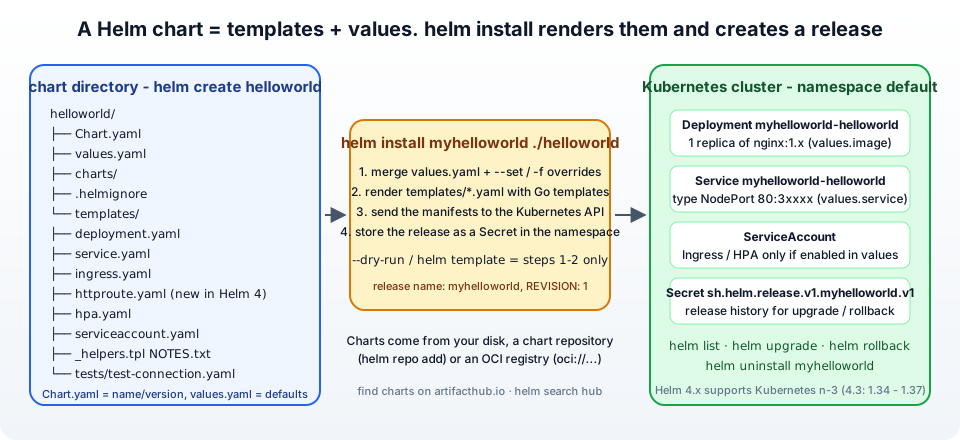
Helm is the package manager for Kubernetes. A Helm chart is a bundle of templated Kubernetes YAML files plus a values.yaml with the defaults, and helm install renders that bundle and creates all the resources in one go, tracking them as a release you can upgrade, roll back and uninstall as a unit.
In a production environment where you manage a lot of Kubernetes resources, Helm charts save you from the cumbersome and error-prone job of applying and keeping in sync dozens of individual YAML files - and they are how almost every open-source project (Prometheus, NGINX Ingress, cert-manager, Argo CD ...) ships its Kubernetes installation.
I first wrote this post for Helm 3.4 in 2020. Helm 4 was released in November 2025, so this is the updated version - the install script is now get-helm-4, the generated chart has a new httproute.yaml, OCI registries are the primary way to distribute charts, and the Bitnami repository I used as the example has changed completely. Everything below is tested with Helm 4.3.
In this article we will start from the very basics -
Table of Content
- Install Helm
- Writing your first Helm chart for Hello World
- Helm chart repositories, Artifact Hub and OCI registries
- Upgrade, rollback and uninstall a release
- Common errors when getting started with Helm
- Conclusion
1. Install Helm
Installing Helm is pretty easy, but there is one prerequisite - a Kubernetes cluster and a working kubectl. Helm is only a client; it talks to whatever cluster your current kubeconfig context points to (there is no server-side component since Helm 3).
If you do not have a Kubernetes cluster yet -
Follow one of these guides - Setup a Kubernetes cluster with Kubespray, install Kubernetes on Ubuntu with kubeadm, or for a laptop, Install Kubernetes with Minikube.
Which Helm for which Kubernetes? - Helm 4 follows an n-3 rule - it is compatible with the Kubernetes version it was compiled against and the three before it. Per the version skew policy, Helm 4.3 supports Kubernetes 1.34 to 1.37, Helm 4.0 supports 1.31 to 1.34. If your cluster is older than that, stay on Helm 3.22 (still available, security fixes until November 2026) - every command in this post works identically on Helm 3.
1.1: Install Helm using the script
If you like doing everything from scratch then I would suggest you install Helm using the official script. It detects your OS and architecture, downloads the latest release and verifies the checksum -
1curl -fsSL -o get_helm.sh https://raw.githubusercontent.com/helm/helm/main/scripts/get-helm-4
1chmod 700 get_helm.sh
1./get_helm.sh
(The old get-helm-3 script still exists and still installs the latest Helm 3, if that is what you need.)
Verify the installation - you can verify it by running the following command
1helm version
1version.BuildInfo{Version:"v4.3.0", GitCommit:"...", GitTreeState:"clean", GoVersion:"go1.25.x"}
If you also see WARNING: Kubernetes configuration file is group-readable. This is insecure., Helm is telling you your kubeconfig permissions are too open - chmod 600 ~/.kube/config makes it go away.
1.2: Install Helm using the binary
The other option is to download the release archive and do the installation yourself - useful on servers without internet access to GitHub, or when you need an exact version.
Step 1 : Download the binary for your OS and architecture from the Helm releases page
Step 2 : Extract it (replace the version with the one you downloaded)
1tar -zxvf helm-v4.3.0-linux-amd64.tar.gz
Step 3 : Move the binary onto your PATH
1sudo mv linux-amd64/helm /usr/local/bin/helm
Verify the installation
1helm version
1version.BuildInfo{Version:"v4.3.0", GitCommit:"...", GitTreeState:"clean", GoVersion:"go1.25.x"}
1.3: Install Helm with a package manager
If you prefer a package manager, use the command for your platform. These packages are community-maintained, so they can lag a release or two behind - the full list is on the Helm installation page -
Homebrew (macOS, Linux)
1brew install helm
Chocolatey (Windows)
1choco install kubernetes-helm
Scoop (Windows)
1scoop install helm
winget (Windows)
1winget install Helm.Helm
Snap (Linux)
1sudo snap install helm --classic
dnf (Fedora 35+)
1sudo dnf install helm
apt (Debian/Ubuntu) - Helm publishes its own repository; the key and source setup is on the install page, then
1sudo apt-get update && sudo apt-get install helm
And do not forget to verify the installation with helm version.
2. Writing your first Helm chart for "Hello World"
Now after you have done your Helm installation, we can write our first "Hello World" Helm chart.
To begin with -
2.1: Create your first Helm chart
We are going to create our first helloworld Helm chart using the following command
1helm create helloworld
It should create a directory helloworld, you can verify it by using the ls -lart command
1ls -lart | grep helloworld
It should return you with -
1drwxr-xr-x 4 vagrant vagrant 4096 Oct 10 19:57 helloworld
To see the complete directory structure of the chart please run the command (sudo apt install tree if you do not have it)
1tree -a helloworld
 1helloworld
 2├── charts
 3├── Chart.yaml
 4├── .helmignore
 5├── templates
 6│   ├── deployment.yaml
 7│   ├── _helpers.tpl
 8│   ├── hpa.yaml
 9│   ├── httproute.yaml
10│   ├── ingress.yaml
11│   ├── NOTES.txt
12│   ├── serviceaccount.yaml
13│   ├── service.yaml
14│   └── tests
15│       └── test-connection.yaml
16└── values.yaml
What each piece is for -
Chart.yaml- the metadata:name,version(the chart version, bump it on every change),appVersion(the version of the application inside) anddescription.values.yaml- the default configuration. Everything a user may want to change - image, replicas, service type, resources - lives here, and--setor-f my-values.yamloverrides it at install time.templates/- the Kubernetes manifests as Go templates.{{ .Values.service.type }}is replaced with the value fromvalues.yamlwhen the chart is rendered.templates/_helpers.tpl- reusable template snippets (the standard labels, the full name).templates/NOTES.txt- the text printed afterhelm install- this is where the "how do I reach my app" instructions come from.templates/tests/- a Pod thathelm testruns to check the release works.charts/- dependency charts (sub-charts) go here..helmignore- files to leave out when packaging the chart, like.gitignore.
The generated chart deploys NGINX by default - that is our "Hello World". httproute.yaml is new in Helm 4 and renders a Gateway API HTTPRoute when httpRoute.enabled is true; ingress.yaml and hpa.yaml are likewise disabled until you turn them on in values.yaml.
Great, now you have created your first Helm chart - helloworld. In the next steps we are going to install it.
2.2: Update the service.type from ClusterIP to NodePort inside values.yaml
Before you install the helloworld chart we need to change service.type from ClusterIP to NodePort.
The reason for this change is - after installing the chart we want to access the NGINX service from outside the Kubernetes cluster. With the default ClusterIP the service is reachable only from inside the cluster.
To update values.yaml, first go inside the directory helloworld
1cd helloworld
2.2.1: Open values.yaml in vi
1vi values.yaml
2.2.2: Update service.type from ClusterIP to NodePort
Look for the service block and update type to NodePort
1service:
2  type: NodePort
3  port: 80
(You could also leave the file alone and pass --set service.type=NodePort to helm install - overriding values on the command line is exactly what --set is for. Editing the file is clearer for a first chart.)
2.3: Install the Helm chart using the command - helm install
Now after updating values.yaml, you can install the chart. Go back up one directory first (cd ..).
Note : The helm install command takes two arguments -
- First argument - the release name that you pick
- Second argument - the chart you want to install (a local directory here, later a repository or OCI reference)
It should look like -
1helm install <FIRST_ARGUMENT_RELEASE_NAME> <SECOND_ARGUMENT_CHART>
Your final command would be
1helm install myhelloworld helloworld
After running the above command it should return you with -
 1NAME: myhelloworld
 2LAST DEPLOYED: Fri Oct 10 21:48:08 2026
 3NAMESPACE: default
 4STATUS: deployed
 5REVISION: 1
 6NOTES:
 71. Get the application URL by running these commands:
 8  export NODE_PORT=$(kubectl get --namespace default -o jsonpath="{.spec.ports[0].nodePort}" services myhelloworld-helloworld)
 9  export NODE_IP=$(kubectl get nodes --namespace default -o jsonpath="{.items[0].status.addresses[0].address}")
10  echo http://$NODE_IP:$NODE_PORT
Those NOTES come straight from templates/NOTES.txt. If you want to see the rendered YAML before creating anything, helm install myhelloworld helloworld --dry-run or helm template myhelloworld helloworld prints it - I have compared the two in Helm dry run vs helm template.
2.4: Verify the helm install command
Now you need to verify your Helm release, i.e. myhelloworld, which can be done by running the helm list command.
1helm list -a
It should return the release name which you have just installed, i.e. myhelloworld
1NAME         	NAMESPACE	REVISION	UPDATED                              	STATUS  	CHART           	APP VERSION
2myhelloworld	default  	1       	2026-10-10 21:48:08.8550677 +0000 UTC	deployed	helloworld-0.1.0	1.16.0
helm status myhelloworld prints the NOTES again, and kubectl get all -l app.kubernetes.io/instance=myhelloworld shows every Kubernetes object the release created - a Deployment, a ReplicaSet, a Pod, a Service and a ServiceAccount.
2.5: Get the Kubernetes service details and port
Let's run the kubectl get service command to get the NodePort.
1kubectl get service
The above command should return you -
1NAME                     TYPE        CLUSTER-IP      EXTERNAL-IP   PORT(S)        AGE
2kubernetes               ClusterIP   10.233.0.1      <none>        443/TCP        14d
3myhelloworld-helloworld  NodePort    10.233.14.134   <none>        80:30738/TCP   7m10s
Note: Keep in mind the NodePort number is picked from the range 30000-32767, so you will get a different port.
Since my node IP is 100.0.0.2 and the NodePort is 30738, I can open http://100.0.0.2:30738 and see the NGINX welcome page of my myhelloworld release (on Minikube, minikube service myhelloworld-helloworld opens it for you)

That is a complete Helm chart deployed. To turn the NGINX placeholder into your own application, the next post in the series - building your first Helm chart with Spring Boot - swaps the image and adds the environment variables, and convert Kubernetes YAML into a Helm chart shows how to template manifests you already have.
3. Helm chart repositories, Artifact Hub and OCI registries
We have apt, yum and dnf repositories in Linux distros; similarly, chart developers package their charts and publish them, and you install them by name. There are two ways charts are distributed today -
- Chart repositories - an HTTP server with an
index.yamland the packaged.tgzfiles. You register them withhelm repo addand install with<repo>/<chart>. - OCI registries - the same container registries that hold your Docker images (Docker Hub, GHCR, ECR, GAR, Harbor). You install directly with an
oci://reference, norepo addneeded. This is the direction the Helm project has taken since Helm 3.8 and it is the default for most big publishers now.
And to find charts, the place to look is Artifact Hub - it indexes charts from hundreds of repositories and registries - or from the terminal -
1helm search hub prometheus
For example - you want Redis inside your cluster. The Bitnami charts, which my 2020 version of this post used through charts.bitnami.com, are now published as OCI artifacts on Docker Hub (and since 2025 Bitnami has moved to its hardened "Bitnami Secure Images" catalogue - check the bitnami/charts README for the current terms). The install is one command -
1helm install my-redis oci://registry-1.docker.io/bitnamicharts/redis
Or, the example from the Helm quickstart -
1helm install my-podinfo oci://ghcr.io/stefanprodan/charts/podinfo --version 6.11.2
2helm show chart oci://ghcr.io/stefanprodan/charts/podinfo --version 6.11.2   # inspect before installing
Note: --version pins the chart version. Without it Helm picks the latest, which is fine for a lab and not fine for production.
3.1 How to add an upstream Helm chart repository
For the classic repositories, Helm provides five repo sub-commands -
add: add a chart repositorylist: list the repositories you have addedupdate: refresh the chart index locallyindex: generate anindex.yamlfor a directory of packaged charts (when you host your own repo)remove: remove a chart repository
As the example I am using the prometheus-community repository - it is well maintained, and it is the one you need for the Kubernetes monitoring stack from my Prometheus and Grafana on Kubernetes post.
3.1.1: 'add' a Helm chart repository
To add any chart repository you need its name (your alias for it) and its URL -
1helm repo add <REPOSITORY_NAME> <REPOSITORY_URL>
Here is the final command
1helm repo add prometheus-community https://prometheus-community.github.io/helm-charts
1"prometheus-community" has been added to your repositories
Search the repository
1helm search repo prometheus-community
It returns all the charts available inside that repository
1NAME                                              	CHART VERSION	APP VERSION	DESCRIPTION
2prometheus-community/alertmanager                 	1.x.x        	v0.28.x    	The Alertmanager handles alerts sent by client ...
3prometheus-community/kube-prometheus-stack        	7x.x.x       	v0.8x.x    	kube-prometheus-stack collects Kubernetes manif...
4prometheus-community/prometheus                   	2x.x.x       	v3.x.x     	Prometheus is a monitoring system and time seri...
5prometheus-community/prometheus-node-exporter     	4.x.x        	1.12.x     	A Helm chart for prometheus node-exporter
6...
And installing from it is the same helm install as before, with <repo>/<chart> as the second argument, plus --namespace and --create-namespace so it does not land in default -
1helm install prometheus prometheus-community/prometheus --namespace monitoring --create-namespace
3.1.2: 'list' the Helm chart repositories
In the previous step we added the prometheus-community repository; let's run the list command to see the repositories we have added so far.
1helm repo list
1NAME                	URL
2prometheus-community	https://prometheus-community.github.io/helm-charts
3.1.3: 'update' the Helm chart repositories
helm search repo and helm install work from a local cache of each repository's index. If you have not updated it in a while you will miss new chart versions, so run update before installing or upgrading -
1helm repo update
1Hang tight while we grab the latest from your chart repositories...
2...Successfully got an update from the "prometheus-community" chart repository
3Update Complete. ⎈Happy Helming!⎈
3.1.4: 'index' - generate the index for your own chart repository
The index command generates the index.yaml for a directory containing packaged charts - this is how you host your own repository on any static web server, S3 bucket or GitHub Pages. First package the chart, then index the directory -
1helm package helloworld          # -> helloworld-0.1.0.tgz
2mkdir my-repo && mv helloworld-0.1.0.tgz my-repo/
3helm repo index my-repo --url https://charts.example.com
1cat my-repo/index.yaml
 1apiVersion: v1
 2entries:
 3  helloworld:
 4  - apiVersion: v2
 5    appVersion: 1.16.0
 6    created: "2026-10-10T20:28:18.544761158Z"
 7    digest: 3f1c...
 8    name: helloworld
 9    urls:
10    - https://charts.example.com/helloworld-0.1.0.tgz
11    version: 0.1.0
12generated: "2026-10-10T20:28:18.544761158Z"
(In 2026 I would push the chart to an OCI registry instead - helm push helloworld-0.1.0.tgz oci://ghcr.io/<you>/charts - no index file to maintain, and the same registry login you already use for images. The registries guide covers helm registry login, push and pull.)
3.1.5: 'remove' a Helm chart repository
If you want to remove a repository, Helm provides the remove command -
1helm repo remove prometheus-community
1"prometheus-community" has been removed from your repositories
4. Upgrade, rollback and uninstall a release
The reason to use Helm instead of plain kubectl apply is the release lifecycle. A few commands you will use every day -
 1# change a value and roll it out - creates REVISION 2
 2helm upgrade myhelloworld helloworld --set replicaCount=2
 3
 4# install if missing, upgrade if present - the one to use in CI/CD
 5helm upgrade --install myhelloworld helloworld -f values-prod.yaml
 6
 7# what changed, and roll back if it broke
 8helm history myhelloworld
 9helm rollback myhelloworld 1
10
11# values currently applied to the release
12helm get values myhelloworld
13
14# remove everything the release created
15helm uninstall myhelloworld
1release "myhelloworld" uninstalled
Helm stores each revision as a Secret named sh.helm.release.v1.myhelloworld.v<n> in the release namespace - that is what history and rollback read. Managing several values files per environment is its own topic, covered in multiple values files in a Helm chart, and for many releases across many clusters there is Helmfile.
5. Common errors when getting started with Helm
1. Error: INSTALLATION FAILED: Kubernetes cluster unreachable: Get "http://localhost:8080/version": dial tcp 127.0.0.1:8080: connect: connection refused - Helm cannot find a kubeconfig. Run kubectl get nodes first; set KUBECONFIG or copy the admin config to ~/.kube/config.
2. Error: unknown flag: --name - A Helm 2 tutorial. Since Helm 3 the release name is the first positional argument - helm install myhelloworld helloworld. Full write-up in Helm install unknown flag --name.
3. Error: INSTALLATION FAILED: cannot re-use a name that is still in use - A release with that name already exists (maybe failed). helm list -a, then helm uninstall <name> or pick another name, or use helm upgrade --install.
4. Error: INSTALLATION FAILED: create: failed to create: Secret "sh.helm.release.v1...." is invalid: data: Too long - Your chart bundles a huge file (often a charts/ directory or a .git folder). Add it to .helmignore.
5. Error: failed to create Secret: invalid metadata.name ... a DNS-1123 subdomain must consist of lower case alphanumeric characters - An uppercase letter or underscore in the release or resource name. Explained here.
6. Error: repo prometheus-community not found / Error: failed to download "bitnami/redis" - The repository was never added on this machine, or the cache is stale - helm repo add ... then helm repo update. For Bitnami specifically, switch to the oci://registry-1.docker.io/bitnamicharts/<chart> reference.
7. Error: INSTALLATION FAILED: chart requires kubeVersion: >=1.3x.0 which is incompatible with Kubernetes v1.2x - The chart declares a minimum Kubernetes version in Chart.yaml. Upgrade the cluster or pin an older chart with --version.
8. Error: INSTALLATION FAILED: unable to build kubernetes objects from release manifest: ... no matches for kind "Ingress" in version "networking.k8s.io/v1beta1" - An old chart using a removed API. Pick a newer chart version, or if it is your chart, update apiVersion in the template (the generated ingress.yaml already handles this with Capabilities.APIVersions).
9. The pod is Pending / ImagePullBackOff after install - Not a Helm problem - kubectl describe pod <name> tells you whether it is the image name/tag from values.yaml or a scheduling issue.
6. Conclusion
Helm turns a pile of Kubernetes YAML into one versioned, configurable, upgradeable unit. To summarise what we did -
- Installed Helm 4 with the official script (
get-helm-4), or a binary or package manager, and checked it against the Kubernetes version skew policy. - Ran
helm create helloworldand looked at what a chart is -Chart.yaml,values.yaml, thetemplates/directory, and the newhttproute.yaml. - Changed
service.typetoNodePort, installed the chart withhelm install myhelloworld helloworld, verified it withhelm listand reached NGINX through the NodePort. - Worked with chart repositories (
helm repo add/list/update/index/remove), found charts on Artifact Hub, and installed straight from an OCI registry withoci://. - Used
helm upgrade,history,rollbackanduninstallto manage the release.
The official references are the Helm quickstart, the chart guide and the chart template guide for when you start editing the templates. The rest of my Helm series is listed below - the natural next step is building your first Helm chart with Spring Boot.
Read More -
- Helm chart - How to Add/Install plugins
- Getting started with Helm Chart
- Helm chart - WordPress Installation with MariaDB on Kubernetes
- Helm chart - Build you first helm chart with Spring Boot
- Helm Chart - Convert Kubernetes YAML into Helm Chart YAML
- Helm Chart - Pass environment variables
- Helm Chart - Plugin
- Helm Chart - Dry Run Install
- Helm Chart - How to create multiple values files inside helm chart?
- Helmfile - How to use Helmfile for managing helm chart?
- Helm template - Render a chart locally without a cluster (Helm 4)