Detach from a Docker container without stopping it - docker attach, Ctrl-P Ctrl-Q, --sig-proxy and --detach-keys (tested on Docker 28)

TL;DR
- Detach without stopping: press Ctrl-P, then Ctrl-Q. Docker prints
read escape sequence,docker attachexits with code 1, and the container keeps running. - It only works when the container has a TTY - started with
docker run -itor-dit. On a container started with-donly, Ctrl-P Ctrl-Q is just two bytes, and Ctrl-C is forwarded to PID 1 as SIGINT, so nginx stopped in my test. exitor Ctrl-D in the attached shell ends PID 1, so the container stops (Exited (0)). Attaching again then fails withYou cannot attach to a stopped container, start it first.- Change the keys with
docker attach --detach-keys=ctrl-x,xor once for good with"detachKeys": "ctrl-e,e"in~/.docker/config.json. A--detach-keysgiven todocker runonly applies to that run's own session, not to a laterdocker attach. - The safer habits:
docker exec -it NAME shfor a shell (exit leaves the container alone) anddocker logs -f NAMEto watch output (no keys or signals reach the container). - Every output below is from Docker 28.0.4 on Ubuntu 24.04, captured on 2026-10-14.
- Not your exact case? The closest post on this site is exec.
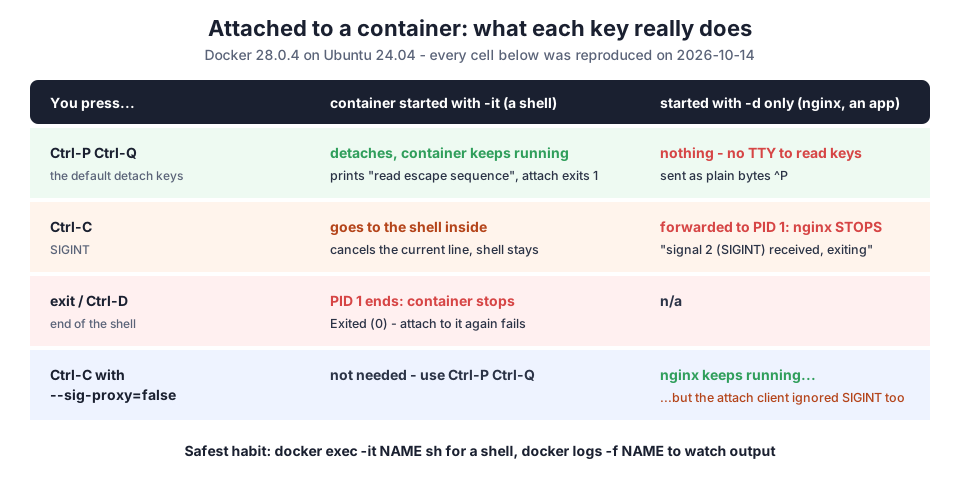
The first version of this post was short, and it had a real bug: the docker run command in step 1 had no image name at all. When I came back to it in October 2026, I did not want to just fix the typo. Most people land here searching for "detach from docker container without stopping", usually right after they stopped a container by accident. So I tested every key combination against both kinds of container - a shell started with -it and an nginx started with -d - and wrote down exactly what happened.
Table of Content
- The rules in one table
- Start a container you can attach to and detach from
- Attach, then detach with Ctrl-P Ctrl-Q
- Why exit stops the container
- Containers started without -it - where Ctrl-C stops your app
- Changing the detach keys
- docker exec and docker logs - the safer habits
- What broke when I ran this
- Conclusion
1. The rules in one table
| You do this while attached | Container started with -it (a shell) | Container started with -d only (nginx, an app) |
|---|---|---|
| Ctrl-P, Ctrl-Q | detaches; read escape sequence; attach exits 1; container keeps running | nothing - no TTY, the keys are plain bytes |
| Ctrl-C | interrupts the command running in the shell; the shell survives | forwarded to PID 1 as SIGINT - the container stops |
exit / Ctrl-D | ends PID 1 - the container stops with Exited (0) | n/a |
Ctrl-C with docker attach --sig-proxy=false | not needed, use Ctrl-P Ctrl-Q | the container keeps running, but the attach client ignored SIGINT too |
custom keys --detach-keys=ctrl-x,x on docker attach | detaches with Ctrl-X then x | no TTY, no effect |
The reason behind all of it: docker attach connects your terminal to the main process (PID 1) of the container. Whatever happens to PID 1 happens to the container. The docker attach reference describes the same rules.
2. Start a container you can attach to and detach from
You need a long-running interactive process and a TTY. -d runs it in the background, -i keeps STDIN open, -t allocates a pseudo-TTY:
1$ docker run -dit --name shell ubuntu:24.04 bash
26c8ccf445a0d4d4bf6a2ba8cb1644227f4b1c70e66a1e588fc9b7945d48f37da
3
4$ docker ps --filter name=shell --format '{{.Names}}: {{.Status}}'
5shell: Up 5 seconds
Without -i and -t, bash would find no terminal, exit immediately, and the container would stop before you could attach. The ubuntu image I used is 78.2 MB on disk; alpine:3.20 at 7.8 MB with its BusyBox sh works the same way for this.
3. Attach, then detach with Ctrl-P Ctrl-Q
1$ docker attach shell    # then typed: hostname <Enter>, Ctrl-P Ctrl-Q
2
36c8ccf445a0d
4read escape sequence
5[exit 1]
6
7$ docker ps -a --filter name=shell --format '{{.Names}}: {{.Status}}'
8shell: Up 5 seconds
hostname printed the container ID, so I was inside. Then Ctrl-P Ctrl-Q (hold Ctrl, press P, then Q) printed read escape sequence and returned me to my own shell. The container is still Up.
Ctrl-C is safe in this mode, because the TTY delivers it to whatever runs inside the shell, not to the shell itself. I started sleep 30, pressed Ctrl-C about 2 seconds later, and the shell carried on:
 1$ docker attach shell    # then typed: sleep 30 <Enter>, Ctrl-C, echo still-here <Enter>, Ctrl-P Ctrl-Q
 2
 3^C
 4
 5still-here
 6read escape sequence
 7[exit 1]
 8
 9$ docker ps -a --filter name=shell --format '{{.Names}}: {{.Status}}'
10shell: Up 8 seconds
Two details that surprised me: the attach command exits with code 1 when you detach this way, so a script that runs docker attach under set -e will think it failed. And docker attach shows nothing until the container prints something - on an idle shell, press Enter once to see the prompt.
4. Why exit stops the container
The shell is PID 1. When it ends, the container ends:
 1$ docker attach shell    # then typed: exit <Enter>
 2
 3exit
 4[exit 0]
 5
 6$ docker ps -a --filter name=shell --format '{{.Names}}: {{.Status}}'
 7shell: Exited (0) 2 seconds ago
 8
 9$ docker attach shell
10You cannot attach to a stopped container, start it first
The same is true for docker stop: it sends SIGTERM to PID 1 and, after a grace period of 10 seconds by default, SIGKILL. docker start shell brings it back (same container, same filesystem), and then you can attach again. If you only wanted to look around inside, use docker exec (section 7) instead - then exit only ends the extra shell.
5. Containers started without -it - where Ctrl-C stops your app
This is how most people lose a container. nginx was started with -d only, so there is no TTY. I attached to watch its logs, tried to detach with Ctrl-P Ctrl-Q, and then pressed Ctrl-C:
 1$ docker run -d --name web nginx:1.27-alpine
 27240e885dfebb62b4d6e706e0c5a0291168dc75ec4c0a9fa613f458c51bf680a
 3
 4$ docker attach web    # then typed: Ctrl-P Ctrl-Q, then Ctrl-C
 5^P^C2026/10/14 06:23:18 [notice] 1#1: signal 2 (SIGINT) received, exiting
 62026/10/14 06:23:18 [notice] 30#30: exiting
 72026/10/14 06:23:18 [notice] 31#31: exiting
 82026/10/14 06:23:18 [notice] 1#1: exit
 9
10$ docker ps -a --filter name=web --format '{{.Names}}: {{.Status}}'
11web: Exited (0) 1 second ago
Ctrl-P only echoed ^P. Ctrl-C went straight through to nginx's master process (1#1: signal 2 (SIGINT) received, exiting) and the web server was gone. That is docker attach's signal proxy at work: by default it forwards the signals your terminal receives to PID 1.
--sig-proxy=false turns that off. I restarted nginx and sent SIGINT to the attach client:
1$ timeout -k 5 -s INT 3 docker attach --sig-proxy=false web
2.github/repro/docker-attach-detach-2.sh: line 5:  2452 Killed                  "$@"
3[exit 137]
4
5$ docker ps -a --filter name=web --format '{{.Names}}: {{.Status}}'
6web: Up 10 seconds
nginx survived - good. But the attach client also ignored the SIGINT and only went away when timeout killed it 5 seconds later (exit 137). In a real terminal that means pressing Ctrl-C appears to do nothing, and you close the tab. For a container without a TTY, I do not use docker attach at all any more; docker logs -f shows the same output with no risk.
6. Changing the detach keys
Ctrl-P is "previous command" in bash and in many editors, so people change the sequence. There are three places to set it, and they do not behave the same:
On the attach command - works:
1$ docker attach --detach-keys=ctrl-x,x box    # then typed: Ctrl-X x
2/ # read escape sequence
3[exit 1]
4box: Up 3 seconds
Once, in ~/.docker/config.json - works for every later attach:
1$ cat ~/.docker/config.json
2{
3  "detachKeys": "ctrl-e,e"
4}
5
6$ docker attach box    # then typed: Ctrl-E e
7read escape sequence
8[exit 1]
9box: Up 7 seconds
On docker run - only for the session that docker run itself opens:
1$ docker run -it --name box2 --detach-keys=ctrl-x,x alpine:3.20 sh    # then typed: echo hi <Enter>, Ctrl-X x
2/ # echo hi
3hi
4/ # [exit 0]
5box2: Up 4 seconds
6
7$ docker attach box2    # then typed: Ctrl-X x
8/ # x
The first session detached with Ctrl-X x (and exited 0, not 1). The later docker attach box2 ignored Ctrl-X x and just typed an x into the shell - the default Ctrl-P Ctrl-Q applied again. The format for the keys (ctrl-<letter>, a-z, @, [, \, _, ^, comma separated) is in the docker CLI configuration reference.
7. docker exec and docker logs - the safer habits
docker exec starts a second process next to PID 1. Exiting it cannot stop the container:
 1$ docker exec -it shell2 sh    # then typed: ps <Enter>, exit <Enter>
 2/ # ps -o pid,comm
 3PID   COMMAND
 4    1 sh
 5    8 sh
 6   14 ps
 7/ # exit
 8[exit 0]
 9
10$ docker ps -a --filter name=shell2 --format '{{.Names}}: {{.Status}}'
11shell2: Up 35 seconds
PID 1 is the original sh, PID 8 is my exec shell. After exit, the container is still up. If the image has no shell at all you get exec: "sh": executable file not found in $PATH - my post on executable file not found in $PATH covers that and the distroless case.
To only watch output, docker logs -f follows the same stream as attach, but it never sends keys or signals to the container, and Ctrl-C only ends the logs command:
1$ docker logs --tail 3 web
22026/10/14 06:23:20 [notice] 1#1: start worker processes
32026/10/14 06:23:20 [notice] 1#1: start worker process 21
42026/10/14 06:23:20 [notice] 1#1: start worker process 22
| Need | Use | Can it stop the container? |
|---|---|---|
| a shell inside a running container | docker exec -it NAME sh | no |
| watch the app's output | docker logs -f NAME | no |
| type into PID 1 (a REPL, an installer prompt) | docker attach NAME, leave with Ctrl-P Ctrl-Q | yes - exit or Ctrl-C will |
The docker container exec reference lists the options I use most with exec: -u root to get a root shell and -w /app to start in a directory.
8. What broke when I ran this
I ran every case on a fresh GitHub Actions runner (Ubuntu 24.04, Docker 28.0.4) on 2026-10-14, typing the keys into a real pseudo-terminal with script. Three things did not go the way I expected.
1. --sig-proxy=false did not make Ctrl-C a "detach". Older answers say that with --sig-proxy=false, Ctrl-C detaches you. On Docker 28.0.4, against a container without a TTY, the attach client ignored SIGINT entirely, in both of my runs - first with a typed Ctrl-C, then with a real SIGINT from timeout -s INT. It needed SIGKILL to go away. The container was safe, which is the important part, but you should not expect your terminal back.
2. Detach keys set on docker run were forgotten. I assumed --detach-keys on docker run was stored with the container. It is not - a later docker attach used Ctrl-P Ctrl-Q again, and my Ctrl-X x went into the shell as text. Put the keys in config.json if you want them everywhere.
3. A successful detach exits with code 1. docker attach returned 1 every time I detached with the escape sequence, but docker run -it returned 0 when I detached from the session it opened. If you wrap docker attach in a script, do not treat 1 as a failure.
9. Conclusion
To detach from a Docker container without stopping it, press Ctrl-P then Ctrl-Q - and make sure the container was started with -it. To summarise what I found:
exitand Ctrl-D end PID 1 and stop the container; Ctrl-P Ctrl-Q leaves it running.- On a container without a TTY, Ctrl-P Ctrl-Q does nothing and Ctrl-C stops your app;
--sig-proxy=falseprotects the app but leaves you stuck in the attach. - Change the keys with
--detach-keysondocker attachordetachKeysinconfig.json; ondocker runit only lasts for that one session. - For day-to-day work,
docker exec -it NAME shanddocker logs -f NAMEare safer thandocker attach.
If you did stop a container by accident, restarting a single Docker container shows docker start versus recreating it, and copying files between your machine and a container is the other thing I usually need once I am inside.
Did this save you a debugging session? Stay in the loop -
- Subscribe on YouTube - every post here has a screen-recorded companion video.
- Code on GitHub - the repositories, Terraform and scripts behind these posts.