Azure VNet Peering Step by Step - Connect Two Virtual Networks with Different CIDR Ranges, Route Tables, the Four Peering Settings Explained, Test with Two Private VMs over Bastion, Delete and Watch It Break, Pricing, Limits, CLI and Terraform (Azure Networking Part-4)
In Part-1 we built one virtual network with subnets, a network security group and a route table. Real environments never stop at one - you end up with a dev VNet, a test VNet, a hub with the firewall, a spoke per team - and the first question is always the same: how does a VM in VNet A talk to a VM in VNet B privately, without a VPN and without public IPs? The answer on Azure is VNet peering, and in this Part-4 we are going to build it end to end, test it with two private VMs, and then delete it on purpose to see exactly what breaks.
Everything below is the lab from the video, rebuilt against the current Microsoft Learn documentation - a couple of numbers (the peering limit, the pricing) have moved since I recorded it in January 2025, and I say so where it matters.
TL;DR
- VNet peering connects two virtual networks over the Microsoft backbone - private IPs on both sides, no gateway, no public internet, no encryption to manage, and the same latency as inside one VNet.
- A peering is two one-way links. One side alone shows Initiated; both sides show Connected (and Fully Synchronized in the portal). Delete either side and both are removed - the traffic stops instantly.
- The address spaces must not overlap and peering is not transitive - A-B plus B-C does not give you A-C. For many VNets use hub-and-spoke or Virtual Network Manager.
- In the recording, two private VMs (10.0.2.4 and 11.0.2.4, no public IPs) pinged each other through the peering - 140 packets, 0 % loss, 1.6 ms average - connected through Azure Bastion.
- It costs $0.01 per GB inbound plus $0.01 per GB outbound for same-region peering and from $0.035 per GB each way for global peering. The VNet itself is free. The current limit is 650 peerings per VNet.
- Default Azure DNS does not resolve names across a peering - ping by IP or set up a Private DNS zone.
Table of Content
- What VNet peering is and when to use it
- What we are going to build
- Step 1 - Resource group and the two VNets
- Step 2 - Subnets and route tables
- Step 3 - The four peering settings explained
- Step 4 - Create the peering
- Step 5 - Two private VMs and Bastion
- Step 6 - Verify - the ping test from the recording
- Step 7 - Delete the peering and watch it break
- What broke when I ran this and what I would do differently
- Pricing and limits
- The same build with the Azure CLI
- The same build in Terraform
- Peering vs VPN vs Virtual WAN - and the AWS and GCP equivalents
- Clean up
- Conclusion
1. What VNet peering is and when to use it
Azure Virtual Network peering makes two virtual networks appear as one for connectivity purposes. Once peered, a VM in one VNet reaches a VM in the other by its private IP, and the packets never leave the Microsoft backbone - no public internet, no VPN gateway, no IPsec tunnel to babysit.
Two flavours -
| Virtual network peering | Global virtual network peering | |
|---|---|---|
| VNets are in | the same Azure region | different regions |
| Latency | same as within a single VNet | backbone latency between the regions |
| Price per GB | $0.01 in + $0.01 out | from $0.035 in + $0.035 out (zone dependent) |
| Basic load balancer front end reachable | yes | no - Standard load balancer only |
Why you would pick peering over the alternatives -
- Private and fast - traffic stays on the backbone; throughput is only limited by the VM size, there is no extra cap on the peering itself.
- No downtime - creating or deleting a peering does not touch the VMs in either network.
- Crosses boundaries - works across subscriptions, across Microsoft Entra tenants, across regions, and even to classic-model VNets.
- Cheap - a few cents per GB; compare with a VPN gateway that bills by the hour whether or not you use it.
And the three rules you must not forget (all from the requirements and constraints) - address spaces must not overlap, peering is not transitive, and a peered VNet cannot be moved to another resource group or subscription until you delete the peering.
2. What we are going to build
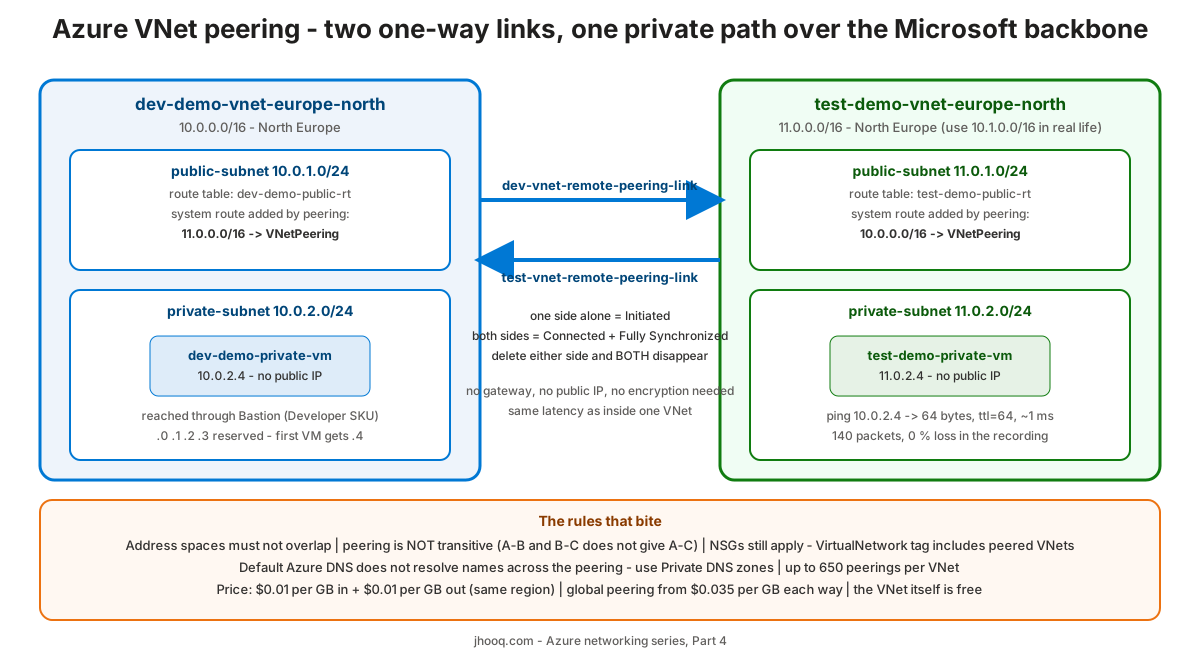
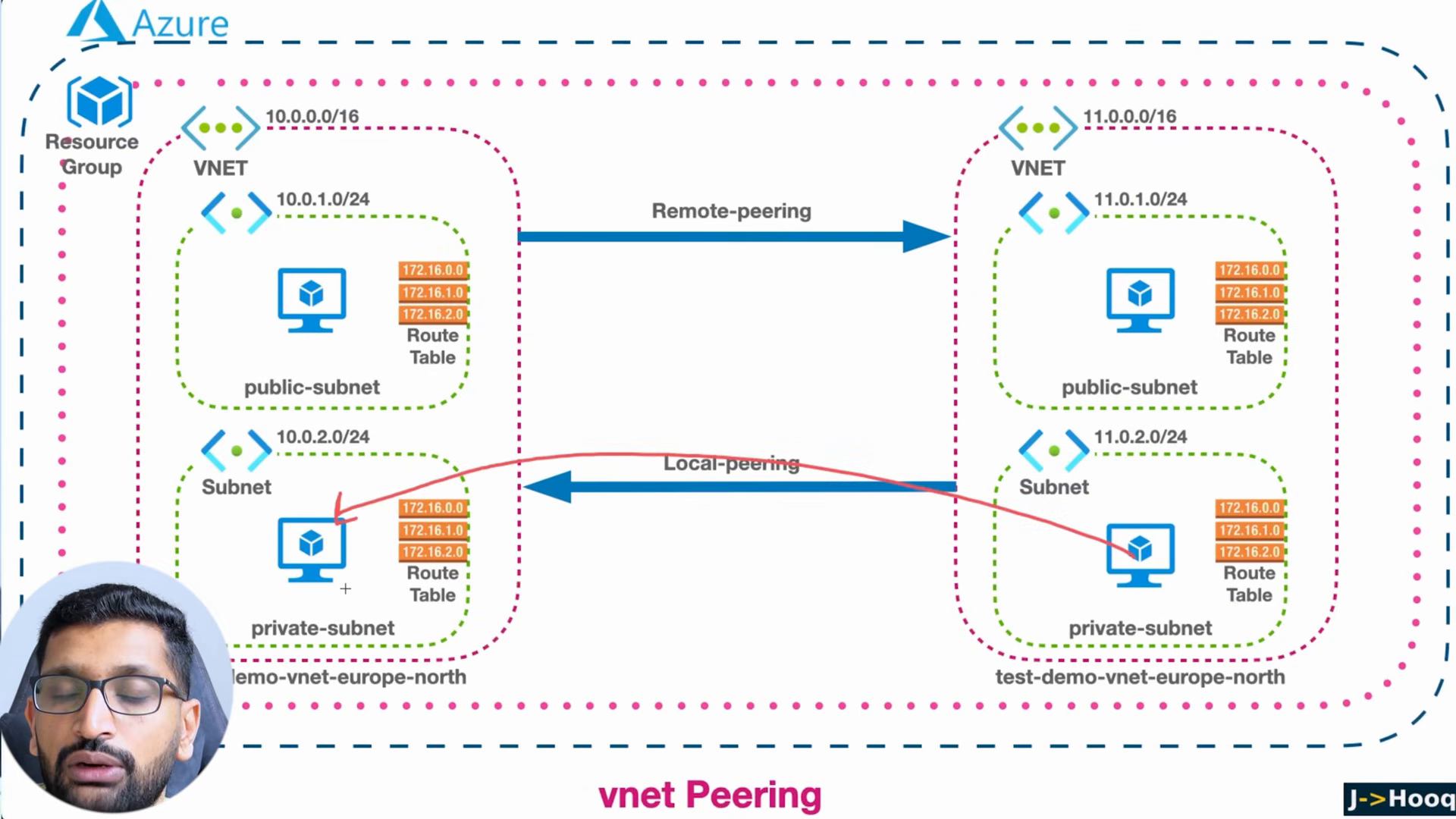
Two VNets in North Europe, each with a public and a private subnet and its own route tables, a VM with no public IP in each private subnet, a peering between the VNets, and a ping from one private VM to the other through Azure Bastion -
| Resource | dev side | test side |
|---|---|---|
| VNet | dev-demo-vnet-europe-north - 10.0.0.0/16 | test-demo-vnet-europe-north - 11.0.0.0/16 |
| Public subnet | public-subnet - 10.0.1.0/24 | public-subnet - 11.0.1.0/24 |
| Private subnet | private-subnet - 10.0.2.0/24 | private-subnet - 11.0.2.0/24 |
| Route tables | one per subnet | one per subnet |
| VM | dev-demo-private-vm - 10.0.2.4 | test-demo-private-vm - 11.0.2.4 |
| Peering link | dev-vnet-remote-peering-link | test-vnet-remote-peering-link |
This is the slide from the video with the two links drawn in -
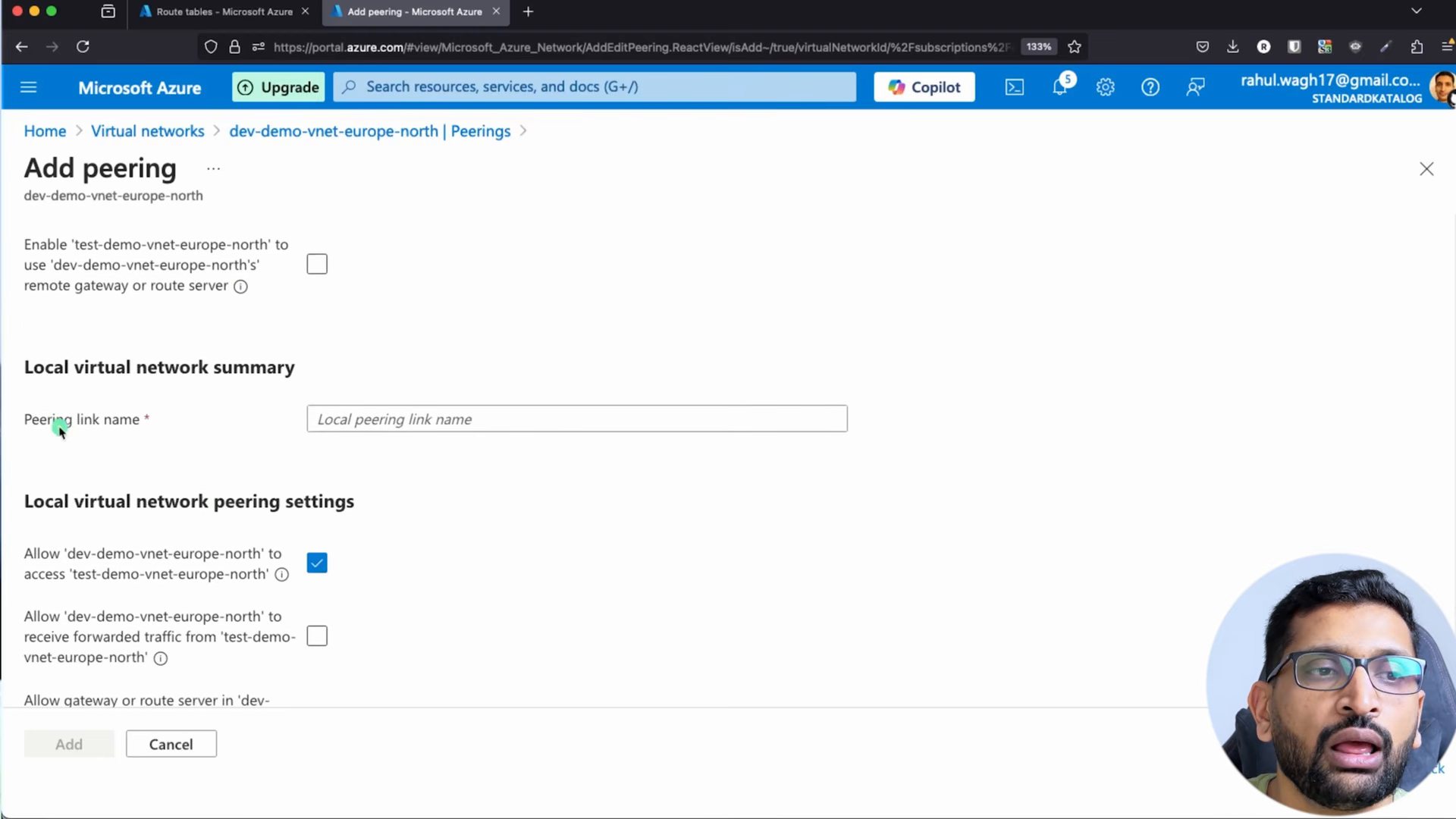
One honest note before we start - I used 11.0.0.0/16 for the second VNet because it is visually easy to tell apart from 10.x in a demo. It works inside Azure, but 11.0.0.0/8 is not a private range (it is publicly allocated, to the US Department of Defense), so in a real environment pick a second RFC 1918 block such as 10.1.0.0/16 or 172.16.0.0/16. More on that in section 10.
3. Step 1 - Resource group and the two VNets
- In the portal search for Resource groups → + Create - Name
vnet-peering-rg, Region North Europe. Review + create → Create. Everything in this lab goes in here so that one delete cleans up at the end. - Search Virtual networks → + Create. Basics - resource group
vnet-peering-rg, Namedev-demo-vnet-europe-north, Region North Europe. - Security tab - leave Bastion, Firewall and DDoS off (we add Bastion later, from the VM blade).
- IP addresses tab - IPv4 address space
10.0.0.0/16. Edit thedefaultsubnet intopublic-subnetwith starting address10.0.1.0and size/24, then + Add a subnet -private-subnet,10.0.2.0,/24. Tick Private subnet (no default outbound access) on the private one - that is the current default behaviour anyway, see Part-1. - Review + create → Create.
- Repeat for the second VNet - Name
test-demo-vnet-europe-north, address space11.0.0.0/16(or10.1.0.0/16, as discussed), subnetspublic-subnet11.0.1.0/24 andprivate-subnet11.0.2.0/24.
Open Virtual networks and you should see both, in the same region, in the same resource group. Peering does not need either of those two things to be true - but it keeps the demo simple.
4. Step 2 - Subnets and route tables
Each subnet gets its own route table in the video so that we can see exactly what peering changes. Azure creates the system routes for you - the ones that matter here are 10.0.0.0/16 → Virtual network inside the dev VNet and 0.0.0.0/0 → Internet. The custom tables start empty -
- Search Route tables → + Create - resource group
vnet-peering-rg, region North Europe, Namedev-demo-public-rt. Create. Repeat fordev-demo-private-rt,test-demo-public-rt,test-demo-private-rt. - Open each table → Subnets → + Associate → the matching VNet and subnet.
Nothing in these tables routes traffic across the peering - and that is the point. When the peering comes up, Azure adds an optional system route with next hop type VNetPeering for the remote address space to every subnet in both VNets, automatically. You can watch it appear in Network interface → Effective routes of either VM, which is also the first place to look when a peering "does not work" (diagnose a routing problem).
5. Step 3 - The four peering settings explained
Before clicking Add, understand the four checkboxes you will see on each side of the peering. From create, change or delete a peering -
| Setting (as shown for vnet-1) | Default | What it does | When you need it |
|---|---|---|---|
| Allow 'vnet-1' to access the peered virtual network | on | the basic traffic permission. Also makes the NSG VirtualNetwork service tag include the peered VNet | always, unless you want a peering that exists but blocks traffic (a handy kill switch) |
| Allow 'vnet-1' to receive forwarded traffic from the peered virtual network | off | accepts traffic that did not originate in the peer - traffic forwarded by an NVA or firewall sitting in the peer | hub-and-spoke with a firewall in the hub; spoke-to-spoke through the hub |
| Allow gateway or route server in 'vnet-1' to forward traffic to the peered virtual network | off | lets the peer use vnet-1's VPN or ExpressRoute gateway - "gateway transit", set on the hub side | the hub has the gateway to on-premises and spokes should use it |
| Enable 'vnet-1' to use the peered virtual network's remote gateway or route server | off | the matching switch on the spoke side - use the remote gateway instead of having your own | same scenario; a VNet can use only one gateway, local or remote |
The portal shows the same four for the remote VNet in the top half of the form, so one Add peering configures both links. For the lab only the first setting is needed, and it is on by default.
6. Step 4 - Create the peering
- Open
dev-demo-vnet-europe-north→ Settings → Peerings → + Add. - Remote virtual network summary - Peering link name
test-vnet-remote-peering-link, Virtual network deployment model Resource Manager, Subscription yours, Virtual networktest-demo-vnet-europe-north. (If the other VNet is in a subscription you cannot browse, tick I know my resource ID and paste its full/subscriptions/.../virtualNetworks/...id.) - Remote virtual network peering settings - leave Allow 'test-demo-vnet-europe-north' to access 'dev-demo-vnet-europe-north' ticked; the other three stay off.
- Local virtual network summary - Peering link name
dev-vnet-remote-peering-link. - Local virtual network peering settings - Allow 'dev-demo-vnet-europe-north' to access 'test-demo-vnet-europe-north' ticked; others off.
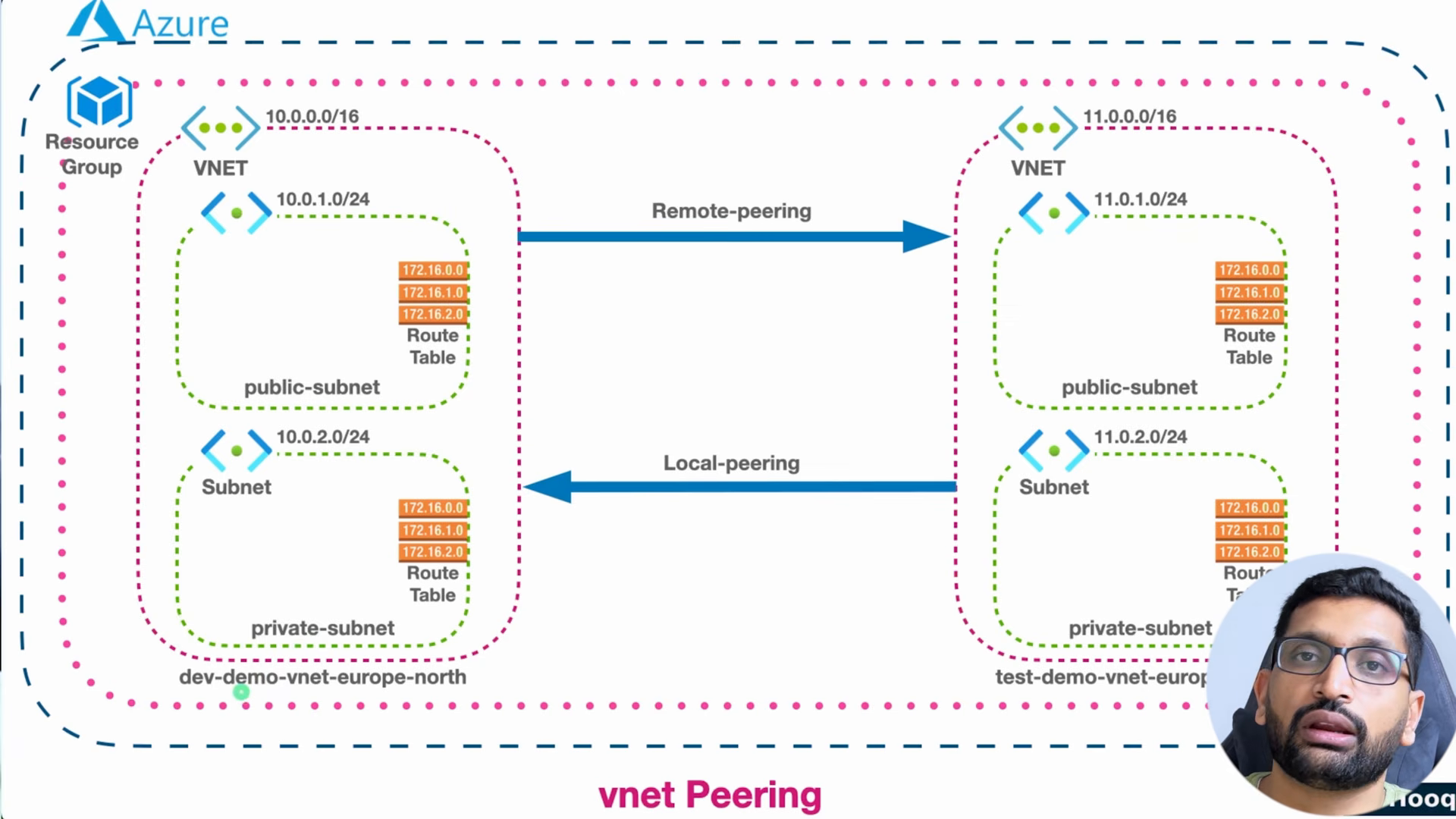
- Add. The row appears as Updating, and after a Refresh a few seconds later both the Peering status and the Peering sync columns go green -
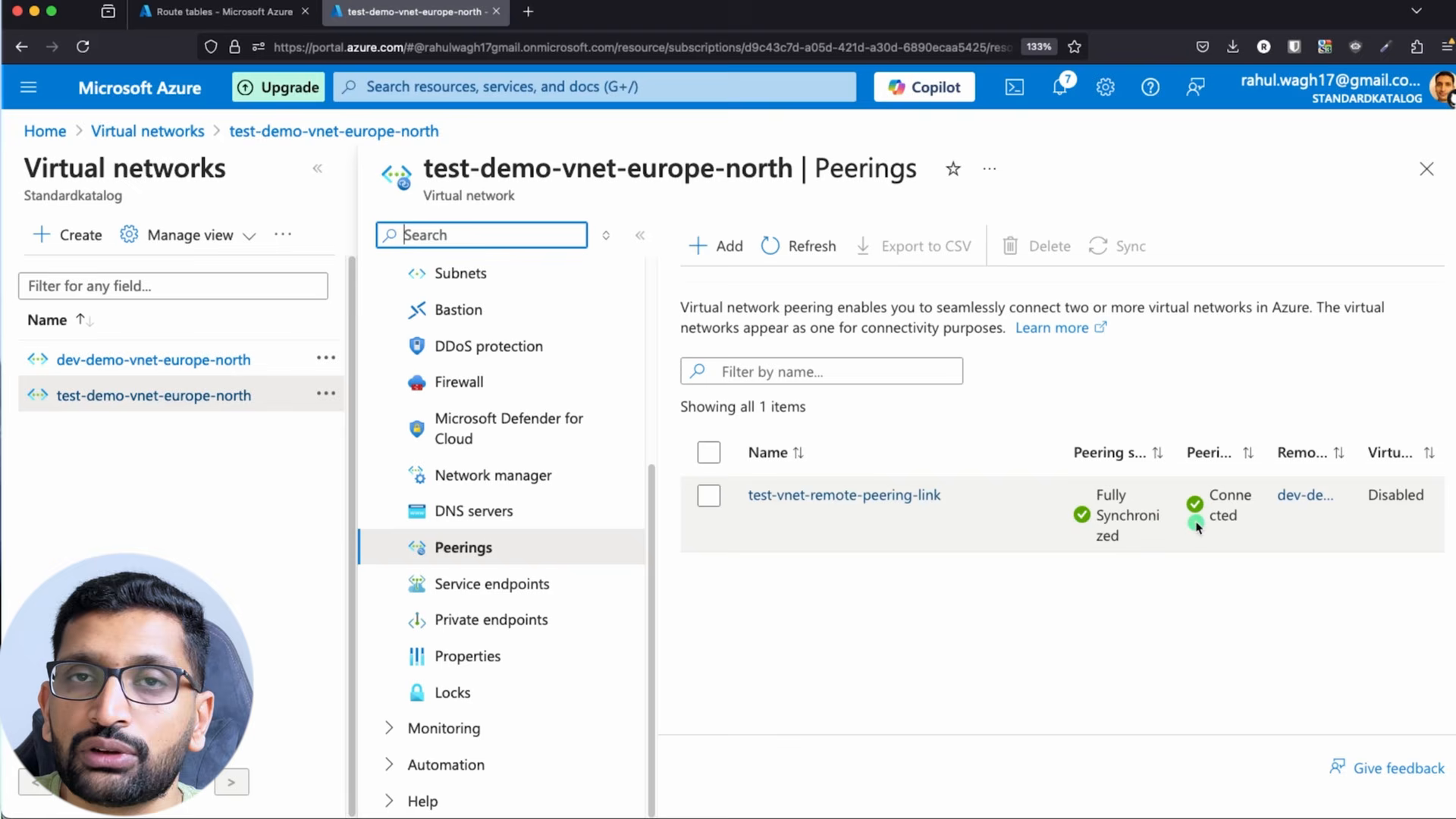
Open the other VNet's Peerings blade and you will find the mirror link already there - the portal created both one-way links in one go. With PowerShell or the CLI you create them one at a time, and after the first one the state is Initiated; it flips to Connected only when the second link exists (section 12). Fully Synchronized means both sides have the same view of each other's address space; if you later add an address range to one VNet, this turns into Remote Not In Sync and you press Sync (update the address space of a peered VNet).
7. Step 5 - Two private VMs and Bastion
Now something to test with - one VM in each private subnet, with no public IP, reachable only through Azure Bastion.
- Virtual machines → + Create → Azure virtual machine - resource group
vnet-peering-rg, Namedev-demo-private-vm, region North Europe, Image Ubuntu Server 24.04 LTS, SizeStandard_B1s, Authentication Password (the video uses a password so that Bastion's VM Password option works without uploading a key), Public inbound ports None. - Networking - Virtual network
dev-demo-vnet-europe-north, Subnetprivate-subnet (10.0.2.0/24), Public IP None, NIC network security group Basic with Public inbound ports: None. Review + create → Create. - Repeat for
test-demo-private-vmintest-demo-vnet-europe-north/private-subnet (11.0.2.0/24). - Open
dev-demo-private-vm→ Connect → Bastion. The portal offers to create the Bastion Developer SKU for the VNet - free, no dedicated subnet, no public IP - choose Authentication Type VM Password, enter the username and password, tick Open in new browser tab, Connect.
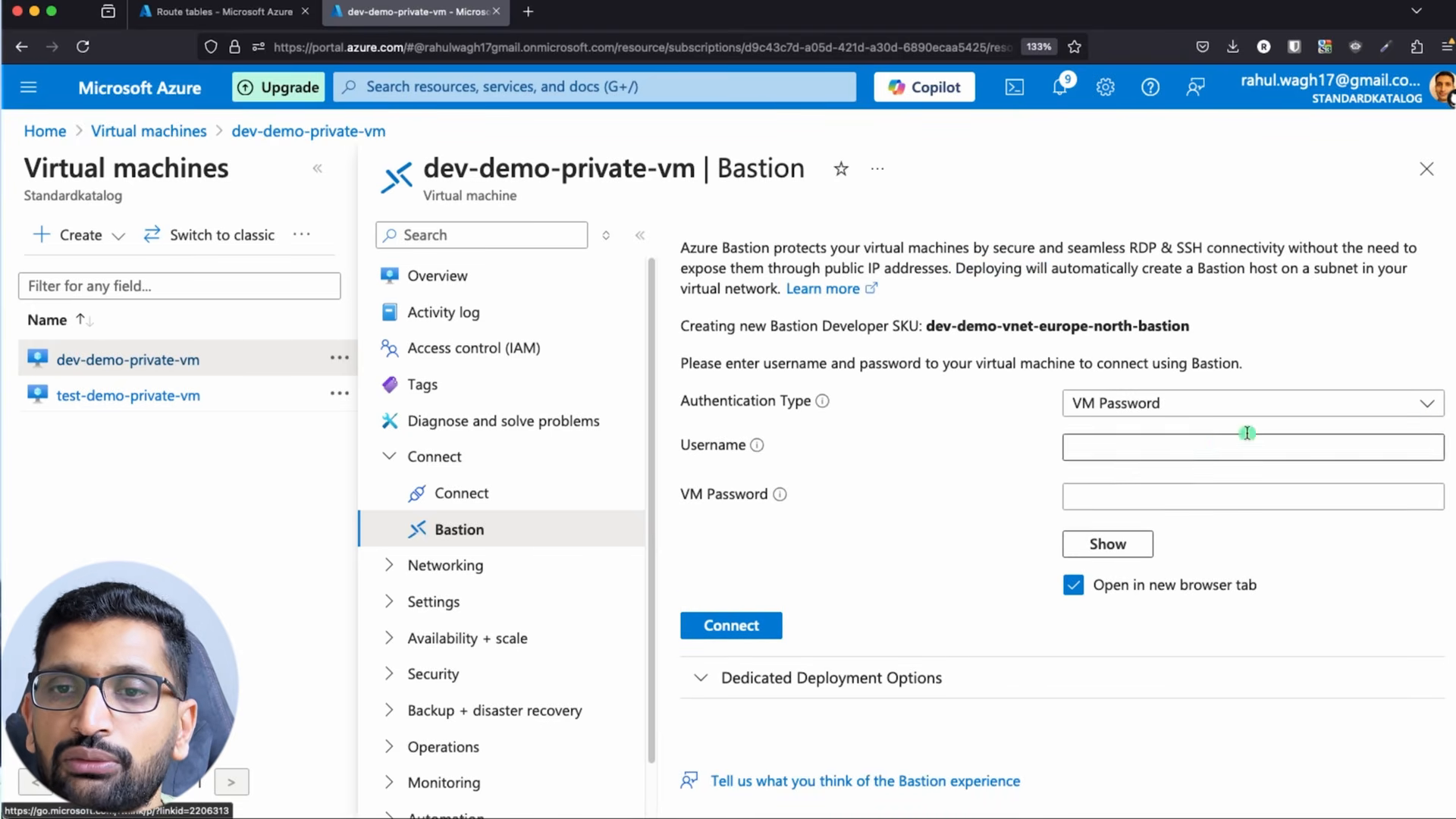
Both VMs get the .4 address of their subnet - 10.0.2.4 and 11.0.2.4 - because Azure reserves .0, .1, .2 and .3 in every subnet. You will use those two addresses for the test.
8. Step 6 - Verify - the ping test from the recording
Inside the Bastion session on test-demo-private-vm (11.0.2.4) I pinged the dev VM. This is the real terminal from the recording, 6 January 2025, Ubuntu 24.04.1 LTS -
 1Welcome to Ubuntu 24.04.1 LTS (GNU/Linux 6.8.0-1017-azure x86_64)
 2
 3System information as of Mon Jan  6 22:33:06 UTC 2025
 4  IPv4 address for eth0: 11.0.2.4
 5
 6Last login: Mon Jan  6 22:33:08 2025 from 168.63.129.16
 7
 8azureuser@test-demo-private-vm:~$ ping 10.0.2.4
 9PING 10.0.2.4 (10.0.2.4) 56(84) bytes of data.
1064 bytes from 10.0.2.4: icmp_seq=1 ttl=64 time=1.29 ms
1164 bytes from 10.0.2.4: icmp_seq=2 ttl=64 time=2.46 ms
1264 bytes from 10.0.2.4: icmp_seq=3 ttl=64 time=0.957 ms
1364 bytes from 10.0.2.4: icmp_seq=4 ttl=64 time=0.898 ms
1464 bytes from 10.0.2.4: icmp_seq=5 ttl=64 time=1.60 ms
1564 bytes from 10.0.2.4: icmp_seq=6 ttl=64 time=1.04 ms
Three details worth noticing - the Last login ... from 168.63.129.16 line shows Bastion coming in through Azure's platform address, the ttl=64 tells you there is no router hop in between (peering is a direct path, not a gateway), and the round trip is around a millisecond, which is exactly the "same as within a single VNet" claim from the docs.
Then the other direction, from dev-demo-private-vm (10.0.2.4), left running while I talked -
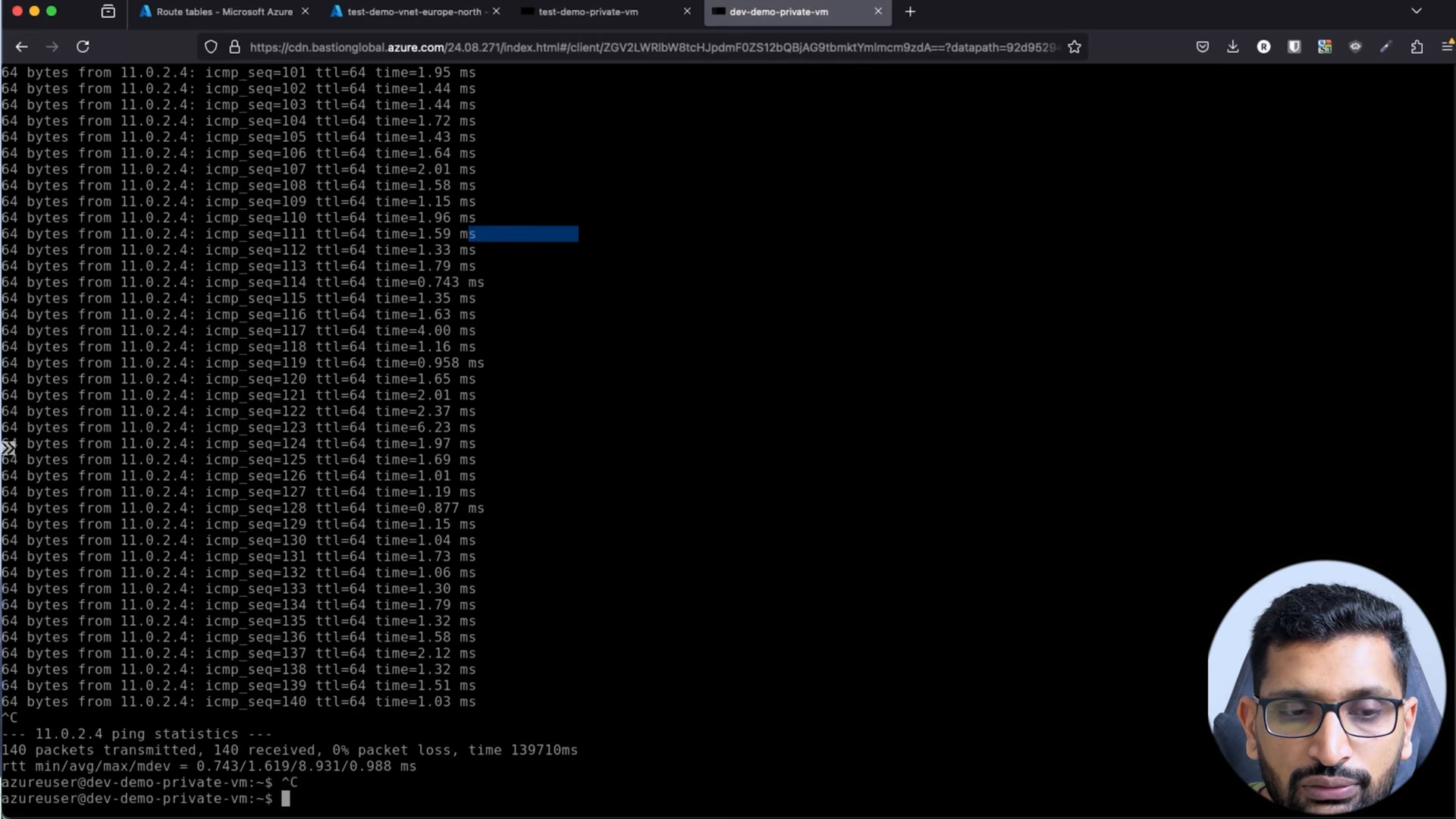
164 bytes from 11.0.2.4: icmp_seq=138 ttl=64 time=1.32 ms
264 bytes from 11.0.2.4: icmp_seq=139 ttl=64 time=1.51 ms
364 bytes from 11.0.2.4: icmp_seq=140 ttl=64 time=1.03 ms
4^C
5--- 11.0.2.4 ping statistics ---
6140 packets transmitted, 140 received, 0% packet loss, time 139710ms
7rtt min/avg/max/mdev = 0.743/1.619/8.931/0.988 ms
140 packets, 0 % loss, 1.6 ms average between two VMs that have no public IP, in two different VNets, with nothing configured except the peering. Note that ICMP got through because the NSG default rule AllowVNetInBound allows the VirtualNetwork service tag - and once Allow access is ticked on the peering, that tag includes the peered VNet. If you tightened the NSG in Part-1 style, add an inbound ICMP rule from the remote range.
9. Step 7 - Delete the peering and watch it break
The last chapter of the video is the one I would encourage you to run yourself, because it shows what a peering really is. With the ping still running on the dev VM -
test-demo-vnet-europe-north→ Peerings → ticktest-vnet-remote-peering-link→ Delete → typedelete→ Delete.- Within seconds the replies stop. Nothing else changed - same VMs, same NSGs, same route tables.
- Open
dev-demo-vnet-europe-north→ Peerings - the dev-side link is gone too, "Showing all 0 items".
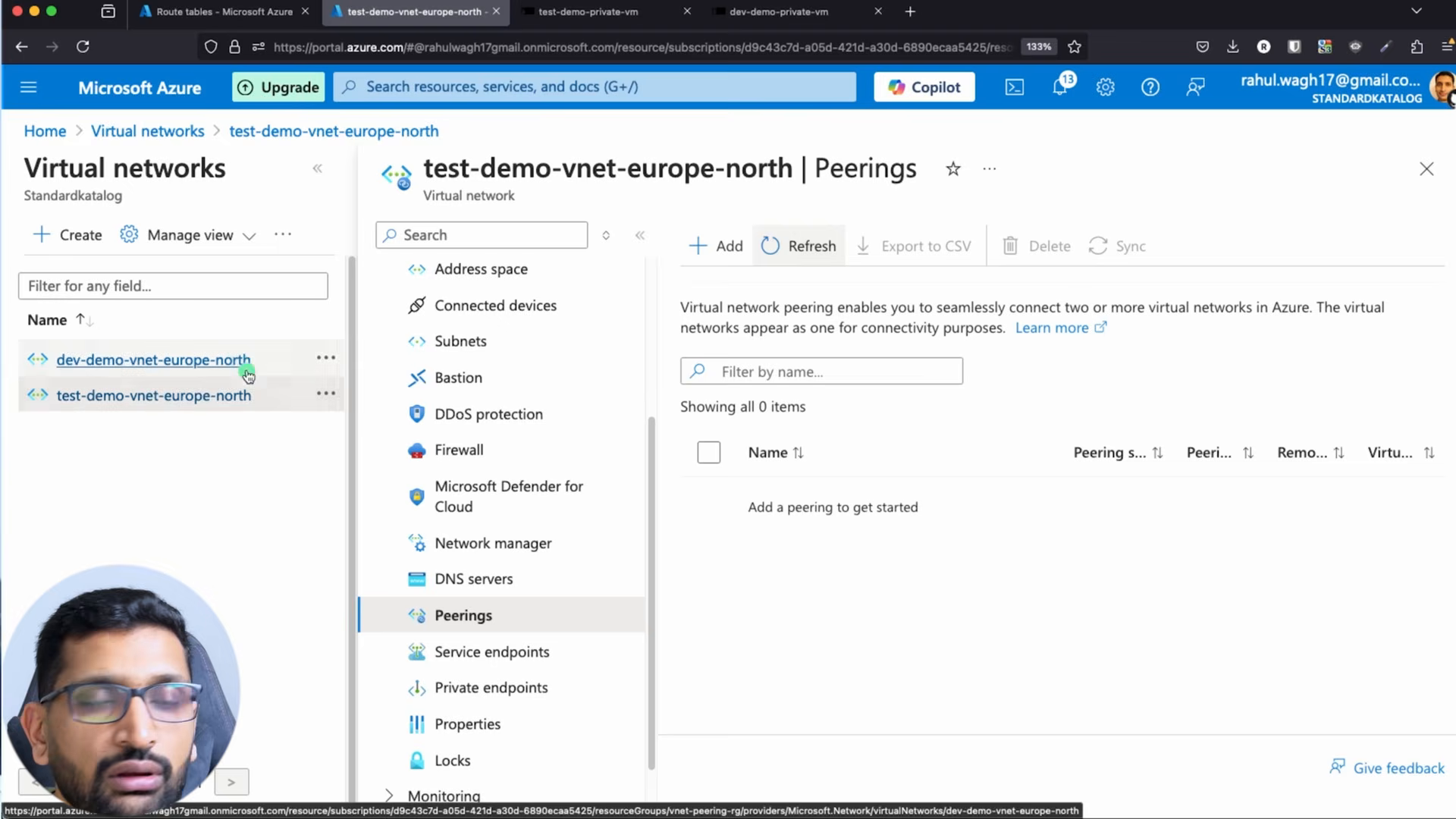
That is the documented behaviour - "when you delete a virtual network peering from a virtual network, the peering from the remote virtual network is also deleted". If you only want to pause connectivity, do not delete; untick Allow ... to access ... on the peering instead and re-tick it later. The docs recommend exactly that for networks that should talk "sometimes, but not always".
10. What broke when I ran this and what I would do differently
Not everything in a 40-minute recording is something I would copy into production. Here is the honest list.
1. I used 11.0.0.0/16, and I would not do that again. It made the demo readable, and Azure accepted it without a murmur, but 11.0.0.0/8 is publicly routable address space that belongs to someone else. The day a VM in that VNet needs to reach a real host in 11.x on the internet, the system route 11.0.0.0/16 → Virtual network wins and the packet never leaves Azure. Use a second RFC 1918 block - 10.1.0.0/16 - and plan your ranges with the CIDR post before you create anything, because you cannot peer overlapping ranges and resizing a peered VNet requires a sync on both sides.
2. Ping by name does not work, and that is not the peering's fault. The first thing I tried after the peering came up was the VM name. Azure-provided DNS resolves names inside one VNet only; across a peering you ping by IP, or you link both VNets to an Azure Private DNS zone with auto-registration. Budget that into any real design.
3. The CLI version left me at Initiated. When I scripted the same lab (section 12) the first az network vnet peering create returns "peeringState": "Initiated" and nothing flows - you need the second command from the other VNet before it reads Connected. The portal hides this because it creates both links. If a peering ever shows Initiated or Disconnected in the portal, the other side is missing or was deleted; recreate it.
4. One Bastion was enough, but only after the peering existed. In the video I connect to each VM from its own VNet. The tutorial docs point out that after the peering is Connected, a single Bastion in one VNet can open sessions to VMs in the peered VNet - which is also the cheaper layout if you use the Basic or Standard SKU, since those bill per hour.
5. The deletion test proved the "two links" model. Deleting from the test side removed the dev side's link as well, which surprised a few people in the comments. It is not a bug - the two links are one logical peering.
6. What I did not hit but you will in a hub-and-spoke. Spoke-to-spoke traffic through a firewall in the hub needs Allow forwarded traffic on the spoke peerings and a UDR in each spoke pointing the other spoke's range at the firewall's private IP; peering alone will not route spoke A to spoke B, because peering is not transitive. The hub-and-spoke reference architecture has the full picture, and Virtual Network Manager can build the mesh for you when you have dozens of spokes.
11. Pricing and limits
Pricing - from the Virtual Network pricing page and the public retail price list at the time of writing -
| Inbound | Outbound | |
|---|---|---|
| Virtual network peering (same region) | $0.01 per GB | $0.01 per GB |
| Global virtual network peering (Zone 1, for example West Europe) | $0.035 per GB | $0.035 per GB |
Both sides are charged - 1 GB from dev to test costs 1 cent egress on the dev VNet plus 1 cent ingress on the test VNet. The VNet, the subnets, the route tables and the peering resources themselves are free; you pay only for data that crosses the link. For gateway transit the spoke is charged peering rates for traffic to the hub's gateway as well (the docs corrected an older statement that said otherwise). Compare that with a VPN gateway, which starts at a fixed hourly price before any traffic flows.
Limits - from the networking limits table -
| Resource | Default limit |
|---|---|
| Virtual networks per subscription per region | 1,000 |
| Subnets per virtual network | 3,000 |
| Virtual network peerings per virtual network | 650 |
| Private IP addresses per virtual network | 65,536 |
| User-defined route tables | 600 |
| User-defined routes per route table | 1,000 |
Six hundred and fifty peerings sounds like a lot until you try to build a full mesh - 50 VNets fully meshed is 1,225 peerings. That is the point where you stop drawing lines by hand and use hub-and-spoke, Virtual WAN or Virtual Network Manager connected groups (up to 1,000 spokes on a hub, up to 3,000 VNets in a mesh in supported regions).
12. The same build with the Azure CLI
With the Azure CLI - the same resources, two VNets, two peering links, two VMs -
 1RG=vnet-peering-rg
 2LOC=northeurope
 3
 4az group create --name $RG --location $LOC
 5
 6# two VNets, each with a public and a private subnet
 7az network vnet create -g $RG -l $LOC --name dev-demo-vnet-europe-north \
 8  --address-prefixes 10.0.0.0/16 --subnet-name public-subnet --subnet-prefixes 10.0.1.0/24
 9az network vnet subnet create -g $RG --vnet-name dev-demo-vnet-europe-north \
10  --name private-subnet --address-prefixes 10.0.2.0/24 --default-outbound false
11
12az network vnet create -g $RG -l $LOC --name test-demo-vnet-europe-north \
13  --address-prefixes 11.0.0.0/16 --subnet-name public-subnet --subnet-prefixes 11.0.1.0/24
14az network vnet subnet create -g $RG --vnet-name test-demo-vnet-europe-north \
15  --name private-subnet --address-prefixes 11.0.2.0/24 --default-outbound false
16
17# route tables, one per subnet, associated
18for n in dev-demo-public dev-demo-private test-demo-public test-demo-private; do
19  az network route-table create -g $RG -l $LOC --name $n-rt -o none
20done
21az network vnet subnet update -g $RG --vnet-name dev-demo-vnet-europe-north  --name public-subnet  --route-table dev-demo-public-rt
22az network vnet subnet update -g $RG --vnet-name dev-demo-vnet-europe-north  --name private-subnet --route-table dev-demo-private-rt
23az network vnet subnet update -g $RG --vnet-name test-demo-vnet-europe-north --name public-subnet  --route-table test-demo-public-rt
24az network vnet subnet update -g $RG --vnet-name test-demo-vnet-europe-north --name private-subnet --route-table test-demo-private-rt
25
26# peering - link 1: dev -> test.  Without --allow-vnet-access the peering exists but passes nothing.
27az network vnet peering create -g $RG --name dev-vnet-remote-peering-link \
28  --vnet-name dev-demo-vnet-europe-north --remote-vnet test-demo-vnet-europe-north \
29  --allow-vnet-access --query peeringState -o tsv
30# -> Initiated
31
32# peering - link 2: test -> dev
33az network vnet peering create -g $RG --name test-vnet-remote-peering-link \
34  --vnet-name test-demo-vnet-europe-north --remote-vnet dev-demo-vnet-europe-north \
35  --allow-vnet-access --query peeringState -o tsv
36# -> Connected
37
38# both links, table view
39az network vnet peering list -g $RG --vnet-name dev-demo-vnet-europe-north -o table
40az network vnet peering list -g $RG --vnet-name test-demo-vnet-europe-north -o table
41
42# two private VMs without public IPs
43az vm create -g $RG --name dev-demo-private-vm  --image Ubuntu2404 --size Standard_B1s \
44  --vnet-name dev-demo-vnet-europe-north  --subnet private-subnet --public-ip-address "" \
45  --admin-username azureuser --generate-ssh-keys --no-wait
46az vm create -g $RG --name test-demo-private-vm --image Ubuntu2404 --size Standard_B1s \
47  --vnet-name test-demo-vnet-europe-north --subnet private-subnet --public-ip-address "" \
48  --admin-username azureuser --generate-ssh-keys
49
50# the peering route, as the VM's NIC sees it
51NIC=$(az vm show -g $RG -n dev-demo-private-vm --query "networkProfile.networkInterfaces[0].id" -o tsv)
52az network nic show-effective-route-table --ids $NIC -o table
53# look for:  Default  Active  11.0.0.0/16  VNetPeering
54
55# pause traffic without deleting the peering, then resume
56az network vnet peering update -g $RG --vnet-name dev-demo-vnet-europe-north \
57  --name dev-vnet-remote-peering-link --set allowVirtualNetworkAccess=false
58az network vnet peering update -g $RG --vnet-name dev-demo-vnet-europe-north \
59  --name dev-vnet-remote-peering-link --set allowVirtualNetworkAccess=true
60
61# delete - removes the matching link on the other side as well
62az network vnet peering delete -g $RG --vnet-name dev-demo-vnet-europe-north --name dev-vnet-remote-peering-link
When the VNets live in different subscriptions (or resource groups), --remote-vnet must be the full resource id of the remote network, and the account needs the Microsoft.Network/virtualNetworks/virtualNetworkPeerings/write action on both - the Network Contributor role covers it.
13. The same build in Terraform
With the azurerm provider the two one-way links are two resources, and you declare them explicitly -
 1resource "azurerm_resource_group" "lab" {
 2  name     = "vnet-peering-rg"
 3  location = "northeurope"
 4}
 5
 6resource "azurerm_virtual_network" "dev" {
 7  name                = "dev-demo-vnet-europe-north"
 8  location            = azurerm_resource_group.lab.location
 9  resource_group_name = azurerm_resource_group.lab.name
10  address_space       = ["10.0.0.0/16"]
11}
12
13resource "azurerm_subnet" "dev_private" {
14  name                            = "private-subnet"
15  resource_group_name             = azurerm_resource_group.lab.name
16  virtual_network_name            = azurerm_virtual_network.dev.name
17  address_prefixes                = ["10.0.2.0/24"]
18  default_outbound_access_enabled = false
19}
20
21resource "azurerm_virtual_network" "test" {
22  name                = "test-demo-vnet-europe-north"
23  location            = azurerm_resource_group.lab.location
24  resource_group_name = azurerm_resource_group.lab.name
25  address_space       = ["10.1.0.0/16"]          # RFC 1918 this time
26}
27
28resource "azurerm_subnet" "test_private" {
29  name                            = "private-subnet"
30  resource_group_name             = azurerm_resource_group.lab.name
31  virtual_network_name            = azurerm_virtual_network.test.name
32  address_prefixes                = ["10.1.2.0/24"]
33  default_outbound_access_enabled = false
34}
35
36# link 1 - dev -> test
37resource "azurerm_virtual_network_peering" "dev_to_test" {
38  name                         = "dev-vnet-remote-peering-link"
39  resource_group_name          = azurerm_resource_group.lab.name
40  virtual_network_name         = azurerm_virtual_network.dev.name
41  remote_virtual_network_id    = azurerm_virtual_network.test.id
42  allow_virtual_network_access = true
43  allow_forwarded_traffic      = false
44  allow_gateway_transit        = false
45  use_remote_gateways          = false
46}
47
48# link 2 - test -> dev
49resource "azurerm_virtual_network_peering" "test_to_dev" {
50  name                         = "test-vnet-remote-peering-link"
51  resource_group_name          = azurerm_resource_group.lab.name
52  virtual_network_name         = azurerm_virtual_network.test.name
53  remote_virtual_network_id    = azurerm_virtual_network.dev.id
54  allow_virtual_network_access = true
55  allow_forwarded_traffic      = false
56  allow_gateway_transit        = false
57  use_remote_gateways          = false
58}
terraform destroy on either peering resource removes the Azure-side link, which also removes its twin - so always destroy both, or Terraform will try to delete a peering that is already gone on the next run. The VM resources are the same azurerm_linux_virtual_machine blocks from my Azure VM course, minus the public IP.
14. Peering vs VPN vs Virtual WAN - and the AWS and GCP equivalents
| VNet peering | VNet-to-VNet VPN gateway | Virtual WAN | |
|---|---|---|---|
| Path | Microsoft backbone, direct | IPsec tunnel between two gateways, still on the backbone | managed hub per region, any-to-any |
| Encryption | none needed (private backbone); encrypt at the app layer if required | IPsec | IPsec to on-premises, backbone between hubs |
| Throughput | VM limit only | gateway SKU limit | hub throughput |
| Transitive | no | yes, via the gateway, slowly | yes |
| Price | per GB only | hourly gateway + per GB | hourly hub + per GB |
| Set-up time | seconds | 30-45 minutes for the gateways | tens of minutes |
| Use when | a handful of VNets that must talk privately | you need encryption in transit for compliance or a cross-cloud tunnel | many VNets, many branches, global |
If you are coming from the other clouds - this is the AWS VPC peering story almost line for line (non-transitive, no overlap, routes added per side), the hub-and-spoke answer there is Transit Gateway, and on Google Cloud it is VPC Network Peering with the same transitive-peering trap.
15. Clean up
Everything lives in one resource group, so -
1az group delete --name vnet-peering-rg --yes --no-wait
The only things that cost money by the hour in this lab are the two Standard_B1s VMs and their disks. Bastion Developer SKU, the VNets, the route tables and the peering are free; the few hundred ICMP packets we sent across the peering cost a fraction of a cent.
16. Conclusion
VNet peering is the simplest and cheapest way to connect two Azure virtual networks - two one-way links, private IPs, backbone latency, a cent per gigabyte each way. Remember the three rules (no overlapping ranges, not transitive, both links or nothing), expect to ping by IP unless you add Private DNS, and reach for the Allow access checkbox rather than Delete when you only want to pause traffic. Pick proper RFC 1918 ranges from day one - learn from my 11.0.0.0/16.
Part-5 is the Azure public DNS zone demo, and if you missed the earlier parts - Part-1 VNet, subnets, NSG and route table is the foundation this post builds on.
More videos on this topic - Parts 2, 3 and 5 of my Azure networking series - public and private subnets, the Bastion setup used above, and the public DNS zone -
Did this save you a debugging session? Stay in the loop -
- Subscribe on YouTube - every post here has a screen-recorded companion video.
- Code on GitHub - the repositories, Terraform and scripts behind these posts.
Posts in this series
- Azure VNet Peering Step by Step - Connect Two Virtual Networks with Different CIDR Ranges, Route Tables, the Four Peering Settings Explained, Test with Two Private VMs over Bastion, Delete and Watch It Break, Pricing, Limits, CLI and Terraform (Azure Networking Part-4)
- Azure Virtual Network Step by Step - Create a VNet, Subnets, Network Security Group and Route Table, Understand Default Outbound Access Retirement, NAT Gateway and Test with Two VMs (Azure Networking Part-1)
- Azure Function App
- Azure Virtual Machine Course