How to Launch an EC2 Instance on AWS Step by Step - AMI, Instance Type, Key Pair, Security Group, Connect with SSH or EC2 Instance Connect, Stop vs Terminate (AWS Part-4)
Identities are sorted - an IAM user (Part-1), accounts (Part-2) and roles (Part-3). Time to run something. Amazon EC2 (Elastic Compute Cloud) is the virtual server service, and in this Part-4 we launch one from the console, connect to it, and understand every choice on the launch page so that nothing on the bill surprises you.
I have a separate post that does all of this with Terraform. This one is the console version - you should do it by hand once, because every field in that Terraform file corresponds to a decision on this page.
Table of Content
- What is EC2 and what you pay for
- Choose a region
- Launch instance - name and AMI
- Instance type
- Key pair
- Network settings and the security group
- Storage
- Advanced details - IAM role, user data, IMDSv2
- Connect to the instance - SSH, EC2 Instance Connect, Session Manager
- Stop, start, reboot, terminate - and the IP address problem
- Common EC2 launch and connection errors
- Conclusion
1. What is EC2 and what you pay for
An EC2 instance is a virtual machine - CPU, memory, a network interface in your VPC, and one or more EBS volumes as disks - launched from an AMI (a disk image with an operating system). You pay -
- Compute - per second while the instance is running, by instance type and region (EC2 pricing). On-Demand by default; Spot for up to 90% off interruptible capacity; Savings Plans / Reserved Instances for 1-3 year commitments (purchasing options).
- EBS storage - per GB-month, whether the instance is running or stopped.
- Public IPv4 addresses - since February 2024 every public IPv4 address costs $0.005 per hour, attached or not.
- Data transfer out to the internet - per GB; in is free.
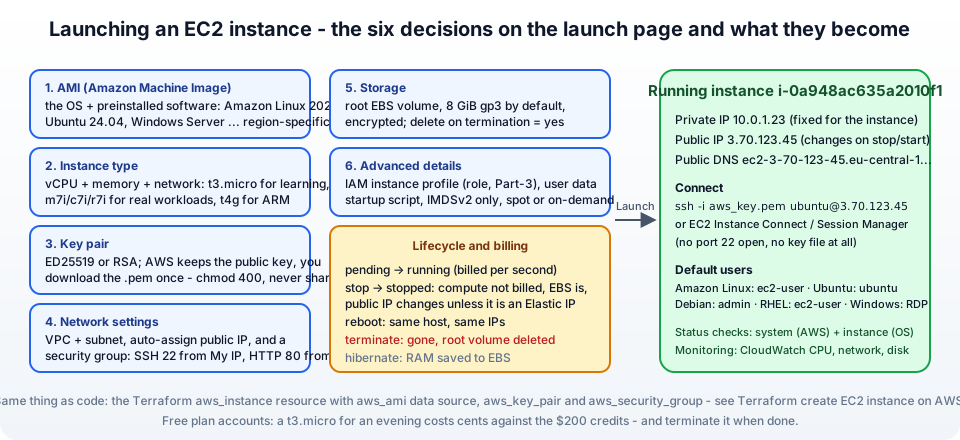
On the current AWS Free plan new accounts get credits rather than the old 750 free hours; a t3.micro running for a few evenings costs cents against them. The habit that matters more than any pricing detail - terminate what you are not using (section 10).
2. Choose a region
Top-right of the console - the region selector. An instance lives in exactly one region, and so do its AMI, key pair, security group and EBS volume. Pick the one close to your users (or to you, for a lab) - I use Europe (Frankfurt) eu-central-1 throughout the series. If you ever "lose" an instance, you are almost certainly looking at the wrong region.
3. Launch instance - name and AMI
EC2 → Instances → Launch instances. The current console puts everything on one page, with a Summary on the right.
Name and tags - Name = jhooq-web-01. Tags are free metadata; Name is the one the instance list shows. Add env=lab too - tags are how cost reports and automation find things later.
Application and OS Images (Amazon Machine Image) - the AMI decides the operating system. Under Quick Start -
- Amazon Linux 2023 - AWS's own distro, free,
dnfbased, SELinux, IMDSv2 enforced, default userec2-user. The best choice if you have no preference. - Ubuntu Server 24.04 LTS - what most tutorials (including mine) use; default user
ubuntu. - Windows Server, Red Hat, SUSE, Debian, macOS (on dedicated hosts) - note that RHEL and Windows AMIs carry a licence charge in the hourly price.
Make sure the AMI says Free tier eligible / 64-bit (x86) unless you deliberately pick an ARM (64-bit (Arm)) AMI for a Graviton instance. The AMI ID (ami-0a1b2c3d...) is region-specific - the same Ubuntu image has a different ID in every region, which is why the Terraform version uses a data source to look it up. Browse more AMIs opens the Marketplace and community images; be careful with those - anyone can publish a community AMI.
4. Instance type
The instance type sets vCPUs, memory, network and storage performance. The naming is family + generation + optional attributes + .size -
- t3.micro - 2 vCPU, 1 GiB, burstable (you earn CPU credits while idle and spend them under load). The right pick for this tutorial.
- t4g - the same idea on ARM Graviton, roughly 20% cheaper - needs an Arm AMI.
- m7i / m7g - general purpose balanced; c7i - compute optimised; r7i - memory optimised; g/p - GPUs; i - local NVMe storage.
Pick t3.micro (or t4g.micro with an Arm AMI). The Compare instance types button shows price per hour next to the specs; the full catalogue with every attribute is the instance types reference. Note that t2.micro, which every 2020 tutorial used, is not even offered in the newer regions - use t3.
5. Key pair
SSH to a Linux instance uses a key pair - AWS puts the public key into the instance at first boot, you keep the private key. Key pair (login) → Create new key pair -
- Key pair name -
jhooq-key. - Key pair type - ED25519 (modern, short, fast; use it) or RSA (for very old clients).
- Private key file format - .pem for OpenSSH (Linux, macOS, Windows 10+ with the built-in OpenSSH), .ppk only if you still use PuTTY.
- Create key pair - the browser downloads
jhooq-key.pem. This is the only time you can download it. Store it in~/.ssh/and lock it down -
1mv ~/Downloads/jhooq-key.pem ~/.ssh/
2chmod 400 ~/.ssh/jhooq-key.pem
You can also import your existing public key (Actions → Import key pair on the Key pairs page), which is what the Terraform post does with aws_key_pair. Key pairs are per region. And if you lose the private key, you cannot recover it - you create a new one and either rebuild the instance or use EC2 Instance Connect / Session Manager (section 9) to add a new public key.
6. Network settings and the security group
Network settings → Edit -
- VPC - the default VPC for now (every region has one,
172.31.0.0/16). In Part-5 we build our own and come back here to launch into it. - Subnet - no preference, or pick an AZ.
- Auto-assign public IP - Enable. Without a public IP you cannot SSH in from your laptop. (It is a dynamic address - it changes when you stop and start the instance; see section 10.)
- Firewall (security groups) - a security group is a stateful firewall attached to the instance's network interface. Create security group -
- Security group name -
jhooq-web-sg. - Allow SSH traffic from - tick it and change the dropdown from
Anywhere 0.0.0.0/0to My IP. Port 22 open to the whole internet is the single most common mistake on this page; bots start probing within minutes. - Allow HTTP traffic from the internet - tick it if you will run a web server (section 8 installs one). HTTPS likewise when you have a certificate.
- Security group name -
Security group rules are allow only (no deny rules), stateful (a reply to an allowed request is allowed back automatically), and the default outbound rule allows everything. You can attach up to five security groups to an instance and edit rules at any time without restarting - which is also how you fix "my IP changed and SSH stopped working".
7. Storage
Configure storage - the root volume comes from the AMI: 8 GiB gp3 for Ubuntu and Amazon Linux. Change -
- Size - 8 GiB is enough for a lab; 20-30 GiB for anything you will install software on. You can grow a volume later without downtime, never shrink.
- Volume type - gp3 (3,000 IOPS and 125 MB/s baseline included, cheaper than gp2). io2 for databases that need guaranteed IOPS.
- Encrypted - yes, with the default
aws/ebskey. Free, no performance cost, and some compliance checks require it. You can make it the account default under EC2 → Settings → EBS encryption. - Delete on termination - on for the root volume (default). Add a second data volume if you want data to survive the instance.
The EBS volumes guide covers types and snapshots; my Part-20 video on EBS goes deep and the post is coming.
8. Advanced details - IAM role, user data, IMDSv2
Expand Advanced details. Three settings are worth knowing from day one -
IAM instance profile - attach the role from Part-3. The instance then has credentials for S3, SSM, CloudWatch - whatever the role allows - without any access key on the disk. Choose Create new IAM profile if you have none; the role needs trusted entity EC2. Attach at least AmazonSSMManagedInstanceCore so that Session Manager works (section 9).
Metadata version - the instance metadata service is how the instance learns its own IP, its role credentials and its user data. Set V2 only (token required). IMDSv1 is the version behind several famous credential-theft incidents; Amazon Linux 2023 AMIs already enforce v2, and the console defaults to it for new launches.
User data - a script that cloud-init runs once, as root, on first boot (user data docs). The classic -
1#!/bin/bash
2apt-get update
3apt-get install -y apache2
4systemctl enable --now apache2
5echo "<h1>Hello from $(hostname -f) - launched in AWS Part-4</h1>" > /var/www/html/index.html
With HTTP allowed in the security group, http://<public-ip> shows the page a minute after launch. Logs in /var/log/cloud-init-output.log if it does not. (Amazon Linux 2023: dnf install -y httpd and httpd instead.) The same script in Terraform is in what is user_data in Terraform.
Other options here - Purchasing option (Spot), Shutdown behavior (stop or terminate), Termination protection (prevents accidental terminate - turn it on for anything important), Placement group, Tenancy.
Check the Summary panel - 1 instance, t3.micro, the AMI, the key pair, the security group - and click Launch instance. After ~30 seconds the instance state goes Pending → Running, and after a minute or two the Status checks show 2/2 checks passed.
9. Connect to the instance - SSH, EC2 Instance Connect, Session Manager
Select the instance → Connect. The console offers four methods -
1. SSH client - the classic, from your terminal, using the key pair and the public IP (shown on this tab) -
1ssh -i ~/.ssh/jhooq-key.pem ubuntu@3.70.123.45
2# Amazon Linux: ec2-user@...   Debian: admin@...   RHEL: ec2-user@...
Accept the host fingerprint on first connection. On Windows, PowerShell has the same ssh command built in; PuTTY needs the .ppk key.
2. EC2 Instance Connect - a browser terminal, no key file needed. The console pushes a one-time SSH key to the instance via the EC2 API, so it still needs port 22 open to the EC2 Instance Connect service range (or to anywhere) and works on Amazon Linux and Ubuntu AMIs that ship the agent. Great for "I lost my key".
3. EC2 Instance Connect Endpoint - the same browser SSH but through a private endpoint in your VPC - no public IP on the instance at all. This is how you reach private-subnet instances in Part-5 without a bastion.
4. Session Manager - part of AWS Systems Manager. Needs the SSM agent (preinstalled on Amazon Linux and Ubuntu AMIs) and the AmazonSSMManagedInstanceCore policy on the instance role - then you get a shell with port 22 closed and no key pair, fully logged to CloudTrail/S3. For anything beyond a lab, this is the recommended way; aws ssm start-session --target i-0a948ac635a2010f1 does it from the CLI. The Session Manager docs have the prerequisites.
Once in, curl -s http://169.254.169.254/latest/meta-data/instance-id (with an IMDSv2 token) or simply aws sts get-caller-identity shows you the instance is acting as its role.
10. Stop, start, reboot, terminate - and the IP address problem
The instance lifecycle in one table -
| Action | Compute billed | EBS billed | Public IP | Data on root volume |
|---|---|---|---|---|
| Running | yes, per second | yes | kept | kept |
| Stop → stopped | no | yes | released - you get a new one on start | kept |
| Reboot | yes | yes | kept | kept |
| Hibernate | no | yes (RAM saved to the volume) | released | kept |
| Terminate | no | no (volumes with delete-on-termination are deleted) | released | gone |
So a stopped instance is nearly free but still costs the 8 GiB of EBS (cents per month), and comes back with a different public IP. If you need a stable address, allocate an Elastic IP and associate it with the instance - it survives stop/start, and it costs the same public-IPv4 hourly charge whether attached or idle, so release it when you delete the instance. Better still, put a DNS name on it via Route 53 or a load balancer, which is where the later parts of this series go.
Instance state → Terminate instance when you are done with the lab. Terminated instances linger in the list for about an hour and then disappear. If the Terminate option is greyed out, termination protection is on - disable it under Actions → Instance settings → Change termination protection.
11. Common EC2 launch and connection errors
1. ssh: connect to host 3.70.123.45 port 22: Connection timed out - The security group does not allow port 22 from your current IP (your IP changed, or you picked My IP from a different network), or the instance has no public IP, or the subnet has no route to an Internet Gateway (custom VPC - Part-5). Edit the inbound rule; the change is immediate.
2. Permission denied (publickey) - Wrong user name for the AMI (ubuntu vs ec2-user vs admin), wrong key file, or the key pair selected at launch is not the one you are using. ssh -v shows which key is offered. The user name per AMI is listed on the Connect tab.
3. WARNING: UNPROTECTED PRIVATE KEY FILE! / Permissions 0644 for 'jhooq-key.pem' are too open - chmod 400 ~/.ssh/jhooq-key.pem. On Windows, fix the file's ACL - the full fix is in how to fix WARNING: UNPROTECTED PRIVATE KEY FILE.
4. Instance launch failed: The requested configuration is currently not supported / Unsupported - The instance type is not available in that AZ or with that AMI architecture (an x86 AMI on a t4g, or vice versa). Change the subnet/AZ or the type.
5. You have requested more vCPU capacity than your current vCPU limit / VcpuLimitExceeded - New accounts have small quotas. Service Quotas → EC2 → Running On-Demand Standard instances → request an increase.
6. Status checks: 1/2 checks passed - The instance status check fails: usually the OS is still booting, or a bad user data script hung it. Wait, then check Actions → Monitor and troubleshoot → Get system log.
7. The web page does not load although Apache is installed - Port 80 is not in the security group, or you are using https://. Also check sudo systemctl status apache2 and /var/log/cloud-init-output.log.
8. Client.InvalidKeyPair.NotFound - Key pairs are per region; you selected a key from another region or deleted it.
9. My instance disappeared - Wrong region (top right), or it was terminated and aged out of the list. Check CloudTrail → Event history → TerminateInstances.
10. The bill shows charges for a stopped instance - EBS volumes, snapshots and an idle Elastic IP are billed regardless of instance state. Delete unattached volumes under Elastic Block Store → Volumes and release idle EIPs.
12. Conclusion
To summarise Part-4 -
- An EC2 instance is an AMI (OS image) on an instance type (size) with EBS disks, in a region, protected by a security group and reached with a key pair - six decisions on one launch page.
- For a lab - Amazon Linux 2023 or Ubuntu 24.04,
t3.micro, an ED25519 .pem key withchmod 400, SSH from My IP only, 8 GiB gp3 encrypted, and an IAM instance profile instead of access keys. - Connect with SSH, or without a key and even without port 22 via EC2 Instance Connect and Session Manager.
- Stop saves compute cost but changes the public IP and keeps EBS charges; terminate removes everything; Elastic IPs are stable but billed when idle.
- Do it once by hand, then do it with Terraform - every line in that file is a field from this page.
The official references are the EC2 getting started tutorial, the key pairs, security groups and connection methods pages. We launched into the default VPC; in Part-5 we build a proper one with public and private subnets, an Internet Gateway and a NAT Gateway.
More videos on this topic - the complete EC2 full course (beginner to expert, with real-time projects) in one video, then the EC2 essentials from my 2024 Solutions Architect series: your first Linux instance, a Windows instance over RDP, and debugging user data scripts on Windows, Amazon Linux and Ubuntu -
AWS step by step series -
- Part-1 : AWS IAM user - create a user, group, policy, access keys and MFA
- Part-2 : AWS Organizations - multi-account setup, OUs and SCPs
- Part-3 : AWS assume IAM role - trust policy, switch role in console and CLI
- Part-4 : How to launch an EC2 instance - key pair, security group, SSH
- Part-5 : AWS VPC - public and private subnets, Internet Gateway, NAT Gateway, route tables
- Part-8 : EC2 launch template - versions, default version, source template, SSM parameter AMI
- Part-10 : EC2 Auto Scaling - launch template, Auto Scaling group, target tracking, ALB
- Part-11 : AWS WAF - web ACL, managed rules, rate limiting, geo blocking
- Part-12 : AWS VPC Peering - connect two VPCs, routes, security groups, DNS
- Part-13 : AWS Transit Gateway - hub-and-spoke for many VPCs and on-premises
- Part-14 : AWS NAT Gateway deep dive - public vs private, limits, cost, troubleshooting
- Part-15 : Amazon Route 53 - hosted zones, records, alias, routing policies, health checks
- Part-16 : AWS security groups - inbound and outbound rules, stateful, referencing, quotas
- Part-16 : AWS Certificate Manager - free TLS certificates for ALB, CloudFront and API Gateway
- Part-17 : AWS Lambda - function URLs, environment variables and layers
- Part-18 : Network Load Balancer - setup, and ALB vs NLB
- Part-19 : VPC endpoints - gateway and interface endpoints (PrivateLink) instead of NAT
- Part-20 : AWS PrivateLink - publish your own service with an endpoint service and NLB
- Part-20 : Amazon EBS volumes - types, attach, mount, resize, snapshots, encryption
- Part-21 : VPC Flow Logs - CloudWatch Logs, S3, record format, Logs Insights, Athena
- Part-21 : EC2 Spot Instances - pricing, interruptions, mixed instances groups
- Part-24 : AWS Control Tower - landing zone, controls, Account Factory, Identity Center
Networking fundamentals -
- What is a VPC and a subnet? AWS networking in five minutes
- What is CIDR? Calculate IP ranges for VPCs and subnets
- What is NAT? Static NAT, dynamic NAT and PAT explained
More AWS guides -
- What is AWS CloudFormation? Templates, stacks, change sets, drift, StackSets
- Learn AWS S3 - the complete course
- AWS API Gateway - REST API with Lambda, authorizers, Terraform
- AWS Advanced Networking Specialty (ANS-C01) - course companion
- AWS ECS and Fargate - how to deploy a Docker container
- AWS S3 - how to host a static website
- Terraform create EC2 instance on AWS
- Terraform AWS IAM - users, roles and policies
- Terraform and AWS multi-account setup
- Terraform - setting up an ALB and SSL
Posts in this series
- Amazon EBS Volumes Step by Step - Volume Types Compared (gp3, gp2, io2 Block Express, st1, sc1), Create, Attach, Format and Mount a Volume, Resize Without Downtime, Snapshots, Encryption, Multi-Attach, Pricing and Troubleshooting (AWS Part-20)
- Amazon Route 53 Step by Step - Hosted Zones, Record Types, Alias Records, Point a Domain at an ALB, Routing Policies (Weighted, Latency, Failover, Geolocation), Health Checks, Private Zones and Pricing (AWS Part-15)
- AWS Advanced Networking - Free 8-Hour Full Course Companion (VPC, NAT Gateway, Bastion, ALB, NLB, WAF, VPC Peering, Transit Gateway, VPC Endpoints and PrivateLink, Route 53, ACM) with Timestamps and the ANS-C01 Exam Facts
- AWS Assume IAM Role Step by Step - Trust Policy vs Permissions Policy, Switch Role in the Console, aws sts assume-role, CLI Profiles, Cross-Account Access, MFA and External ID (AWS Part-3)
- AWS Certificate Manager (ACM) Step by Step - Request a Free TLS Certificate, DNS Validation with Route 53, Attach It to an ALB HTTPS Listener, Redirect HTTP to HTTPS, CloudFront and API Gateway, Auto-Renewal, Exportable Certificates and ACME (AWS Part-16)
- AWS Control Tower Step by Step - Set Up a Landing Zone, Security OU with Log Archive and Audit Accounts, Controls (Guardrails), Region Deny, IAM Identity Center, Account Factory and Enrolling Existing Accounts (AWS Part-24)
- AWS EC2 Auto Scaling Step by Step - Launch Template, Auto Scaling Group Across Two AZs, Target Tracking Policy, Application Load Balancer, Health Checks and Instance Refresh (AWS Part-10)
- AWS EC2 Launch Template Step by Step - Create a Template, Versions and the Default Version, Source Template, Create From a Running Instance, Systems Manager Parameter Instead of an AMI ID, Launch Templates vs Launch Configurations, IAM Guardrails, CLI and Terraform (AWS Part-8 and Part-17)
- AWS EC2 Spot Instances Step by Step - How Spot Pricing Works, Launch a Spot Instance, Interruptions and the Two-Minute Notice, Rebalance Recommendations, Stop vs Hibernate vs Terminate, Spot in Auto Scaling Mixed Instances Groups, Billing Rules, Best Practices, CLI and Terraform (AWS Part-21)
- AWS IAM User Step by Step - Create a User, User Group, Attach Policies, Access Keys, MFA and Sign-in URL (AWS Part-1)
- AWS Lambda Step by Step - Create a Function, Function URL (HTTPS Endpoint Without API Gateway), Environment Variables, Lambda Layers for Python Dependencies, Versions and Aliases, Limits, Pricing and Errors (AWS Part-17)
- AWS NAT Gateway Deep Dive - How It Works, Public vs Private NAT Gateway, Setup Step by Step, Limits (55,000 Connections, 100 Gbps), CloudWatch Metrics, Cost Optimisation, NAT Instance Comparison and Troubleshooting (AWS Part-14)
- AWS Network Load Balancer Step by Step - Create an NLB with Static IPs, Target Groups, TCP and TLS Listeners, Security Groups, Client IP Preservation, Cross-Zone Load Balancing, and ALB vs NLB Explained (AWS Part-18)
- AWS Organizations Step by Step - Multi-Account Setup, Organizational Units, Service Control Policies (SCPs), Consolidated Billing and Identity Center (AWS Part-2)
- AWS PrivateLink Step by Step - Publish Your Own Service with a VPC Endpoint Service and Network Load Balancer, Allow Consumers, Accept Connections, Private DNS Name, Cross-Account and Cross-Region, Pricing and Troubleshooting (AWS Part-20)
- AWS Security Groups Step by Step - Inbound and Outbound Rules, Stateful Behaviour, Referencing Security Groups, the Three-Tier ALB-Web-DB Pattern, Quotas, Security Group vs Network ACL, CLI and Terraform (AWS Part-16)
- AWS Transit Gateway Step by Step - Connect Many VPCs and On-Premises Through One Hub, VPC Attachments, Transit Gateway Route Tables, Associations and Propagations, Isolation, Peering, Pricing (AWS Part-13)
- AWS VPC Endpoints Step by Step - Gateway Endpoints for S3 and DynamoDB, Interface Endpoints (PrivateLink) for SSM, ECR and Other Services, Private DNS, Endpoint Policies, Security Groups, Cost vs NAT Gateway, and Troubleshooting (AWS Part-19)
- AWS VPC Flow Logs Step by Step - Enable Flow Logs for a VPC, Subnet or Network Interface, Publish to CloudWatch Logs or S3, Read a Flow Log Record Field by Field, Custom Formats, Query with Logs Insights and Athena, Find Rejected Traffic, Pricing and Limitations (AWS Part-21)
- AWS VPC Peering Step by Step - Connect Two VPCs (Same or Different Account and Region), Accept the Request, Add Routes, Security Groups, DNS Resolution, Test with EC2, and the Limits (AWS Part-12)
- AWS VPC Step by Step - Create a VPC with Public and Private Subnets, Internet Gateway, NAT Gateway and Route Tables (and Test It with EC2) (AWS Part-5)
- AWS WAF Step by Step - Create a Web ACL, Attach It to an ALB or API Gateway, AWS Managed Rules, Rate-Based Rules, Geo Blocking, IP Sets, Count Mode and Logging (AWS Part-11)
- How to Launch an EC2 Instance on AWS Step by Step - AMI, Instance Type, Key Pair, Security Group, Connect with SSH or EC2 Instance Connect, Stop vs Terminate (AWS Part-4)
- What is an AWS VPC and a Subnet? Virtual Private Cloud Explained in Five Minutes (Region, Availability Zones, Public vs Private Subnets, Gateways, Route Tables)
- What is AWS CloudFormation? Templates, Stacks and Change Sets Explained, Template Anatomy Section by Section, Create Your First Stack Step by Step, Update With a Change Set, Drift Detection, Nested Stacks and StackSets, Quotas, Pricing, CLI, and CloudFormation vs Terraform
- What is CIDR (Classless Inter-Domain Routing)? How to Calculate IP Ranges for VPCs and Subnets, with Examples (/8, /16, /24, /28, /32)
- What is NAT (Network Address Translation)? How It Works, Static NAT vs Dynamic NAT vs PAT, the Translation Table, and Where NAT Shows Up in AWS
- AWS API Gateway Tutorial - REST API with Lambda Proxy and Non-Proxy Integration, Request Validation, HTTP API vs REST API, Resource Policies, Lambda Authorizers and Terraform
- Learn AWS S3 - The Complete Course (Buckets, Objects, Storage Classes, Lifecycle, Versioning, Security Defaults, Bucket Policies, Static Hosting, CLI and Terraform)
- How to release(delete) Elastic IP from AWS?
- Fix docker login 'error saving credentials: error storing credentials - err: exit status 1' (AWS ECR on macOS, Windows, Linux and WSL)