AWS IAM User Step by Step - Create a User, User Group, Attach Policies, Access Keys, MFA and Sign-in URL (AWS Part-1)
This is Part-1 of my AWS step-by-step series, and it starts where every AWS account should start - with IAM (Identity and Access Management). You have just created an AWS account, you are logged in as the root user, and the very first thing to do is to stop using it. In this post we are going to create an IAM user, put it in a group, give the group permissions, log in with it, create access keys for the CLI, and switch on MFA.
I recorded the video for this part in 2023. The IAM console has moved a few buttons since then, and AWS has become much louder about one thing - humans should log in through IAM Identity Center, not as IAM users - so I have written this post against the current console and the current IAM best practices, and I say clearly where an IAM user is still the right tool.
Table of Content
- What is IAM and why not just use the root user?
- IAM users, groups, roles and policies - the four words you need
- Create an IAM user in the console
- Create a user group and attach policies
- Sign in as the IAM user - the sign-in URL and account alias
- Create access keys for the AWS CLI and Terraform
- Enable MFA for the user (and the root user)
- Write your own policy - least privilege in JSON
- How IAM decides - policy evaluation logic
- IAM users vs IAM Identity Center - what AWS wants you to do in 2026
- Common IAM errors and how to fix them
- Conclusion
1. What is IAM and why not just use the root user?
IAM is the AWS service that answers one question for every single API call - is this identity allowed to do this action on this resource? Every click in the console and every aws CLI command goes through it. It is global (not per region) and free.
The root user is the identity you created the account with - the email address and password. It can do absolutely everything, including closing the account and changing the payment method, and it cannot be restricted by any IAM policy. That is exactly why you should not use it for daily work -
- If the root credentials leak, there is no permission boundary to limit the damage.
- You cannot give a colleague "root but only for EC2".
- CloudTrail shows
rootdid everything, so you never know who actually did what.
So the plan for day one is - secure the root user (strong password, MFA, no access keys), then create IAM identities for everything else. AWS itself now requires MFA on the root user of the management account of an organization, and shows a reminder on every root login until you set it up.
2. IAM users, groups, roles and policies - the four words you need
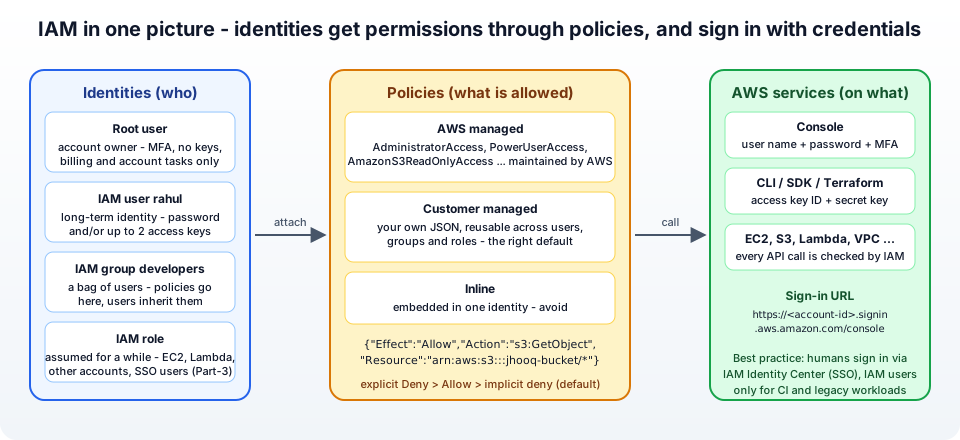
- IAM user - a long-term identity with a name and credentials - a console password and/or access keys. One user per human or per application that cannot use a role.
- IAM group - a collection of users. You attach policies to the group and every member inherits them. Groups cannot be nested and cannot be a principal (you cannot "log in as a group").
- IAM role - an identity with permissions but no credentials of its own - something assumes it and gets temporary credentials. EC2 instances, Lambda functions, other accounts and SSO users all use roles. That is Part-3, AWS assume IAM role.
- IAM policy - a JSON document that says
AlloworDenyfor a list ofActions on a list ofResources, optionally under aCondition. Policies come in three flavours - AWS managed (maintained by AWS, likeAdministratorAccess), customer managed (your own, reusable) and inline (glued to one identity, avoid).
The mental model - identities are attached to policies, policies allow actions on resources. Nothing is allowed until a policy allows it.
3. Create an IAM user in the console
Log in as root (for the last time, hopefully), search for IAM and open Users → Create user. The current console walks you through three steps.
Step 1 - User details
- User name -
rahul. Names are case-insensitive, up to 64 characters, letters, numbers and+=,.@_-. - Provide user access to the AWS Management Console - optional. Tick it if this user is a human who will use the console. The console then shows you two choices -
- Specify a user in Identity Center - Recommended - AWS wants humans in IAM Identity Center (see section 10).
- I want to create an IAM user - choose this for the tutorial.
- Console password - Autogenerated password (you get it on the last page) or Custom password.
- Keep Users must create a new password at next sign-in - Recommended ticked. This also gives the user permission to change their own password.
Note - if your account is on the new AWS console experience ("AWS Settings" and "teams"), AWS has removed the option to create IAM users with console access altogether - you add human users as team members instead, and IAM users remain for programmatic access only. The create user docs describe both experiences.
Click Next.
Step 2 - Set permissions
Three options -
- Add user to group - the recommended one. Pick an existing group, or Create group right here (we do this in the next section).
- Copy permissions - clone the policies of an existing user.
- Attach policies directly - search the policy list and tick, e.g.
AmazonS3ReadOnlyAccess. Quick, but you end up managing permissions user by user.
Under Set permissions boundary - optional you can attach a policy that caps the maximum permissions this user can ever have, regardless of what gets attached later - useful when you delegate user creation to other admins; skip it for now. Click Next.
Step 3 - Review and create
Check the summary, add tags if you like (team=platform), and click Create user.
Step 4 - Retrieve password
The last page shows the Console sign-in URL, the user name and the password, with Download .csv file and Email sign-in instructions. This is the only time you see an autogenerated password - copy it now.
4. Create a user group and attach policies
Even for one user, use a group - when the second developer joins, you add them to the group and they get the same access in one click.
- IAM → User groups → Create group.
- User group name -
developers. - Add users to the group - tick
rahul. - Attach permissions policies - search and tick what the group needs. For this series I attach -
- Create group.
A few more groups you will almost always end up with - admins (AdministratorAccess), billing (Billing + AWSBillingReadOnlyAccess), readonly (ReadOnlyAccess). The managed vs inline policies page explains why group + managed policy beats inline policies on users: one place to change, versioning, and reuse across users, groups and roles.
Limits worth knowing - a user can be in 10 groups, and an identity (user, group or role) can have 10 managed policies attached, each up to 6,144 characters of JSON.
5. Sign in as the IAM user - the sign-in URL and account alias
IAM users do not sign in at the normal AWS home page with an email. They sign in at the account sign-in URL -
1https://123456789012.signin.aws.amazon.com/console
Nobody remembers a 12-digit number, so create an account alias - IAM → Dashboard → AWS Account → Account Alias → Create, e.g. jhooq - and the URL becomes -
1https://jhooq.signin.aws.amazon.com/console
Open it in a private window, enter IAM user name rahul and the password, set a new password when prompted, and you are in - with exactly the permissions of the developers group. Try to open Billing and you get You don't have permission - that is IAM doing its job.
In the top-right account menu you can confirm who you are: it shows rahul @ jhooq, and the ARN is arn:aws:iam::123456789012:user/rahul.
6. Create access keys for the AWS CLI and Terraform
A console password is for humans. For the AWS CLI, the SDKs and Terraform, a user needs access keys - an access key ID (AKIA...) and a secret access key.
- IAM → Users → rahul → Security credentials tab → Access keys → Create access key.
- Use case - choose Command Line Interface (CLI). The console will nudge you towards alternatives (Identity Center, CloudShell) - tick the confirmation and Next.
- Optional description tag (
laptop-2026), Create access key. - Copy both values or Download .csv file. The secret is shown once.
Then on your machine -
 1aws configure
 2# AWS Access Key ID [None]: AKIA................
 3# AWS Secret Access Key [None]: ....................
 4# Default region name [None]: eu-central-1
 5# Default output format [None]: json
 6
 7aws sts get-caller-identity
 8# {
 9#     "UserId": "AIDA................",
10#     "Account": "123456789012",
11#     "Arn": "arn:aws:iam::123456789012:user/rahul"
12# }
Rules for access keys that I apply without exception -
- Never in code, never in Git. Several of my own 2021 Terraform posts had keys pasted in the provider block - I have scrubbed them, and the right ways are in Terraform and AWS credentials handling.
- Max two keys per user - that is so you can rotate: create the second, switch, delete the first.
- Rotate, and watch the Last used column; delete keys that are not used.
- No root access keys. Ever. If the root user has one, delete it today.
- If a key leaks, deactivate it immediately (Security credentials → Actions → Deactivate), then rotate.
7. Enable MFA for the user (and the root user)
A password alone is not enough for anything that can spend money. IAM → Users → rahul → Security credentials → Multi-factor authentication (MFA) → Assign MFA device, give it a name, and choose -
- Passkey or security key - FIDO2 - a YubiKey, or the passkey built into your phone/laptop (Touch ID, Windows Hello). The best option.
- Authenticator app - Google Authenticator, Authy, 1Password ... scan the QR code, enter two consecutive codes.
- Hardware TOTP token - the Gemalto-style devices.
Do the same for the root user under the account menu → Security credentials; you can register up to 8 MFA devices per user or root, so add a backup. To make MFA mandatory for everybody, attach a policy to the developers group that denies everything except setting up MFA when aws:MultiFactorAuthPresent is false - the MFA page has that exact policy.
8. Write your own policy - least privilege in JSON
AWS managed policies are coarse. The habit that separates a tidy account from a messy one is writing customer managed policies that allow exactly what a job needs. IAM → Policies → Create policy → JSON -
 1{
 2  "Version": "2012-10-17",
 3  "Statement": [
 4    {
 5      "Sid": "ListTheBucket",
 6      "Effect": "Allow",
 7      "Action": "s3:ListBucket",
 8      "Resource": "arn:aws:s3:::jhooq-demo-bucket"
 9    },
10    {
11      "Sid": "ReadWriteUploadsPrefix",
12      "Effect": "Allow",
13      "Action": ["s3:GetObject", "s3:PutObject"],
14      "Resource": "arn:aws:s3:::jhooq-demo-bucket/uploads/*"
15    },
16    {
17      "Sid": "OnlyFromTheOffice",
18      "Effect": "Deny",
19      "Action": "*",
20      "Resource": "*",
21      "Condition": {
22        "NotIpAddress": { "aws:SourceIp": ["203.0.113.0/24"] }
23      }
24    }
25  ]
26}
The pieces -
Effect-AlloworDeny.Action-service:Operation, wildcards allowed (s3:Get*,ec2:Describe*).Resource- ARNs. Note the S3 trap -ListBucketis on the bucket ARN, object actions are on bucket/* - I have explained it in the S3 course.Condition- IP ranges, MFA, tags, time, source VPC ... the condition keys are where fine-grained control lives.
Name it S3UploadsReadWrite, create it, and attach it to the group instead of AmazonS3FullAccess. The Policy simulator (IAM → Policy simulator) lets you test "can rahul s3:PutObject on this ARN?" without actually doing it, and IAM Access Analyzer suggests policies from what an identity has actually used in CloudTrail. If you manage IAM with Terraform, the aws_iam_policy_document data source writes this JSON for you - Terraform AWS IAM - users, roles and policies.
9. How IAM decides - policy evaluation logic
When rahul calls s3:PutObject, IAM collects every policy that applies - identity policies on the user and his groups, resource policies on the bucket, permissions boundaries, SCPs from the organization (Part-2), session policies - and evaluates them with one algorithm -
- Default - implicit deny. Nothing is allowed until something allows it.
- An explicit
Denyanywhere wins. NoAllowcan override it. That is how the office-IP statement above locks everything down. - Otherwise, an
Allowis needed in an identity policy or a resource policy (same account - either is enough; cross-account - both). - Boundaries and SCPs can only take away - the effective permission is the intersection of the identity policy with the permissions boundary and with the SCPs.
Two consequences people hit every week - attaching AdministratorAccess does not help if an SCP on the OU denies the service, and a bucket policy Deny beats your user's AmazonS3FullAccess.
10. IAM users vs IAM Identity Center - what AWS wants you to do in 2026
The IAM best practices are blunt - require human users to use federation with an identity provider to access AWS using temporary credentials instead of IAM users with long-term credentials. In practice that means IAM Identity Center (the service formerly called AWS SSO) -
| IAM user | IAM Identity Center user | |
|---|---|---|
| Credentials | long-term password + access keys | short-lived, issued per session |
| Scope | one account | every account in the organization, one login |
| Identity source | IAM itself | Identity Center directory, or Google Workspace / Entra ID / Okta |
| CLI | aws configure with keys | aws configure sso + aws sso login |
| Permissions | policies on user/group | permission sets (roles) assigned per account |
| MFA | per user | enforced centrally |
| Cost | free | free |
Identity Center needs an organization, which is why it is Part-2 of this series. Once it is on, your human logins move there and the IAM users that remain are the legitimate exceptions the docs list - CI systems and third-party tools that cannot assume roles, the one emergency break-glass user kept in a safe, and workloads on servers outside AWS. Everything running inside AWS (EC2, Lambda, ECS) should use a role, not a user with keys.
11. Common IAM errors and how to fix them
1. User: arn:aws:iam::123456789012:user/rahul is not authorized to perform: ec2:RunInstances on resource: ... because no identity-based policy allows the ec2:RunInstances action - The implicit deny. Attach a policy with that action to the user's group. The message literally names the missing action - start there.
2. ... with an explicit deny in a service control policy - An SCP from the organization blocks it; no IAM policy in the account can fix this. Ask the org admin or move the account to a different OU (Part-2).
3. ... with an explicit deny in an identity-based policy - A Deny statement in one of the user's policies (often an MFA-enforcement or IP-restriction policy) applies. Check if you logged in with MFA / from the right network.
4. The security token included in the request is invalid / InvalidClientTokenId - The access key ID is wrong, deleted or deactivated, or you are in a region where STS is disabled. aws configure list shows which key is in use.
5. SignatureDoesNotMatch - The secret key is wrong (a trailing space when pasting is the classic) - full write-up.
6. You cannot create more than 2 access keys for this user - Rotate: delete the unused one first. aws iam list-access-keys --user-name rahul.
7. Password does not conform to the account password policy - IAM → Account settings → Password policy. Default minimum is 8 characters; set your own (14+, complexity, expiry).
8. The user can log in but sees You don't have permissions to view this page everywhere - They are in no group / no policy attached. New users have zero permissions.
9. An error occurred (AccessDenied) when calling the AssumeRole operation - That is a role problem, not a user problem - Part-3.
10. MFA is required prompts in the CLI - Your policy requires MFA for API calls. Use aws sts get-session-token --serial-number <mfa-arn> --token-code 123456 or, far better, switch to Identity Center / a role.
12. Conclusion
To summarise Part-1 -
- The root user is for account setup, billing and emergencies only - MFA on, keys off.
- Create IAM users for identities that genuinely need long-term credentials, put them in groups, and attach managed policies to the groups.
- IAM users sign in at
https://<alias>.signin.aws.amazon.com/console; the CLI, SDKs and Terraform use access keys - never committed, always rotated, maximum two. - MFA on every human identity; customer managed policies in JSON for least privilege; an explicit deny always wins.
- For humans, AWS wants you on IAM Identity Center - which needs AWS Organizations, and that is Part-2. Roles, the identity you will use most, are Part-3.
The authoritative references are the IAM User Guide, the best practices and the policy evaluation logic. If you prefer to manage all of this as code, Terraform AWS IAM - users, roles and policies builds the same user, group and policy with Terraform.
More videos on this topic - the introduction to my 2024 AWS Solutions Architect series, then the same ground, step by step: account sign-up, access keys and the CLI; IAM policies and users; groups; MFA; IAM Access Analyzer; and the CLI config, credentials file and profiles -
AWS step by step series -
- Part-1 : AWS IAM user - create a user, group, policy, access keys and MFA
- Part-2 : AWS Organizations - multi-account setup, OUs and SCPs
- Part-3 : AWS assume IAM role - trust policy, switch role in console and CLI
- Part-4 : How to launch an EC2 instance - key pair, security group, SSH
- Part-5 : AWS VPC - public and private subnets, Internet Gateway, NAT Gateway, route tables
- Part-8 : EC2 launch template - versions, default version, source template, SSM parameter AMI
- Part-10 : EC2 Auto Scaling - launch template, Auto Scaling group, target tracking, ALB
- Part-11 : AWS WAF - web ACL, managed rules, rate limiting, geo blocking
- Part-12 : AWS VPC Peering - connect two VPCs, routes, security groups, DNS
- Part-13 : AWS Transit Gateway - hub-and-spoke for many VPCs and on-premises
- Part-14 : AWS NAT Gateway deep dive - public vs private, limits, cost, troubleshooting
- Part-15 : Amazon Route 53 - hosted zones, records, alias, routing policies, health checks
- Part-16 : AWS security groups - inbound and outbound rules, stateful, referencing, quotas
- Part-16 : AWS Certificate Manager - free TLS certificates for ALB, CloudFront and API Gateway
- Part-17 : AWS Lambda - function URLs, environment variables and layers
- Part-18 : Network Load Balancer - setup, and ALB vs NLB
- Part-19 : VPC endpoints - gateway and interface endpoints (PrivateLink) instead of NAT
- Part-20 : AWS PrivateLink - publish your own service with an endpoint service and NLB
- Part-20 : Amazon EBS volumes - types, attach, mount, resize, snapshots, encryption
- Part-21 : VPC Flow Logs - CloudWatch Logs, S3, record format, Logs Insights, Athena
- Part-21 : EC2 Spot Instances - pricing, interruptions, mixed instances groups
- Part-24 : AWS Control Tower - landing zone, controls, Account Factory, Identity Center
Networking fundamentals -
- What is a VPC and a subnet? AWS networking in five minutes
- What is CIDR? Calculate IP ranges for VPCs and subnets
- What is NAT? Static NAT, dynamic NAT and PAT explained
More AWS guides -
- What is AWS CloudFormation? Templates, stacks, change sets, drift, StackSets
- Learn AWS S3 - the complete course
- AWS API Gateway - REST API with Lambda, authorizers, Terraform
- AWS Advanced Networking Specialty (ANS-C01) - course companion
- AWS ECS and Fargate - how to deploy a Docker container
- AWS S3 - how to host a static website
- Terraform create EC2 instance on AWS
- Terraform AWS IAM - users, roles and policies
- Terraform and AWS multi-account setup
- Terraform - setting up an ALB and SSL
Posts in this series
- Amazon EBS Volumes Step by Step - Volume Types Compared (gp3, gp2, io2 Block Express, st1, sc1), Create, Attach, Format and Mount a Volume, Resize Without Downtime, Snapshots, Encryption, Multi-Attach, Pricing and Troubleshooting (AWS Part-20)
- Amazon Route 53 Step by Step - Hosted Zones, Record Types, Alias Records, Point a Domain at an ALB, Routing Policies (Weighted, Latency, Failover, Geolocation), Health Checks, Private Zones and Pricing (AWS Part-15)
- AWS Advanced Networking - Free 8-Hour Full Course Companion (VPC, NAT Gateway, Bastion, ALB, NLB, WAF, VPC Peering, Transit Gateway, VPC Endpoints and PrivateLink, Route 53, ACM) with Timestamps and the ANS-C01 Exam Facts
- AWS Assume IAM Role Step by Step - Trust Policy vs Permissions Policy, Switch Role in the Console, aws sts assume-role, CLI Profiles, Cross-Account Access, MFA and External ID (AWS Part-3)
- AWS Certificate Manager (ACM) Step by Step - Request a Free TLS Certificate, DNS Validation with Route 53, Attach It to an ALB HTTPS Listener, Redirect HTTP to HTTPS, CloudFront and API Gateway, Auto-Renewal, Exportable Certificates and ACME (AWS Part-16)
- AWS Control Tower Step by Step - Set Up a Landing Zone, Security OU with Log Archive and Audit Accounts, Controls (Guardrails), Region Deny, IAM Identity Center, Account Factory and Enrolling Existing Accounts (AWS Part-24)
- AWS EC2 Auto Scaling Step by Step - Launch Template, Auto Scaling Group Across Two AZs, Target Tracking Policy, Application Load Balancer, Health Checks and Instance Refresh (AWS Part-10)
- AWS EC2 Launch Template Step by Step - Create a Template, Versions and the Default Version, Source Template, Create From a Running Instance, Systems Manager Parameter Instead of an AMI ID, Launch Templates vs Launch Configurations, IAM Guardrails, CLI and Terraform (AWS Part-8 and Part-17)
- AWS EC2 Spot Instances Step by Step - How Spot Pricing Works, Launch a Spot Instance, Interruptions and the Two-Minute Notice, Rebalance Recommendations, Stop vs Hibernate vs Terminate, Spot in Auto Scaling Mixed Instances Groups, Billing Rules, Best Practices, CLI and Terraform (AWS Part-21)
- AWS IAM User Step by Step - Create a User, User Group, Attach Policies, Access Keys, MFA and Sign-in URL (AWS Part-1)
- AWS Lambda Step by Step - Create a Function, Function URL (HTTPS Endpoint Without API Gateway), Environment Variables, Lambda Layers for Python Dependencies, Versions and Aliases, Limits, Pricing and Errors (AWS Part-17)
- AWS NAT Gateway Deep Dive - How It Works, Public vs Private NAT Gateway, Setup Step by Step, Limits (55,000 Connections, 100 Gbps), CloudWatch Metrics, Cost Optimisation, NAT Instance Comparison and Troubleshooting (AWS Part-14)
- AWS Network Load Balancer Step by Step - Create an NLB with Static IPs, Target Groups, TCP and TLS Listeners, Security Groups, Client IP Preservation, Cross-Zone Load Balancing, and ALB vs NLB Explained (AWS Part-18)
- AWS Organizations Step by Step - Multi-Account Setup, Organizational Units, Service Control Policies (SCPs), Consolidated Billing and Identity Center (AWS Part-2)
- AWS PrivateLink Step by Step - Publish Your Own Service with a VPC Endpoint Service and Network Load Balancer, Allow Consumers, Accept Connections, Private DNS Name, Cross-Account and Cross-Region, Pricing and Troubleshooting (AWS Part-20)
- AWS Security Groups Step by Step - Inbound and Outbound Rules, Stateful Behaviour, Referencing Security Groups, the Three-Tier ALB-Web-DB Pattern, Quotas, Security Group vs Network ACL, CLI and Terraform (AWS Part-16)
- AWS Transit Gateway Step by Step - Connect Many VPCs and On-Premises Through One Hub, VPC Attachments, Transit Gateway Route Tables, Associations and Propagations, Isolation, Peering, Pricing (AWS Part-13)
- AWS VPC Endpoints Step by Step - Gateway Endpoints for S3 and DynamoDB, Interface Endpoints (PrivateLink) for SSM, ECR and Other Services, Private DNS, Endpoint Policies, Security Groups, Cost vs NAT Gateway, and Troubleshooting (AWS Part-19)
- AWS VPC Flow Logs Step by Step - Enable Flow Logs for a VPC, Subnet or Network Interface, Publish to CloudWatch Logs or S3, Read a Flow Log Record Field by Field, Custom Formats, Query with Logs Insights and Athena, Find Rejected Traffic, Pricing and Limitations (AWS Part-21)
- AWS VPC Peering Step by Step - Connect Two VPCs (Same or Different Account and Region), Accept the Request, Add Routes, Security Groups, DNS Resolution, Test with EC2, and the Limits (AWS Part-12)
- AWS VPC Step by Step - Create a VPC with Public and Private Subnets, Internet Gateway, NAT Gateway and Route Tables (and Test It with EC2) (AWS Part-5)
- AWS WAF Step by Step - Create a Web ACL, Attach It to an ALB or API Gateway, AWS Managed Rules, Rate-Based Rules, Geo Blocking, IP Sets, Count Mode and Logging (AWS Part-11)
- How to Launch an EC2 Instance on AWS Step by Step - AMI, Instance Type, Key Pair, Security Group, Connect with SSH or EC2 Instance Connect, Stop vs Terminate (AWS Part-4)
- What is an AWS VPC and a Subnet? Virtual Private Cloud Explained in Five Minutes (Region, Availability Zones, Public vs Private Subnets, Gateways, Route Tables)
- What is AWS CloudFormation? Templates, Stacks and Change Sets Explained, Template Anatomy Section by Section, Create Your First Stack Step by Step, Update With a Change Set, Drift Detection, Nested Stacks and StackSets, Quotas, Pricing, CLI, and CloudFormation vs Terraform
- What is CIDR (Classless Inter-Domain Routing)? How to Calculate IP Ranges for VPCs and Subnets, with Examples (/8, /16, /24, /28, /32)
- What is NAT (Network Address Translation)? How It Works, Static NAT vs Dynamic NAT vs PAT, the Translation Table, and Where NAT Shows Up in AWS
- AWS API Gateway Tutorial - REST API with Lambda Proxy and Non-Proxy Integration, Request Validation, HTTP API vs REST API, Resource Policies, Lambda Authorizers and Terraform
- Learn AWS S3 - The Complete Course (Buckets, Objects, Storage Classes, Lifecycle, Versioning, Security Defaults, Bucket Policies, Static Hosting, CLI and Terraform)
- How to release(delete) Elastic IP from AWS?
- Fix docker login 'error saving credentials: error storing credentials - err: exit status 1' (AWS ECR on macOS, Windows, Linux and WSL)