AWS EC2 Spot Instances Step by Step - How Spot Pricing Works, Launch a Spot Instance, Interruptions and the Two-Minute Notice, Rebalance Recommendations, Stop vs Hibernate vs Terminate, Spot in Auto Scaling Mixed Instances Groups, Billing Rules, Best Practices, CLI and Terraform (AWS Part-21)
Every EC2 instance in this series so far was On-Demand - you pay the list price per second and nobody takes it away. Spot Instances are the same hardware, the same AMIs, the same launch templates, for up to 90 % less - with one condition: Amazon EC2 can take the instance back with two minutes notice when it needs the capacity. Design for that one condition and Spot becomes the single biggest cost lever in EC2; ignore it and Spot becomes a 3 a.m. outage.
In this Part-21 we are going to understand how the Spot price is actually set, launch a Spot Instance by hand, watch an interruption notice arrive, choose between terminate, stop and hibernate, and then do it the right way - an Auto Scaling group that mixes On-Demand and Spot across many instance types with capacity rebalancing. Facts follow the current Spot Instances documentation.
Table of Content
- What a Spot Instance is and how the price is set
- Spot vs On-Demand vs Savings Plans
- Which workloads fit Spot
- Step 1 - Look at Spot prices and the Instance Advisor
- Step 2 - Launch a Spot Instance from the wizard
- Interruptions - the three reasons and the two-minute notice
- Step 3 - Catch the notice on the instance and in EventBridge
- Rebalance recommendations
- Terminate vs stop vs hibernate
- How an interrupted Spot Instance is billed
- Step 4 - Spot the right way - Auto Scaling mixed instances group
- Spot in EKS, ECS, Batch and EMR
- Best practices checklist
- The AWS CLI equivalents
- The same thing in Terraform
- Troubleshooting
- Conclusion
1. What a Spot Instance is and how the price is set
A Spot Instance is an EC2 instance that runs on spare EC2 capacity - hardware AWS has racked but nobody is paying for right now. Because the capacity would otherwise sit idle, AWS sells it at a steep discount, and reclaims it when a paying On-Demand or Reserved customer needs it.
The price model, straight from the docs -
- The Spot price is set per instance type per Availability Zone - a
m5.largeineu-central-1aand ineu-central-1bare two different Spot capacity pools with two different prices. - The price is set by Amazon EC2 and adjusted gradually based on long-term supply and demand. It is not an auction any more - the old bidding model where the highest bid won ended in 2017. Prices move slowly, by cents, over days.
- You pay the current Spot price for as long as the instance runs - not the price at launch.
- You can set a maximum price you are willing to pay; it defaults to the On-Demand price and the docs are clear - setting a lower max price makes interruptions more frequent and saves nothing, because you only ever pay the Spot price anyway. Leave it alone.
- Typical discounts are 60 to 90 % below On-Demand; the Spot pricing page shows the current lowest price per Region and type, updated every five minutes.
- Spot usage is not covered by Savings Plans and does not count towards their commitment.
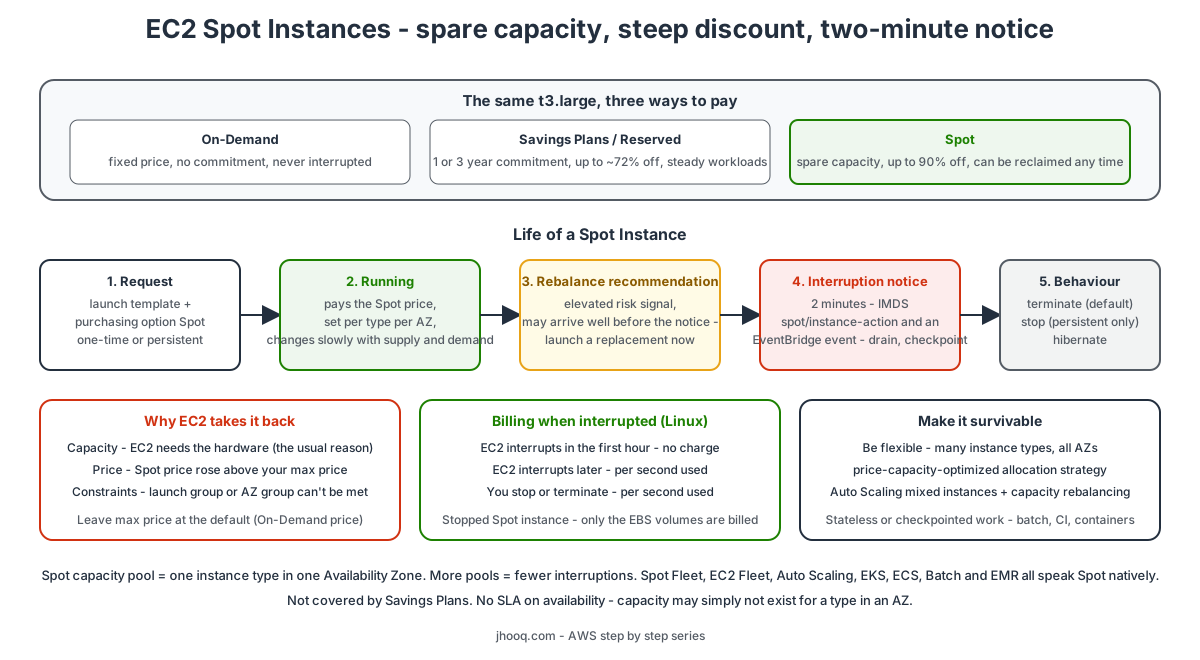
2. Spot vs On-Demand vs Savings Plans
| On-Demand | Savings Plans / Reserved Instances | Spot | |
|---|---|---|---|
| Price | list price | up to ~72 % off for a 1 or 3 year commitment | up to 90 % off, no commitment |
| Capacity | launches if available; InsufficientInstanceCapacity if not | same, plus optional Capacity Reservations | launches when the pool has spare capacity; the request keeps retrying |
| Interruption | never by AWS (except hardware events) | never | yes, two-minute notice |
| Stop / start | yes | yes | yes for EBS-backed Spot (and EC2 may stop it for you) |
| Good for | unpredictable, interruption-sensitive work | the steady baseline you know you will run for a year | fault-tolerant, flexible, stateless or checkpointed work |
The mature pattern is all three together - Savings Plans for the baseline, On-Demand for the spike you cannot lose, Spot for everything that can tolerate a restart. An Auto Scaling group can express exactly that split (section 11).
3. Which workloads fit Spot
Good fit -
- Batch and data processing - Spark, EMR, Hadoop, genomics, rendering, video transcoding - anything that can checkpoint and resume.
- CI/CD runners - GitHub Actions self-hosted runners, GitLab runners, Jenkins agents; a killed build simply reruns.
- Containers behind a load balancer - EKS and ECS tasks are designed to be rescheduled; a drained node is a non-event.
- Stateless web and API tiers behind an ALB, as part of a mixed group with an On-Demand base.
- Dev and test environments, machine-learning training with checkpoints, queue workers.
Poor fit -
- Databases and anything with local state you cannot afford to lose or re-sync.
- Long-running single jobs with no checkpoint - a 6-hour job interrupted at hour 5 is a 6-hour loss.
- Strict SLAs with no capacity fallback - Spot has no availability SLA; a pool can simply have no capacity today.
- Licensed software billed per launch or with activation that breaks on hardware change.
4. Step 1 - Look at Spot prices and the Instance Advisor
- EC2 console → Instances → Spot Requests → Pricing history - pick an instance type and see the three-month price history per Availability Zone against the On-Demand line. Notice how flat the lines are - that is the "adjusted gradually" promise.
- The Spot Instance Advisor shows, per Region and type, the savings over On-Demand and the frequency of interruption over the last month in bands (under 5 %, 5-10 %, 10-15 %, 15-20 %, over 20 %). Older-generation and less-popular types are usually the calmest pools.
- Spot placement score (Spot Requests → Spot placement score) - give it a target capacity and a list of instance types, and it scores each Region or AZ from 1 to 10 for the likelihood of your request succeeding. Use it when choosing where to run a Spot-heavy workload.
From the CLI the history is describe-spot-price-history (section 14).
5. Step 2 - Launch a Spot Instance from the wizard
The launch wizard from Part-4 has the Spot switch hidden under Advanced details -
- EC2 → Instances → Launch instances. Name
spot-lab-1, Amazon Linux 2023,t3.medium, your key pair, the VPC and a public subnet, theweb-sgsecurity group. - Expand Advanced details. Purchasing option → tick Request Spot Instances. The panel that opens -
- Maximum price - No maximum price (= On-Demand price). Leave it.
- Request type - One-time (the instance is gone when interrupted or terminated) or Persistent (EC2 re-submits the request after an interruption and launches a replacement when capacity returns; also required for the stop and hibernate behaviours).
- Valid to - for persistent requests, when EC2 should stop retrying.
- Interruption behavior - Terminate (default), Stop or Hibernate (section 9). Pick Persistent and Stop for the lab so that you can see a stopped Spot Instance.
- Launch instance. The instance shows Lifecycle: spot in its details, and Spot Requests lists the request as active / fulfilled.
The same setting lives in a launch template under Advanced details → Purchasing option, and in the CLI as --instance-market-options. For anything beyond a single lab instance, do not launch Spot this way - use an Auto Scaling group (section 11) or a fleet.
6. Interruptions - the three reasons and the two-minute notice
From Spot Instance interruptions, EC2 reclaims a Spot Instance for one of three reasons -
- Capacity - EC2 needs the hardware back. This is the main reason, and it can also happen for host maintenance or decommissioning.
- Price - the Spot price rose above your maximum price. If you left the default (On-Demand), this effectively never happens.
- Constraints - your request had a launch group or Availability Zone group that can no longer be satisfied, so the group is terminated together.
When it happens, EC2 terminates, stops or hibernates the instance according to the behaviour you chose - two minutes after it publishes the interruption notice. The notice is best effort - in rare cases the two minutes can be shorter - and for hibernate there is no two-minute window at all because hibernation starts immediately. The docs recommend polling for the notice every 5 seconds.
7. Step 3 - Catch the notice on the instance and in EventBridge
From interruption notices, the notice appears in two places.
On the instance - the instance metadata item spot/instance-action, which does not exist (HTTP 404) until EC2 has marked the instance, and then contains the action and the time -
1# IMDSv2 - get a token, then poll; 404 means "not interrupted"
2TOKEN=$(curl -sX PUT "http://169.254.169.254/latest/api/token" -H "X-aws-ec2-metadata-token-ttl-seconds: 21600")
3curl -s -H "X-aws-ec2-metadata-token: $TOKEN" http://169.254.169.254/latest/meta-data/spot/instance-action
4# {"action": "stop", "time": "2026-10-10T08:22:00Z"}      <- action is stop, terminate or hibernate
A minimal drain script that every Spot worker should run (as a systemd service) -
 1#!/bin/bash
 2# spot-drain.sh - poll every 5 s, drain gracefully when the notice arrives
 3while true; do
 4  TOKEN=$(curl -sX PUT "http://169.254.169.254/latest/api/token" -H "X-aws-ec2-metadata-token-ttl-seconds: 60")
 5  CODE=$(curl -s -o /tmp/spot-action -w "%{http_code}" -H "X-aws-ec2-metadata-token: $TOKEN" \
 6         http://169.254.169.254/latest/meta-data/spot/instance-action)
 7  if [ "$CODE" = "200" ]; then
 8    echo "$(date -u) spot interruption: $(cat /tmp/spot-action)"
 9    # 1. stop taking new work - deregister from the target group / mark the node unschedulable
10    aws elbv2 deregister-targets --target-group-arn "$TG_ARN" --targets Id=$(curl -s -H "X-aws-ec2-metadata-token: $TOKEN" http://169.254.169.254/latest/meta-data/instance-id)
11    # 2. checkpoint - flush the queue consumer, upload partial results to S3
12    systemctl stop worker.service
13    aws s3 sync /var/lib/worker/checkpoints s3://my-checkpoints/$(hostname)/
14    exit 0
15  fi
16  sleep 5
17done
In EventBridge - EC2 emits the event EC2 Spot Instance Interruption Warning two minutes before the action -
 1{
 2  "version": "0",
 3  "detail-type": "EC2 Spot Instance Interruption Warning",
 4  "source": "aws.ec2",
 5  "account": "123456789012",
 6  "time": "2026-10-10T08:20:00Z",
 7  "region": "eu-central-1",
 8  "resources": ["arn:aws:ec2:eu-central-1a:instance/i-0123456789abcdef0"],
 9  "detail": { "instance-id": "i-0123456789abcdef0", "instance-action": "stop" }
10}
An EventBridge rule on source: aws.ec2 and that detail-type can target a Lambda function (deregister from the load balancer, drain a Kubernetes node, post to Slack) or an SNS topic. Note the unusual ARN - it carries the Availability Zone, not the Region. The companion event EC2 Instance Rebalance Recommendation is next.
To test all of this without waiting for AWS, Spot Requests → select → Actions → Initiate interruption (backed by AWS Fault Injection Service) sends a real notice to your own instance - see initiate an interruption.
8. Rebalance recommendations
Before the two-minute notice, EC2 can send an instance rebalance recommendation - a signal that the instance is at elevated risk of interruption. It arrives as the metadata item events/recommendations/rebalance and as the EventBridge event EC2 Instance Rebalance Recommendation, and it can come minutes or even hours before any interruption - or never be followed by one. The point is to proactively launch a replacement in a healthier pool and move the work while you have time, instead of racing the two-minute clock. Auto Scaling groups and fleets can act on it automatically with Capacity Rebalancing (section 11).
9. Terminate vs stop vs hibernate
From interruption behavior -
| Behaviour | What happens | Requirements | Use when |
|---|---|---|---|
| Terminate (default) | the instance and its root volume (if delete on termination) are gone | none | the work is stateless or checkpointed elsewhere - the normal choice |
| Stop | the instance stops; EBS volumes are preserved and billed; only EC2 can restart it, when capacity for the same type in the same AZ returns | persistent request (or maintain fleet), EBS-backed, no launch group | you want the disk state back and can wait |
| Hibernate | RAM is written to the encrypted root volume, then the instance stops; on restart the processes resume where they were | hibernation-enabled AMI and agent, supported instance family and size, encrypted root volume with room for RAM, persistent request | long computations you cannot checkpoint yourself |
Things to know about stopped Spot Instances - you can change some attributes but not the instance type; detaching the root volume means EC2 cannot restart it and terminates it; cancelling the Spot request terminates stopped instances; and while stopped you pay only for the EBS volumes. Hibernation support now matches On-Demand hibernation (same AMIs and instance families) - see hibernate your instance for the prerequisites.
10. How an interrupted Spot Instance is billed
From billing for interrupted Spot Instances -
| Who interrupted | Operating system | In the first hour | After the first hour |
|---|---|---|---|
| Amazon EC2 | Linux, Windows (not SUSE) | no charge | per second used |
| Amazon EC2 | SUSE | no charge | full hours used, the interrupted partial hour free |
| You (stop or terminate) | Linux, Windows (not SUSE) | per second used | per second used |
| You | SUSE | full hour | full hours, plus a full hour for the partial one |
So a Linux Spot Instance that EC2 reclaims after 40 minutes costs nothing - which, combined with per-second billing, is why very short Spot jobs are nearly free. EBS volumes of a stopped Spot Instance are billed normally while stopped.
11. Step 4 - Spot the right way - Auto Scaling mixed instances group
A single Spot request is a lab. In production you want an Auto Scaling group with a mixed instances policy - it keeps a base of On-Demand, fills the rest with Spot from many instance types across all AZs, picks the pools least likely to be interrupted, and replaces interrupted instances automatically. Building on the group from Part-10 -
- EC2 → Auto Scaling Groups → Create Auto Scaling group - name
web-mixed-asg, Launch templateweb-server(launch template post; it must not set the purchasing option itself - the group decides). Next. - Instance type requirements - choose Override launch template. Two ways to list types -
- Specify instance attributes -
4 vCPUs,8-16 GiB, current generation, excludet*- and let EC2 pick every matching type (attribute-based selection, the recommended way; it finds pools you would never type by hand), or - Manually add instance types -
m5.xlarge,m5a.xlarge,m6i.xlarge,m6a.xlarge,m7i.xlarge,c5.xlarge,c6i.xlarge,r5.xlarge... - at least ten types for a healthy Spot group.
- Specify instance attributes -
- Instance purchase options - On-Demand base capacity
2(the instances that always exist), On-Demand percentage above base25 %, the rest Spot. Allocation strategies - On-Demand prioritized or lowest price; Spot price-capacity-optimized (the default and the one AWS recommends - it picks the pools with the most spare capacity first, then the cheapest among those; capacity-optimized ignores price, lowest-price is the one that gets you interrupted). - Capacity Rebalancing - enable. The group then reacts to rebalance recommendations by launching a replacement before terminating the at-risk instance (capacity rebalancing docs).
- Network - the VPC and all private subnets (every AZ is more pools). Next.
- Load balancing - attach the target group from Part-10, health check type ELB. Next.
- Group size - desired
6, min2, max20. Scaling policy - target tracking on CPU 60 %. Next → Next → Create.
Watch Activity - the group launches 2 On-Demand plus 1 On-Demand (25 % of the 4 above base) plus 3 Spot, spread across the types and AZs it scored best. Interrupt one Spot instance with Initiate interruption and watch the group replace it without the ALB dropping a request.
12. Spot in EKS, ECS, Batch and EMR
You rarely request Spot directly - the orchestrators do it for you -
- Amazon EKS - a managed node group with capacity type Spot uses a mixed instances group with price-capacity-optimized allocation and capacity rebalancing out of the box, and cordons and drains the node on the interruption notice. Karpenter does the same with even more pool flexibility. Pods that must not move get a node selector for the On-Demand group.
- Amazon ECS - capacity providers backed by an Auto Scaling group of Spot instances, plus Fargate Spot for tasks with no instances at all. ECS drains tasks from an instance when the notice arrives (
ECS_ENABLE_SPOT_INSTANCE_DRAINING=true). - AWS Batch - a compute environment with Spot allocation retries jobs on interruption automatically.
- Amazon EMR - instance fleets mix On-Demand core nodes with Spot task nodes; Spark recomputes lost partitions.
- EC2 Fleet and Spot Fleet - the lower-level way to request thousands of vCPUs across pools with a single request, with the same allocation strategies (fleets documentation).
13. Best practices checklist
From Spot best practices, condensed -
- Be flexible about instance types - the single most effective rule. Ten or more types, several generations and families, or attribute-based selection.
- Use every Availability Zone - more pools, fewer correlated interruptions.
- price-capacity-optimized allocation - never lowest-price for anything that matters.
- Leave the max price at the On-Demand default.
- Handle the notice - poll
spot/instance-actionevery 5 seconds or subscribe in EventBridge; drain, checkpoint, deregister. - Enable Capacity Rebalancing and act on rebalance recommendations.
- Keep an On-Demand base for the capacity you cannot lose.
- Use Auto Scaling groups, fleets or the orchestrators, not single Spot requests.
- Check the Spot placement score before committing a big workload to a Region.
- Make instances disposable - no local state, logs shipped off-box, configuration in the launch template or user data.
14. The AWS CLI equivalents
 1# three months of price history for one type across the AZs
 2aws ec2 describe-spot-price-history --instance-types m5.xlarge --product-descriptions "Linux/UNIX" \
 3  --start-time $(date -u -d '-1 day' +%Y-%m-%dT%H:%M:%S) \
 4  --query "SpotPriceHistory[].{az:AvailabilityZone,price:SpotPrice,time:Timestamp}" --output table
 5
 6# placement score - how likely is 20 instances of these types to succeed, per Region
 7aws ec2 get-spot-placement-scores --target-capacity 20 --target-capacity-unit-type units \
 8  --instance-types m5.xlarge m5a.xlarge m6i.xlarge m6a.xlarge c5.xlarge c6i.xlarge \
 9  --region-names eu-central-1 eu-west-1 --query "SpotPlacementScores[]" --output table
10
11# one Spot Instance from a launch template - persistent request, stop on interruption
12aws ec2 run-instances --launch-template LaunchTemplateName=web-server,Version='$Default' \
13  --subnet-id subnet-0123456789abcdef0 --count 1 \
14  --instance-market-options 'MarketType=spot,SpotOptions={SpotInstanceType=persistent,InstanceInterruptionBehavior=stop}'
15
16# see your Spot requests and their status codes
17aws ec2 describe-spot-instance-requests \
18  --query "SpotInstanceRequests[].{id:SpotInstanceRequestId,state:State,status:Status.Code,instance:InstanceId,type:LaunchSpecification.InstanceType}" --output table
19
20# test your drain logic - send a real interruption notice to your own instance (uses AWS FIS)
21aws fis create-experiment-template --cli-input-json file://spot-interruption-template.json
22aws fis start-experiment --experiment-template-id EXT123456789abcdef
23
24# did EC2 terminate it? look for the BidEvictedEvent / instance-terminated-no-capacity status
25aws ec2 describe-spot-instance-requests --spot-instance-request-ids sir-0123456789abcdef0 \
26  --query "SpotInstanceRequests[].Status"
27
28# cancel a persistent request AND terminate its instance (cancelling alone leaves the instance running)
29aws ec2 cancel-spot-instance-requests --spot-instance-request-ids sir-0123456789abcdef0
30aws ec2 terminate-instances --instance-ids i-0123456789abcdef0
31
32# a mixed instances Auto Scaling group with price-capacity-optimized Spot and capacity rebalancing
33aws autoscaling create-auto-scaling-group --auto-scaling-group-name web-mixed-asg \
34  --min-size 2 --max-size 20 --desired-capacity 6 \
35  --vpc-zone-identifier "subnet-aaa,subnet-bbb,subnet-ccc" \
36  --target-group-arns arn:aws:elasticloadbalancing:eu-central-1:123456789012:targetgroup/web/abc \
37  --health-check-type ELB --health-check-grace-period 120 \
38  --capacity-rebalance \
39  --mixed-instances-policy '{
40    "LaunchTemplate": {
41      "LaunchTemplateSpecification": {"LaunchTemplateName": "web-server", "Version": "$Default"},
42      "Overrides": [
43        {"InstanceRequirements": {"VCpuCount": {"Min": 4, "Max": 4}, "MemoryMiB": {"Min": 8192, "Max": 16384},
44                                  "ExcludedInstanceTypes": ["t*"], "InstanceGenerations": ["current"]}}
45      ]
46    },
47    "InstancesDistribution": {
48      "OnDemandBaseCapacity": 2,
49      "OnDemandPercentageAboveBaseCapacity": 25,
50      "OnDemandAllocationStrategy": "prioritized",
51      "SpotAllocationStrategy": "price-capacity-optimized"
52    }
53  }'
The status codes on a Spot request tell the story - fulfilled, capacity-not-available, instance-terminated-by-price, instance-terminated-no-capacity, marked-for-stop, request-canceled-and-instance-running - the full list is in Spot request status.
15. The same thing in Terraform
 1# the launch template does NOT set a purchasing option - the group decides On-Demand vs Spot
 2resource "aws_launch_template" "web" {
 3  name          = "web-server"
 4  image_id      = data.aws_ssm_parameter.al2023.value
 5  key_name      = aws_key_pair.web.key_name
 6  vpc_security_group_ids = [aws_security_group.web.id]
 7  update_default_version = true
 8
 9  metadata_options {
10    http_tokens = "required"
11  }
12
13  user_data = filebase64("${path.module}/user-data.sh")   # installs the app AND spot-drain.sh
14}
15
16resource "aws_autoscaling_group" "web_mixed" {
17  name                = "web-mixed-asg"
18  min_size            = 2
19  max_size            = 20
20  desired_capacity    = 6
21  vpc_zone_identifier = [aws_subnet.private_a.id, aws_subnet.private_b.id, aws_subnet.private_c.id]
22  target_group_arns   = [aws_lb_target_group.web.arn]
23  health_check_type   = "ELB"
24  capacity_rebalance  = true
25
26  mixed_instances_policy {
27    instances_distribution {
28      on_demand_base_capacity                  = 2
29      on_demand_percentage_above_base_capacity = 25
30      on_demand_allocation_strategy            = "prioritized"
31      spot_allocation_strategy                 = "price-capacity-optimized"
32    }
33
34    launch_template {
35      launch_template_specification {
36        launch_template_id = aws_launch_template.web.id
37        version            = "$Default"
38      }
39
40      # attribute-based selection - every current-generation 4 vCPU / 8-16 GiB type except burstable
41      override {
42        instance_requirements {
43          vcpu_count { min = 4, max = 4 }
44          memory_mib { min = 8192, max = 16384 }
45          instance_generations    = ["current"]
46          excluded_instance_types = ["t*"]
47        }
48      }
49    }
50  }
51
52  tag {
53    key                 = "Name"
54    value               = "web-mixed"
55    propagate_at_launch = true
56  }
57}
58
59# a single Spot instance for a lab - persistent, stop on interruption
60resource "aws_instance" "spot_lab" {
61  ami           = data.aws_ssm_parameter.al2023.value
62  instance_type = "t3.medium"
63  subnet_id     = aws_subnet.public_a.id
64
65  instance_market_options {
66    market_type = "spot"
67    spot_options {
68      spot_instance_type             = "persistent"
69      instance_interruption_behavior = "stop"
70    }
71  }
72
73  tags = { Name = "spot-lab-1" }
74}
75
76# EventBridge rule - every interruption warning to an SNS topic
77resource "aws_cloudwatch_event_rule" "spot_warning" {
78  name = "spot-interruption-warning"
79  event_pattern = jsonencode({
80    source        = ["aws.ec2"]
81    "detail-type" = ["EC2 Spot Instance Interruption Warning", "EC2 Instance Rebalance Recommendation"]
82  })
83}
84
85resource "aws_cloudwatch_event_target" "spot_warning_sns" {
86  rule = aws_cloudwatch_event_rule.spot_warning.name
87  arn  = aws_sns_topic.ops.arn
88}
Use aws_instance with instance_market_options rather than the legacy aws_spot_instance_request resource - the latter manages the request, not the instance, and tags and stop/start behave oddly. The full Auto Scaling build is in Part-10.
16. Troubleshooting
- Request stays
openwithcapacity-not-available- that pool has no spare capacity now. Add instance types and AZs; check the placement score; a persistent request keeps retrying by itself. - Instance interrupted within minutes, repeatedly - you are in a hot pool (popular type, busy AZ) or you set a low max price. Diversify and remove the max price.
instance-terminated-by-price- your max price is below the Spot price. Delete the max price.- A stopped Spot Instance will not start - only EC2 can start it, and only when the same type in the same AZ has capacity. Terminate and launch fresh if you cannot wait.
- Cancelled the request, instance still running -
cancel-spot-instance-requestsdoes not terminate instances; terminate separately. The reverse is also true for persistent requests - terminating the instance makes EC2 launch a new one until you cancel the request. - Auto Scaling group launches only On-Demand - the launch template itself sets Request Spot Instances, which conflicts with the mixed instances policy; remove it from the template. Or the overrides list only types with no Spot capacity.
- Tasks lost on interruption - nothing listened for the notice. Install the drain script, enable ECS Spot draining or rely on the EKS node group's built-in handling.
- Hibernate not offered - the AMI, instance type or unencrypted root volume does not meet the hibernation prerequisites.
- Savings Plan did not cover Spot - by design; Spot is outside Savings Plans and Reserved Instances.
- Spot bill higher than expected - check with Cost Explorer filtered by purchase option = Spot; usually a
lowest-pricestrategy that keeps re-launching, or stopped Spot Instances accumulating EBS volumes.
17. Conclusion
Spot Instances are ordinary EC2 instances on spare capacity at up to 90 % off, with one contract - two minutes notice when EC2 wants the hardware back. The Spot price is set per pool and moves slowly, the max price should stay at its On-Demand default, and interruptions come from capacity far more than from price. Make the workload disposable, listen for the notice, be flexible about instance types and AZs, use price-capacity-optimized allocation with capacity rebalancing inside an Auto Scaling mixed instances group or an orchestrator, and keep an On-Demand base for what must not move. Do that, and Spot is the cheapest compute you will ever run.
Related reading - the launch template post is where the Spot purchasing option and the drain script live, Part-10 Auto Scaling is the group this post extends, and the EBS post explains what happens to volumes when a Spot Instance is stopped or terminated.
AWS step by step series -
- Part-1 : AWS IAM user - create a user, group, policy, access keys and MFA
- Part-2 : AWS Organizations - multi-account setup, OUs and SCPs
- Part-3 : AWS assume IAM role - trust policy, switch role in console and CLI
- Part-4 : How to launch an EC2 instance - key pair, security group, SSH
- Part-5 : AWS VPC - public and private subnets, Internet Gateway, NAT Gateway, route tables
- Part-8 : EC2 launch template - versions, default version, source template, SSM parameter AMI
- Part-10 : EC2 Auto Scaling - launch template, Auto Scaling group, target tracking, ALB
- Part-11 : AWS WAF - web ACL, managed rules, rate limiting, geo blocking
- Part-12 : AWS VPC Peering - connect two VPCs, routes, security groups, DNS
- Part-13 : AWS Transit Gateway - hub-and-spoke for many VPCs and on-premises
- Part-14 : AWS NAT Gateway deep dive - public vs private, limits, cost, troubleshooting
- Part-15 : Amazon Route 53 - hosted zones, records, alias, routing policies, health checks
- Part-16 : AWS security groups - inbound and outbound rules, stateful, referencing, quotas
- Part-16 : AWS Certificate Manager - free TLS certificates for ALB, CloudFront and API Gateway
- Part-17 : AWS Lambda - function URLs, environment variables and layers
- Part-18 : Network Load Balancer - setup, and ALB vs NLB
- Part-19 : VPC endpoints - gateway and interface endpoints (PrivateLink) instead of NAT
- Part-20 : AWS PrivateLink - publish your own service with an endpoint service and NLB
- Part-20 : Amazon EBS volumes - types, attach, mount, resize, snapshots, encryption
- Part-21 : VPC Flow Logs - CloudWatch Logs, S3, record format, Logs Insights, Athena
- Part-21 : EC2 Spot Instances - pricing, interruptions, mixed instances groups
- Part-24 : AWS Control Tower - landing zone, controls, Account Factory, Identity Center
Networking fundamentals -
- What is a VPC and a subnet? AWS networking in five minutes
- What is CIDR? Calculate IP ranges for VPCs and subnets
- What is NAT? Static NAT, dynamic NAT and PAT explained
More AWS guides -
- What is AWS CloudFormation? Templates, stacks, change sets, drift, StackSets
- Learn AWS S3 - the complete course
- AWS API Gateway - REST API with Lambda, authorizers, Terraform
- AWS Advanced Networking Specialty (ANS-C01) - course companion
- AWS ECS and Fargate - how to deploy a Docker container
- AWS S3 - how to host a static website
- Terraform create EC2 instance on AWS
- Terraform AWS IAM - users, roles and policies
- Terraform and AWS multi-account setup
- Terraform - setting up an ALB and SSL
Posts in this series
- Amazon EBS Volumes Step by Step - Volume Types Compared (gp3, gp2, io2 Block Express, st1, sc1), Create, Attach, Format and Mount a Volume, Resize Without Downtime, Snapshots, Encryption, Multi-Attach, Pricing and Troubleshooting (AWS Part-20)
- Amazon Route 53 Step by Step - Hosted Zones, Record Types, Alias Records, Point a Domain at an ALB, Routing Policies (Weighted, Latency, Failover, Geolocation), Health Checks, Private Zones and Pricing (AWS Part-15)
- AWS Advanced Networking - Free 8-Hour Full Course Companion (VPC, NAT Gateway, Bastion, ALB, NLB, WAF, VPC Peering, Transit Gateway, VPC Endpoints and PrivateLink, Route 53, ACM) with Timestamps and the ANS-C01 Exam Facts
- AWS Assume IAM Role Step by Step - Trust Policy vs Permissions Policy, Switch Role in the Console, aws sts assume-role, CLI Profiles, Cross-Account Access, MFA and External ID (AWS Part-3)
- AWS Certificate Manager (ACM) Step by Step - Request a Free TLS Certificate, DNS Validation with Route 53, Attach It to an ALB HTTPS Listener, Redirect HTTP to HTTPS, CloudFront and API Gateway, Auto-Renewal, Exportable Certificates and ACME (AWS Part-16)
- AWS Control Tower Step by Step - Set Up a Landing Zone, Security OU with Log Archive and Audit Accounts, Controls (Guardrails), Region Deny, IAM Identity Center, Account Factory and Enrolling Existing Accounts (AWS Part-24)
- AWS EC2 Auto Scaling Step by Step - Launch Template, Auto Scaling Group Across Two AZs, Target Tracking Policy, Application Load Balancer, Health Checks and Instance Refresh (AWS Part-10)
- AWS EC2 Launch Template Step by Step - Create a Template, Versions and the Default Version, Source Template, Create From a Running Instance, Systems Manager Parameter Instead of an AMI ID, Launch Templates vs Launch Configurations, IAM Guardrails, CLI and Terraform (AWS Part-8 and Part-17)
- AWS EC2 Spot Instances Step by Step - How Spot Pricing Works, Launch a Spot Instance, Interruptions and the Two-Minute Notice, Rebalance Recommendations, Stop vs Hibernate vs Terminate, Spot in Auto Scaling Mixed Instances Groups, Billing Rules, Best Practices, CLI and Terraform (AWS Part-21)
- AWS IAM User Step by Step - Create a User, User Group, Attach Policies, Access Keys, MFA and Sign-in URL (AWS Part-1)
- AWS Lambda Step by Step - Create a Function, Function URL (HTTPS Endpoint Without API Gateway), Environment Variables, Lambda Layers for Python Dependencies, Versions and Aliases, Limits, Pricing and Errors (AWS Part-17)
- AWS NAT Gateway Deep Dive - How It Works, Public vs Private NAT Gateway, Setup Step by Step, Limits (55,000 Connections, 100 Gbps), CloudWatch Metrics, Cost Optimisation, NAT Instance Comparison and Troubleshooting (AWS Part-14)
- AWS Network Load Balancer Step by Step - Create an NLB with Static IPs, Target Groups, TCP and TLS Listeners, Security Groups, Client IP Preservation, Cross-Zone Load Balancing, and ALB vs NLB Explained (AWS Part-18)
- AWS Organizations Step by Step - Multi-Account Setup, Organizational Units, Service Control Policies (SCPs), Consolidated Billing and Identity Center (AWS Part-2)
- AWS PrivateLink Step by Step - Publish Your Own Service with a VPC Endpoint Service and Network Load Balancer, Allow Consumers, Accept Connections, Private DNS Name, Cross-Account and Cross-Region, Pricing and Troubleshooting (AWS Part-20)
- AWS Security Groups Step by Step - Inbound and Outbound Rules, Stateful Behaviour, Referencing Security Groups, the Three-Tier ALB-Web-DB Pattern, Quotas, Security Group vs Network ACL, CLI and Terraform (AWS Part-16)
- AWS Transit Gateway Step by Step - Connect Many VPCs and On-Premises Through One Hub, VPC Attachments, Transit Gateway Route Tables, Associations and Propagations, Isolation, Peering, Pricing (AWS Part-13)
- AWS VPC Endpoints Step by Step - Gateway Endpoints for S3 and DynamoDB, Interface Endpoints (PrivateLink) for SSM, ECR and Other Services, Private DNS, Endpoint Policies, Security Groups, Cost vs NAT Gateway, and Troubleshooting (AWS Part-19)
- AWS VPC Flow Logs Step by Step - Enable Flow Logs for a VPC, Subnet or Network Interface, Publish to CloudWatch Logs or S3, Read a Flow Log Record Field by Field, Custom Formats, Query with Logs Insights and Athena, Find Rejected Traffic, Pricing and Limitations (AWS Part-21)
- AWS VPC Peering Step by Step - Connect Two VPCs (Same or Different Account and Region), Accept the Request, Add Routes, Security Groups, DNS Resolution, Test with EC2, and the Limits (AWS Part-12)
- AWS VPC Step by Step - Create a VPC with Public and Private Subnets, Internet Gateway, NAT Gateway and Route Tables (and Test It with EC2) (AWS Part-5)
- AWS WAF Step by Step - Create a Web ACL, Attach It to an ALB or API Gateway, AWS Managed Rules, Rate-Based Rules, Geo Blocking, IP Sets, Count Mode and Logging (AWS Part-11)
- How to Launch an EC2 Instance on AWS Step by Step - AMI, Instance Type, Key Pair, Security Group, Connect with SSH or EC2 Instance Connect, Stop vs Terminate (AWS Part-4)
- What is an AWS VPC and a Subnet? Virtual Private Cloud Explained in Five Minutes (Region, Availability Zones, Public vs Private Subnets, Gateways, Route Tables)
- What is AWS CloudFormation? Templates, Stacks and Change Sets Explained, Template Anatomy Section by Section, Create Your First Stack Step by Step, Update With a Change Set, Drift Detection, Nested Stacks and StackSets, Quotas, Pricing, CLI, and CloudFormation vs Terraform
- What is CIDR (Classless Inter-Domain Routing)? How to Calculate IP Ranges for VPCs and Subnets, with Examples (/8, /16, /24, /28, /32)
- What is NAT (Network Address Translation)? How It Works, Static NAT vs Dynamic NAT vs PAT, the Translation Table, and Where NAT Shows Up in AWS
- AWS API Gateway Tutorial - REST API with Lambda Proxy and Non-Proxy Integration, Request Validation, HTTP API vs REST API, Resource Policies, Lambda Authorizers and Terraform
- Learn AWS S3 - The Complete Course (Buckets, Objects, Storage Classes, Lifecycle, Versioning, Security Defaults, Bucket Policies, Static Hosting, CLI and Terraform)
- How to release(delete) Elastic IP from AWS?
- Fix docker login 'error saving credentials: error storing credentials - err: exit status 1' (AWS ECR on macOS, Windows, Linux and WSL)