AWS EC2 Auto Scaling Step by Step - Launch Template, Auto Scaling Group Across Two AZs, Target Tracking Policy, Application Load Balancer, Health Checks and Instance Refresh (AWS Part-10)
One EC2 instance (Part-4) is a lab. A real application needs at least two instances in two Availability Zones, something to replace an instance when it dies, and something to add instances when traffic spikes and remove them when it drops. That something is Amazon EC2 Auto Scaling, and in this Part-10 we build it from the ground up - a launch template, an Auto Scaling group across the two public subnets from Part-5, an Application Load Balancer in front, health checks, a target tracking policy, and a zero-downtime rollout with instance refresh.
One thing has changed completely since I recorded the video in 2023 - launch configurations are gone. Accounts created after October 1, 2024 cannot create them at all, so this post uses launch templates throughout, and everything is checked against the current Auto Scaling documentation.
Table of Content
- What EC2 Auto Scaling does - and the three numbers that drive it
- Launch template vs launch configuration
- Step 1 - Create the launch template
- Step 2 - Create the Application Load Balancer and target group
- Step 3 - Create the Auto Scaling group
- Step 4 - Health checks and the grace period
- Step 5 - Add a target tracking scaling policy
- The other scaling policies - step, simple, scheduled, predictive
- Step 6 - Roll out a change with instance refresh
- Lifecycle hooks, warm pools and scale-in protection
- The AWS CLI equivalents
- What it costs
- Common Auto Scaling errors and how to fix them
- Conclusion
1. What EC2 Auto Scaling does - and the three numbers that drive it
An Auto Scaling group (ASG) is a collection of EC2 instances that AWS keeps at a size you define, launched from a template you define, spread across the subnets you define. It does three jobs -
- Fleet management - if an instance fails its health check, the group terminates it and launches a replacement. If an AZ has fewer instances than the others, new launches go there first (AZ rebalancing).
- Dynamic scaling - a scaling policy adds instances when a metric (CPU, requests per target, a queue depth) goes above a target and removes them when it drops.
- Scheduled and predictive scaling - more instances before the 9 AM login wave, fewer at night.
Everything revolves around three numbers -
- Minimum capacity - never fewer than this (2, one per AZ, for anything that matters).
- Desired capacity - how many the group tries to run right now. Scaling policies change this number; the group does the rest.
- Maximum capacity - never more than this, which is also your cost ceiling.
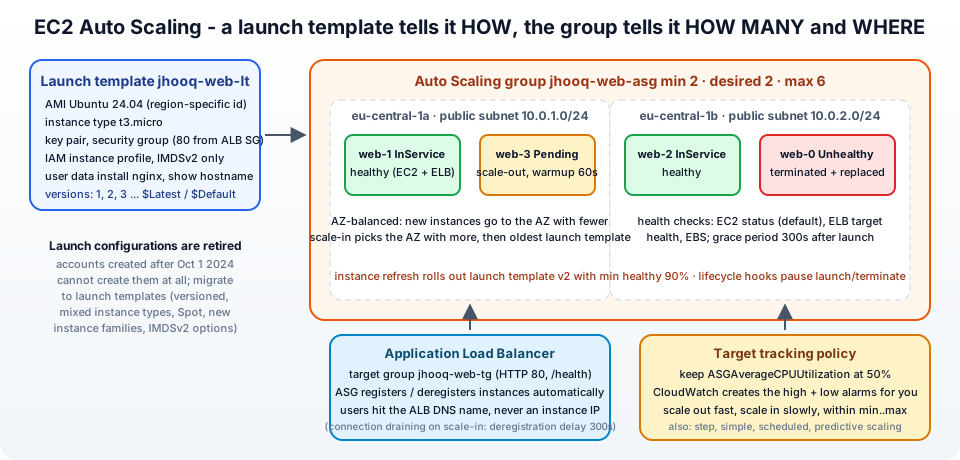
Auto Scaling itself is free - you pay only for the instances, volumes and load balancer it creates.
2. Launch template vs launch configuration
An ASG needs to know how to launch an instance - AMI, instance type, key pair, security groups, storage, IAM role, user data - everything from the launch page in Part-4. That used to be a launch configuration. Today it is a launch template, and the launch configuration page is now a migration notice -
- since January 1, 2023 new instance types are not supported in launch configurations,
- accounts created on or after June 1, 2023 cannot create them in the console,
- accounts created on or after October 1, 2024 cannot create them by any method.
Launch templates are better anyway - they are versioned (you keep history and can roll back), they support multiple instance types and Spot in one group, the newest instance families, IMDSv2 settings, and you can launch a single instance from one too. If you still have an ASG on a launch configuration, the migration guide is a one-time ten-minute job.
3. Step 1 - Create the launch template
EC2 → Launch Templates → Create launch template (EC2 launch templates) -
- Launch template name -
jhooq-web-lt, Template version description -v1 nginx. Tick Auto Scaling guidance - the console then flags anything an ASG cannot use. - Application and OS Images - Ubuntu Server 24.04 LTS (or Amazon Linux 2023).
- Instance type -
t3.micro. (Leave it empty if you plan to use attribute-based instance type selection in the group.) - Key pair -
jhooq-keyfrom Part-4, or none if you will use Session Manager. - Network settings - do not select a subnet (the ASG decides that). Security groups - create
jhooq-web-sginjhooq-vpcwith HTTP 80 from the ALB's security group (createjhooq-alb-sgfirst, allowing 80 from0.0.0.0/0) and SSH from My IP if you want it. - Storage - 8 GiB gp3, encrypted.
- Advanced details - IAM instance profile - a role with
AmazonSSMManagedInstanceCore(Part-3); Metadata version - V2 only; User data -
1#!/bin/bash
2apt-get update
3apt-get install -y nginx
4HOST=$(curl -s -H "X-aws-ec2-metadata-token: $(curl -s -X PUT http://169.254.169.254/latest/api/token -H 'X-aws-ec2-metadata-token-ttl-seconds: 60')" http://169.254.169.254/latest/meta-data/instance-id)
5AZ=$(curl -s -H "X-aws-ec2-metadata-token: $(curl -s -X PUT http://169.254.169.254/latest/api/token -H 'X-aws-ec2-metadata-token-ttl-seconds: 60')" http://169.254.169.254/latest/meta-data/placement/availability-zone)
6echo "<h1>jhooq web - $HOST in $AZ</h1>" > /var/www/html/index.html
7echo "ok" > /var/www/html/health
8systemctl enable --now nginx
- Create launch template.
The page shows the instance ID and AZ so that you can see the load balancer spreading requests later; /health is for the target group health check. Note the IMDSv2 token dance in the script - with "V2 only" the plain curl http://169.254.169.254/... from older tutorials returns 401.
4. Step 2 - Create the Application Load Balancer and target group
The ASG will register its instances with a target group, and an Application Load Balancer sends traffic to the healthy ones. Users get one stable DNS name instead of changing instance IPs.
- EC2 → Target Groups → Create target group - Instances, name
jhooq-web-tg, protocol HTTP 80, VPCjhooq-vpc, Health checks path/health, healthy threshold 2, interval 10 s. Next → Create target group (register no targets - the ASG does it). - EC2 → Load Balancers → Create load balancer → Application Load Balancer - name
jhooq-web-alb, Internet-facing, IPv4, VPCjhooq-vpc, Mappings - tick both AZs and pick the public subnetsjhooq-public-1aandjhooq-public-1b, Security groupjhooq-alb-sg, Listener HTTP 80 → forward tojhooq-web-tg. Create load balancer.
Copy the ALB DNS name (jhooq-web-alb-1234567890.eu-central-1.elb.amazonaws.com). Right now it returns 503 Service Unavailable because the target group is empty - the next step fixes that. HTTPS with a free certificate comes in the ACM part of this series; the Terraform version of VPC + ALB + certificate is in Terraform - setting up an ALB and SSL.
5. Step 3 - Create the Auto Scaling group
EC2 → Auto Scaling Groups → Create Auto Scaling group - the wizard from the official procedure -
Choose launch template or configuration - Auto Scaling group name jhooq-web-asg, Launch template jhooq-web-lt, Version - Latest (so a new template version is picked up by new launches) or Default. Next.
Choose instance launch options - Network → VPC jhooq-vpc; Availability Zones and subnets - tick jhooq-public-1a and jhooq-public-1b (private subnets in production, behind the ALB; public here so you can SSH in and look). Availability Zone distribution - Balanced best effort. Leave Instance type requirements on the launch template's type (the Override launch template option is where you would add t3.small, t3a.micro and a Spot percentage for a mixed-instances group). Next.
Integrate with other services - Load balancing → Attach to an existing load balancer → Choose from your load balancer target groups → jhooq-web-tg. Health checks → Additional health check types - tick Turn on Elastic Load Balancing health checks (and EBS health checks). Health check grace period - 300 seconds (see the next section). Monitoring - enable group metrics collection. Default instance warmup - tick it, 60 seconds. Next.
Configure group size and scaling - Desired capacity 2, Min desired capacity 2, Max desired capacity 6. Automatic scaling - No scaling policies for now (we add one in Step 5 to see the before/after). Instance maintenance policy - Launch before terminating is the safest for small groups. Leave Instance scale-in protection off. Next.
Add notifications - optional, an SNS topic for launch/terminate events. Next. Add tags - Name = jhooq-web, tick Tag new instances. Next → Review → Create Auto Scaling group.
Watch the Activity tab - two Launching a new EC2 instance entries, one per AZ - and after a minute the Instance management tab shows both InService and Healthy. Refresh the ALB DNS name a few times - the instance ID and AZ in the page alternate. Now terminate one instance by hand in the EC2 console: within a minute the Activity tab shows Terminating EC2 instance followed by Launching a new EC2 instance - that is fleet management, and nothing you had to do.
6. Step 4 - Health checks and the grace period
The ASG replaces instances that fail a health check. There are three sources -
- EC2 status checks - always on. The instance is
impaired, stopped or terminated → unhealthy. - ELB health checks - optional, strongly recommended when there is a load balancer. The target group says
unhealthy(no200from/health) → the ASG terminates the instance even though the OS is fine. This is what catches a crashed web server. - EBS health checks - the root volume is impaired → unhealthy.
- Custom - your monitoring calls
set-instance-health --health-status Unhealthy.
The health check grace period (default 300 seconds) is how long the group waits after an instance reaches InService before it starts believing a failed check. Too short and a slow-booting application gets killed in a loop - the dreaded launch/terminate churn; too long and a dead instance lingers. Set it to a little more than your boot plus application start time. The separate default instance warmup tells scaling policies how long to ignore a new instance's metrics so a booting instance's 100% CPU does not trigger another scale-out.
7. Step 5 - Add a target tracking scaling policy
Now the scaling part. Open the group → Automatic scaling tab → Dynamic scaling policies → Create dynamic scaling policy -
- Policy type - Target tracking scaling.
- Scaling policy name -
cpu-50. - Metric type - Average CPU utilization. (The other built-ins: average network in/out, and Application Load Balancer request count per target, which is often the better metric for web tiers - "keep each instance at 1,000 requests per minute".)
- Target value -
50. - Instance warmup - inherits the default warmup. Leave Disable scale in unticked.
- Create.
Target tracking works like a thermostat - you set the temperature and AWS creates and manages two CloudWatch alarms (TargetTracking-...-AlarmHigh and AlarmLow) and decides how many instances to add or remove to bring the average back to 50%. It scales out aggressively and scales in conservatively, always inside min/max.
Test it. SSH to one instance (or use Session Manager) and burn CPU -
1sudo apt-get install -y stress-ng
2stress-ng --cpu 2 --timeout 600
Within about three minutes the AlarmHigh alarm fires and the Activity tab shows a launch; the group grows to 3, then 4 if the average stays high. Stop the stress and about 15 minutes later (scale-in is deliberately slow) instances are terminated back towards the minimum. The scale-in order: the AZ with the most instances first, then the instance using the oldest launch template version, then the one closest to the next billing hour - the termination policy is configurable.
8. The other scaling policies - step, simple, scheduled, predictive
Target tracking covers most cases, but you should know the rest -
- Step scaling - you own the CloudWatch alarm and define steps - CPU 60-70% → add 1, 70-85% → add 2, above 85% → add 4. More control, more to maintain. Needs a cooldown or warmup to avoid over-reacting.
- Simple scaling - the original: one alarm, one action (add 1), then a fixed cooldown (default 300 s) during which nothing else happens. Legacy; use step or target tracking.
- Scheduled scaling - a cron expression changes min/desired/max at a time -
0 8 * * MON-FRIset desired 6,0 20 * * *set desired 2. Perfect for predictable office-hours load and for turning dev environments off at night. - Predictive scaling - machine learning on at least 24 hours of history (ideally 14 days) forecasts the next 48 hours and schedules capacity ahead of the load, so instances are already warm when the wave arrives. Start it in Forecast only mode to see the prediction before you let it act.
Policies combine - predictive scaling to pre-provision, target tracking to handle the unexpected.
9. Step 6 - Roll out a change with instance refresh
You built a new AMI, or changed the user data. Create launch template version 2 (Launch Templates → jhooq-web-lt → Actions → Modify template (Create new version)), then, in the ASG, Instance refresh tab → Start instance refresh (docs) -
- Minimum healthy percentage
90, Maximum healthy percentage110- launch new before terminating old, never dropping below 90% of desired. (For a 2-instance group that means one at a time;Launch before terminatingkeeps capacity.) - Instance warmup - 60 s.
- Checkpoints - optional pauses at 50% so you can verify before continuing.
- Optional Skip matching (do not replace instances already on the new version) and Auto rollback if health checks fail.
The refresh replaces instances in batches, waits for each to be InService and healthy on the ALB, and reports progress. This is the rolling deployment you otherwise script by hand; combined with a versioned launch template it gives you one-click rollback - start another refresh pointing at version 1.
10. Lifecycle hooks, warm pools and scale-in protection
Three features you will reach for once the basics run -
- Lifecycle hooks pause an instance in
Pending:Wait(before it enters service - pull the latest config, register with a service) orTerminating:Wait(before it dies - drain connections, upload logs) for up to an hour, until your script callscomplete-lifecycle-action. EventBridge or SNS tells your automation the hook fired. - Warm pools keep pre-initialised instances stopped (cheap - EBS only) or hibernated, so a scale-out takes seconds instead of the minutes a cold boot plus
apt installtakes. - Instance scale-in protection marks specific instances (a long batch job) so a scale-in never picks them; the group just terminates others.
And for the group itself, the Instance maintenance policy you saw in the wizard decides whether replacements launch before or after terminations during refreshes and health replacements.
11. The AWS CLI equivalents
Everything above as commands, useful for scripts and for understanding what the console sends -
 1# launch template (user data must be base64)
 2aws ec2 create-launch-template --launch-template-name jhooq-web-lt \
 3  --launch-template-data '{"ImageId":"ami-0a1b2c3d4e5f67890","InstanceType":"t3.micro","KeyName":"jhooq-key","SecurityGroupIds":["sg-0web"],"UserData":"'"$(base64 -w0 user-data.sh)"'","MetadataOptions":{"HttpTokens":"required"}}'
 4
 5# auto scaling group attached to the target group
 6aws autoscaling create-auto-scaling-group --auto-scaling-group-name jhooq-web-asg \
 7  --launch-template LaunchTemplateName=jhooq-web-lt,Version='$Latest' \
 8  --min-size 2 --max-size 6 --desired-capacity 2 \
 9  --vpc-zone-identifier "subnet-public1a,subnet-public1b" \
10  --target-group-arns arn:aws:elasticloadbalancing:eu-central-1:111111111111:targetgroup/jhooq-web-tg/abc \
11  --health-check-type ELB --health-check-grace-period 300 --default-instance-warmup 60
12
13# target tracking on CPU 50%
14aws autoscaling put-scaling-policy --auto-scaling-group-name jhooq-web-asg \
15  --policy-name cpu-50 --policy-type TargetTrackingScaling \
16  --target-tracking-configuration '{"PredefinedMetricSpecification":{"PredefinedMetricType":"ASGAverageCPUUtilization"},"TargetValue":50.0}'
17
18# roll out launch template v2
19aws autoscaling start-instance-refresh --auto-scaling-group-name jhooq-web-asg \
20  --preferences '{"MinHealthyPercentage":90,"InstanceWarmup":60}'
21
22# watch
23aws autoscaling describe-scaling-activities --auto-scaling-group-name jhooq-web-asg --max-items 5
24aws autoscaling describe-auto-scaling-groups --auto-scaling-group-names jhooq-web-asg \
25  --query 'AutoScalingGroups[0].Instances[].[InstanceId,AvailabilityZone,LifecycleState,HealthStatus]' --output table
In Terraform the resources are aws_launch_template, aws_autoscaling_group (with instance_refresh and target_group_arns), aws_autoscaling_policy, aws_lb, aws_lb_target_group and aws_lb_listener - the load balancer half is already written in Terraform - setting up an ALB and SSL.
12. What it costs
- EC2 Auto Scaling - free.
- Instances - per second while running; this is where
maxprotects you. Twot3.microfor a month is a few dollars; six is three times that. - Application Load Balancer - an hourly charge (about $0.0225 per hour in us-east-1, roughly $16 a month) plus LCUs for traffic. This is usually the biggest fixed cost of a small Auto Scaling setup - do not leave the lab ALB running.
- EBS volumes of every instance, and public IPv4 addresses if instances are in public subnets ($0.005 per hour each - another reason for private subnets behind the ALB).
- CloudWatch - detailed monitoring if you enable it on the launch template; group metrics are free.
Clean up: delete the Auto Scaling group (it terminates its instances), then the ALB, the target group, and the launch template.
13. Common Auto Scaling errors and how to fix them
1. Instances launch and terminate in a loop every few minutes - The ELB health check fails - wrong health check path, the app listens on another port, or the security group does not allow the ALB SG on port 80 - or the grace period is shorter than the boot time. Check the target group Targets tab for the reason (Health checks failed with these codes: [502]), raise the grace period.
2. Launching a new EC2 instance. Status Reason: Could not launch On-Demand Instances. Unsupported ... / InsufficientInstanceCapacity - The AZ has no capacity for that type. Add more AZs/subnets to the group, or use a mixed-instances override with several types.
3. ... The requested configuration is currently not supported. Please check the documentation for supported configurations - An x86 AMI with an Arm type (or vice versa) in the launch template, or a type not offered in that AZ.
4. Launch template ... is not valid: Security group sg-... and subnet subnet-... belong to different networks - The template's security group is in another VPC than the subnets you picked for the group. Security groups are per VPC (Part-5).
5. The ALB returns 503 - No healthy targets yet (wait for the grace period) or the ASG is not attached to the target group. Instance management shows Healthy? Then check the target group.
6. Scale-out never happens although CPU is high - Metrics only come from running instances after warmup; the max is already reached; or you look at per-instance CPU while the policy uses the average across the group. Check the TargetTracking-...-AlarmHigh alarm state in CloudWatch.
7. Scale-in never happens - Scale-in protection is on, the min equals the current size, or the policy has Disable scale in ticked. Also remember scale-in waits ~15 minutes of sustained low metric.
8. You cannot create launch configurations / the console shows no launch configuration option - Your account is newer than October 2024. Use a launch template.
9. ValidationError: ... Health check grace period must be a non-negative integer or the group ignores ELB health - --health-check-type ELB must be set; by default only EC2 checks count.
10. Instance refresh fails with Instances were not able to pass health checks ... rolled back - The new version is broken (user data error, bad AMI). Good - that is auto rollback working. Fix the template, start a new refresh.
14. Conclusion
To summarise Part-10 -
- A launch template (versioned, Spot and mixed-type capable - launch configurations are retired) defines how to launch; an Auto Scaling group defines how many (min, desired, max) and where (subnets across AZs).
- Attach an Application Load Balancer target group and turn on ELB health checks with a sensible grace period, and the group replaces dead instances and keeps users on one DNS name.
- Target tracking on CPU or requests-per-target is the thermostat that handles most scaling; scheduled and predictive scaling handle the predictable waves; step scaling when you need custom thresholds.
- Instance refresh rolls a new launch template version through the group with no downtime and rollback on failure; lifecycle hooks and warm pools handle the edge cases.
- Auto Scaling is free - the instances and the ALB are not, so set
maxdeliberately and delete the lab when you are done.
The official references are the EC2 Auto Scaling User Guide, create an Auto Scaling group using a launch template, target tracking and instance refresh. Next in the series: putting a firewall in front of that load balancer with AWS WAF, Part-11.
More videos on this topic - the 2024 version of this tutorial with a live scaling demo, from my Solutions Architect series -
AWS step by step series -
- Part-1 : AWS IAM user - create a user, group, policy, access keys and MFA
- Part-2 : AWS Organizations - multi-account setup, OUs and SCPs
- Part-3 : AWS assume IAM role - trust policy, switch role in console and CLI
- Part-4 : How to launch an EC2 instance - key pair, security group, SSH
- Part-5 : AWS VPC - public and private subnets, Internet Gateway, NAT Gateway, route tables
- Part-8 : EC2 launch template - versions, default version, source template, SSM parameter AMI
- Part-10 : EC2 Auto Scaling - launch template, Auto Scaling group, target tracking, ALB
- Part-11 : AWS WAF - web ACL, managed rules, rate limiting, geo blocking
- Part-12 : AWS VPC Peering - connect two VPCs, routes, security groups, DNS
- Part-13 : AWS Transit Gateway - hub-and-spoke for many VPCs and on-premises
- Part-14 : AWS NAT Gateway deep dive - public vs private, limits, cost, troubleshooting
- Part-15 : Amazon Route 53 - hosted zones, records, alias, routing policies, health checks
- Part-16 : AWS security groups - inbound and outbound rules, stateful, referencing, quotas
- Part-16 : AWS Certificate Manager - free TLS certificates for ALB, CloudFront and API Gateway
- Part-17 : AWS Lambda - function URLs, environment variables and layers
- Part-18 : Network Load Balancer - setup, and ALB vs NLB
- Part-19 : VPC endpoints - gateway and interface endpoints (PrivateLink) instead of NAT
- Part-20 : AWS PrivateLink - publish your own service with an endpoint service and NLB
- Part-20 : Amazon EBS volumes - types, attach, mount, resize, snapshots, encryption
- Part-21 : VPC Flow Logs - CloudWatch Logs, S3, record format, Logs Insights, Athena
- Part-21 : EC2 Spot Instances - pricing, interruptions, mixed instances groups
- Part-24 : AWS Control Tower - landing zone, controls, Account Factory, Identity Center
Networking fundamentals -
- What is a VPC and a subnet? AWS networking in five minutes
- What is CIDR? Calculate IP ranges for VPCs and subnets
- What is NAT? Static NAT, dynamic NAT and PAT explained
More AWS guides -
- What is AWS CloudFormation? Templates, stacks, change sets, drift, StackSets
- Learn AWS S3 - the complete course
- AWS API Gateway - REST API with Lambda, authorizers, Terraform
- AWS Advanced Networking Specialty (ANS-C01) - course companion
- AWS ECS and Fargate - how to deploy a Docker container
- AWS S3 - how to host a static website
- Terraform create EC2 instance on AWS
- Terraform AWS IAM - users, roles and policies
- Terraform and AWS multi-account setup
- Terraform - setting up an ALB and SSL
Posts in this series
- Amazon EBS Volumes Step by Step - Volume Types Compared (gp3, gp2, io2 Block Express, st1, sc1), Create, Attach, Format and Mount a Volume, Resize Without Downtime, Snapshots, Encryption, Multi-Attach, Pricing and Troubleshooting (AWS Part-20)
- Amazon Route 53 Step by Step - Hosted Zones, Record Types, Alias Records, Point a Domain at an ALB, Routing Policies (Weighted, Latency, Failover, Geolocation), Health Checks, Private Zones and Pricing (AWS Part-15)
- AWS Advanced Networking - Free 8-Hour Full Course Companion (VPC, NAT Gateway, Bastion, ALB, NLB, WAF, VPC Peering, Transit Gateway, VPC Endpoints and PrivateLink, Route 53, ACM) with Timestamps and the ANS-C01 Exam Facts
- AWS Assume IAM Role Step by Step - Trust Policy vs Permissions Policy, Switch Role in the Console, aws sts assume-role, CLI Profiles, Cross-Account Access, MFA and External ID (AWS Part-3)
- AWS Certificate Manager (ACM) Step by Step - Request a Free TLS Certificate, DNS Validation with Route 53, Attach It to an ALB HTTPS Listener, Redirect HTTP to HTTPS, CloudFront and API Gateway, Auto-Renewal, Exportable Certificates and ACME (AWS Part-16)
- AWS Control Tower Step by Step - Set Up a Landing Zone, Security OU with Log Archive and Audit Accounts, Controls (Guardrails), Region Deny, IAM Identity Center, Account Factory and Enrolling Existing Accounts (AWS Part-24)
- AWS EC2 Auto Scaling Step by Step - Launch Template, Auto Scaling Group Across Two AZs, Target Tracking Policy, Application Load Balancer, Health Checks and Instance Refresh (AWS Part-10)
- AWS EC2 Launch Template Step by Step - Create a Template, Versions and the Default Version, Source Template, Create From a Running Instance, Systems Manager Parameter Instead of an AMI ID, Launch Templates vs Launch Configurations, IAM Guardrails, CLI and Terraform (AWS Part-8 and Part-17)
- AWS EC2 Spot Instances Step by Step - How Spot Pricing Works, Launch a Spot Instance, Interruptions and the Two-Minute Notice, Rebalance Recommendations, Stop vs Hibernate vs Terminate, Spot in Auto Scaling Mixed Instances Groups, Billing Rules, Best Practices, CLI and Terraform (AWS Part-21)
- AWS IAM User Step by Step - Create a User, User Group, Attach Policies, Access Keys, MFA and Sign-in URL (AWS Part-1)
- AWS Lambda Step by Step - Create a Function, Function URL (HTTPS Endpoint Without API Gateway), Environment Variables, Lambda Layers for Python Dependencies, Versions and Aliases, Limits, Pricing and Errors (AWS Part-17)
- AWS NAT Gateway Deep Dive - How It Works, Public vs Private NAT Gateway, Setup Step by Step, Limits (55,000 Connections, 100 Gbps), CloudWatch Metrics, Cost Optimisation, NAT Instance Comparison and Troubleshooting (AWS Part-14)
- AWS Network Load Balancer Step by Step - Create an NLB with Static IPs, Target Groups, TCP and TLS Listeners, Security Groups, Client IP Preservation, Cross-Zone Load Balancing, and ALB vs NLB Explained (AWS Part-18)
- AWS Organizations Step by Step - Multi-Account Setup, Organizational Units, Service Control Policies (SCPs), Consolidated Billing and Identity Center (AWS Part-2)
- AWS PrivateLink Step by Step - Publish Your Own Service with a VPC Endpoint Service and Network Load Balancer, Allow Consumers, Accept Connections, Private DNS Name, Cross-Account and Cross-Region, Pricing and Troubleshooting (AWS Part-20)
- AWS Security Groups Step by Step - Inbound and Outbound Rules, Stateful Behaviour, Referencing Security Groups, the Three-Tier ALB-Web-DB Pattern, Quotas, Security Group vs Network ACL, CLI and Terraform (AWS Part-16)
- AWS Transit Gateway Step by Step - Connect Many VPCs and On-Premises Through One Hub, VPC Attachments, Transit Gateway Route Tables, Associations and Propagations, Isolation, Peering, Pricing (AWS Part-13)
- AWS VPC Endpoints Step by Step - Gateway Endpoints for S3 and DynamoDB, Interface Endpoints (PrivateLink) for SSM, ECR and Other Services, Private DNS, Endpoint Policies, Security Groups, Cost vs NAT Gateway, and Troubleshooting (AWS Part-19)
- AWS VPC Flow Logs Step by Step - Enable Flow Logs for a VPC, Subnet or Network Interface, Publish to CloudWatch Logs or S3, Read a Flow Log Record Field by Field, Custom Formats, Query with Logs Insights and Athena, Find Rejected Traffic, Pricing and Limitations (AWS Part-21)
- AWS VPC Peering Step by Step - Connect Two VPCs (Same or Different Account and Region), Accept the Request, Add Routes, Security Groups, DNS Resolution, Test with EC2, and the Limits (AWS Part-12)
- AWS VPC Step by Step - Create a VPC with Public and Private Subnets, Internet Gateway, NAT Gateway and Route Tables (and Test It with EC2) (AWS Part-5)
- AWS WAF Step by Step - Create a Web ACL, Attach It to an ALB or API Gateway, AWS Managed Rules, Rate-Based Rules, Geo Blocking, IP Sets, Count Mode and Logging (AWS Part-11)
- How to Launch an EC2 Instance on AWS Step by Step - AMI, Instance Type, Key Pair, Security Group, Connect with SSH or EC2 Instance Connect, Stop vs Terminate (AWS Part-4)
- What is an AWS VPC and a Subnet? Virtual Private Cloud Explained in Five Minutes (Region, Availability Zones, Public vs Private Subnets, Gateways, Route Tables)
- What is AWS CloudFormation? Templates, Stacks and Change Sets Explained, Template Anatomy Section by Section, Create Your First Stack Step by Step, Update With a Change Set, Drift Detection, Nested Stacks and StackSets, Quotas, Pricing, CLI, and CloudFormation vs Terraform
- What is CIDR (Classless Inter-Domain Routing)? How to Calculate IP Ranges for VPCs and Subnets, with Examples (/8, /16, /24, /28, /32)
- What is NAT (Network Address Translation)? How It Works, Static NAT vs Dynamic NAT vs PAT, the Translation Table, and Where NAT Shows Up in AWS
- AWS API Gateway Tutorial - REST API with Lambda Proxy and Non-Proxy Integration, Request Validation, HTTP API vs REST API, Resource Policies, Lambda Authorizers and Terraform
- Learn AWS S3 - The Complete Course (Buckets, Objects, Storage Classes, Lifecycle, Versioning, Security Defaults, Bucket Policies, Static Hosting, CLI and Terraform)
- How to release(delete) Elastic IP from AWS?
- Fix docker login 'error saving credentials: error storing credentials - err: exit status 1' (AWS ECR on macOS, Windows, Linux and WSL)