Amazon EBS Volumes Step by Step - Volume Types Compared (gp3, gp2, io2 Block Express, st1, sc1), Create, Attach, Format and Mount a Volume, Resize Without Downtime, Snapshots, Encryption, Multi-Attach, Pricing and Troubleshooting (AWS Part-20)
Every EC2 instance we have launched in this series had a disk, and we never looked at it. That disk is an Amazon EBS volume, and in this Part-20 we are going to give it the attention it deserves - because storage is where the two expensive mistakes live: picking the wrong volume type (slow or overpriced) and losing data because nobody understood what happens to the volume when the instance is terminated.
We will go through every current volume type with the real numbers from the Amazon EBS documentation, then do the hands-on part - create a volume, attach it, format and mount it properly, grow it without downtime, snapshot it, encrypt it - and finish with pricing, the CLI and Terraform equivalents, and the troubleshooting list. Several numbers have gone up since I recorded the video (gp3 now goes to 80,000 IOPS and 64 TiB), so the tables here follow the current docs.
Table of Content
- What an EBS volume is and the Availability Zone rule
- Volume types compared - the current numbers
- gp3 vs gp2 - why gp3 wins every time
- Step 1 - Create a volume
- Step 2 - Attach it to an instance
- Step 3 - Format and mount it on Linux
- Step 4 - Grow a volume without downtime
- Step 5 - Snapshots and how incremental really works
- Step 6 - Encryption with KMS
- Delete on termination and the root volume
- Multi-Attach, EBS vs instance store
- What EBS costs
- The AWS CLI equivalents
- The same thing in Terraform
- Troubleshooting
- Conclusion
1. What an EBS volume is and the Availability Zone rule
Amazon Elastic Block Store gives you block storage volumes - network-attached disks that look to the operating system like a local drive (/dev/nvme1n1 on current Nitro instances). Compared with the disk in your laptop -
- A volume is replicated inside its Availability Zone automatically, giving 99.8 to 99.9 % annual durability for most types and 99.999 % for
io2Block Express. - A volume lives in exactly one Availability Zone and can be attached only to instances in the same AZ. To move it to another AZ or Region you take a snapshot and restore it there.
- A volume persists independently of the instance - stop the instance, the data stays; terminate it, the data stays unless Delete on termination is set (it is, for root volumes, by default - see section 10).
- A volume is attached to one instance at a time (except Multi-Attach), and an instance can have many volumes.
- Size, type, IOPS and throughput can be changed while the volume is in use (Elastic Volumes).
- You pay for provisioned capacity and performance per second, whether or not the volume is attached or the instance is running.
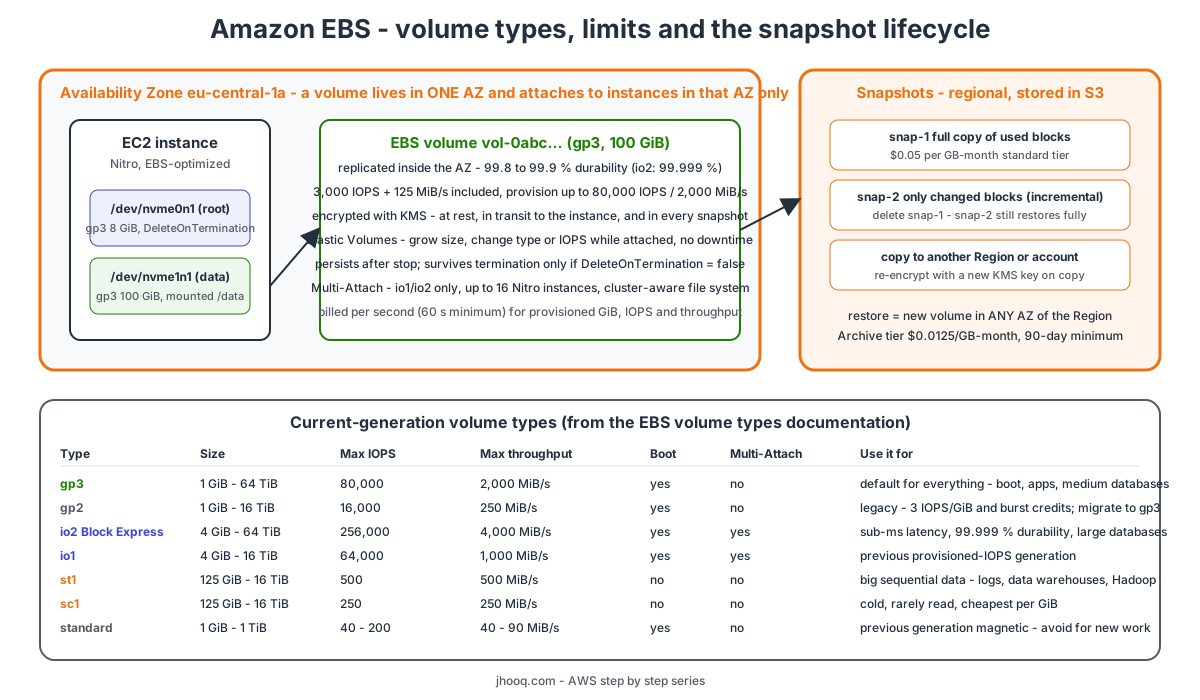
2. Volume types compared - the current numbers
From the volume types page -
| Type | Family | Size | Max IOPS per volume | Max throughput | Durability | Boot volume | Multi-Attach | Use case |
|---|---|---|---|---|---|---|---|---|
| gp3 | General Purpose SSD | 1 GiB - 64 TiB | 80,000 | 2,000 MiB/s | 99.8-99.9 % | yes | no | the default for everything |
| gp2 | General Purpose SSD | 1 GiB - 16 TiB | 16,000 | 250 MiB/s | 99.8-99.9 % | yes | no | legacy, migrate to gp3 |
| io2 Block Express | Provisioned IOPS SSD | 4 GiB - 64 TiB | 256,000 | 4,000 MiB/s | 99.999 % | yes | yes | latency-sensitive databases, more than 80,000 IOPS |
| io1 | Provisioned IOPS SSD | 4 GiB - 16 TiB | 64,000 | 1,000 MiB/s | 99.8-99.9 % | yes | yes | previous generation |
| st1 | Throughput Optimized HDD | 125 GiB - 16 TiB | 500 | 500 MiB/s | 99.8-99.9 % | no | no | big sequential - logs, data warehouses, Hadoop |
| sc1 | Cold HDD | 125 GiB - 16 TiB | 250 | 250 MiB/s | 99.8-99.9 % | no | no | infrequently accessed, lowest cost |
| standard | Magnetic (previous gen) | 1 GiB - 1 TiB | 40-200 | 40-90 MiB/s | - | yes | no | avoid for new work |
Reading the table -
- SSD types are about IOPS (small random reads and writes - databases, boot volumes). HDD types are about throughput (large sequential reads - log processing, analytics) and cannot be boot volumes.
- Hitting the big numbers needs a Nitro instance -
io2above 64,000 IOPS andgp3at its top end require Nitro and an EBS-optimized instance that itself has enough EBS bandwidth. At3.microcannot drive 80,000 IOPS no matter what the volume says; check the instance's EBS bandwidth in the EBS-optimized instances table. io2Block Express is designed for under 500 microseconds average latency on 16 KiB I/O, versus single-digit milliseconds for gp3 - if your database team says "latency", this is the answer.
3. gp3 vs gp2 - why gp3 wins every time
From the General Purpose SSD page -
| gp2 | gp3 | |
|---|---|---|
| IOPS | 3 per GiB, minimum 100, maximum 16,000 (reached at 5,334 GiB) | 3,000 baseline included at any size; provision up to 80,000 at 500 IOPS per GiB |
| Throughput | 128 MiB/s up to 170 GiB, 250 MiB/s from 334 GiB | 125 MiB/s included; provision up to 2,000 MiB/s at 0.25 MiB/s per provisioned IOPS |
| Burst | volumes under 1 TiB burst to 3,000 IOPS on I/O credits - and slow down when the credits are gone | no burst - provisioned performance all the time |
| Price | $0.10 per GB-month (example rate) | $0.08 per GB-month - 20 % cheaper per GiB, IOPS and throughput sold separately |
| Minimum size for 3,000 IOPS | 1,000 GiB | 1 GiB |
The practical consequence - on gp2 a 100 GiB database volume had 300 baseline IOPS and lived on burst credits (the BurstBalance CloudWatch metric tells you when it ran dry). On gp3 the same 100 GiB has 3,000 IOPS, always, for 20 % less money. The only reason to still have gp2 is that you have not migrated, and migration is one Modify volume action with no downtime (section 7). The console already defaults new volumes to gp3.
4. Step 1 - Create a volume
- EC2 console → Elastic Block Store → Volumes → Create volume.
- Volume type -
gp3. - Size -
20GiB. - IOPS - leave
3000, Throughput - leave125(both included in the price). Raise them only when CloudWatch proves you need to. - Availability Zone - the same AZ as your instance. This is the field people get wrong; a volume in
eu-central-1bwill never appear in the attach list of an instance ineu-central-1a. - Snapshot ID - leave empty for a blank volume.
- Encryption - tick Encrypt this volume, KMS key
(default) aws/ebs. See section 9; if your account has encryption by default on, the box is already ticked and greyed. - Tags -
Name = data-vol-1. Create volume. State goes creating → available in a few seconds.
5. Step 2 - Attach it to an instance
- Select the volume → Actions → Attach volume.
- Instance - only instances in the same AZ are listed.
- Device name - the console suggests
/dev/sdf. Accept it. On a Nitro instance the operating system will not call itsdf- it shows up as/dev/nvme1n1(the NVMe driver numbers devices in attach order). The mapping is visible withsudo nvme id-ctrl -v /dev/nvme1n1or simplylsblk. - Attach. State goes in-use.
Attaching needs no reboot; detaching should be done only after unmounting (section 15).
6. Step 3 - Format and mount it on Linux
Following the make a volume available page -
 1# 1. find the new device - the 20G disk with no mount point
 2lsblk
 3# nvme0n1     259:0    0   8G  0 disk
 4# ├─nvme0n1p1 259:1    0   8G  0 part /
 5# nvme1n1     259:2    0  20G  0 disk          <- our volume
 6
 7# 2. make sure it is really empty - "data" means no file system yet
 8sudo file -s /dev/nvme1n1
 9# /dev/nvme1n1: data
10
11# 3. create a file system - XFS is the default on Amazon Linux, ext4 is fine too
12sudo mkfs -t xfs /dev/nvme1n1
13
14# 4. mount it
15sudo mkdir -p /data
16sudo mount /dev/nvme1n1 /data
17df -h /data
18
19# 5. make it survive a reboot - use the UUID, never the device name
20sudo blkid /dev/nvme1n1
21# /dev/nvme1n1: UUID="2d2f9d5e-..." TYPE="xfs"
22echo 'UUID=2d2f9d5e-...  /data  xfs  defaults,nofail  0  2' | sudo tee -a /etc/fstab
23
24# 6. prove the fstab line works before you reboot
25sudo umount /data && sudo mount -a && df -h /data
Two details worth the extra minute -
- UUID, not
/dev/nvme1n1- NVMe device names can change between reboots when you have several volumes. A wrong device name infstabwithoutnofailleaves the instance stuck in emergency mode at boot, with no SSH. Thenofailoption is the seat belt. - Step 2 matters if the volume came from a snapshot - it already has a file system, and
mkfswould wipe it. In that case skip the format and just mount.
7. Step 4 - Grow a volume without downtime
Elastic Volumes lets you increase size, change type, and change IOPS or throughput on an attached, in-use volume. Rules - you can grow but never shrink; one modification per volume every 6 hours; the volume goes through modifying → optimizing → completed and is usable throughout.
- Volumes → select → Actions → Modify volume. Size
20 → 50GiB (and, if it were gp2, type →gp3). Modify. - Wait for optimizing at least - the new size is visible to the OS right away, performance arrives during optimizing.
- Tell the OS - from the extend a file system page -
 1lsblk                                   # nvme1n1 now shows 50G, the file system still 20G
 2
 3# data volume with NO partition table (what we made above) - resize the file system directly
 4sudo xfs_growfs -d /data                # XFS
 5# sudo resize2fs /dev/nvme1n1           # ext4
 6
 7# ROOT volume - it has a partition, grow the partition first, then the file system
 8sudo growpart /dev/nvme0n1 1
 9sudo xfs_growfs -d /                    # XFS  (Amazon Linux)
10# sudo resize2fs /dev/nvme0n1p1         # ext4 (Ubuntu)
11
12df -h
The same action converts gp2 to gp3 - pick the new type, keep size, confirm 3,000 IOPS and 125 MiB/s - with zero downtime. If you have a fleet, the gp2 to gp3 savings calculator linked from the docs tells you what you will save.
8. Step 5 - Snapshots and how incremental really works
An EBS snapshot is a point-in-time copy of a volume, stored in S3 (you never see the bucket) and Regional - restoring a snapshot creates a new volume in any AZ of the Region, which is how you move volumes between AZs.
How incremental works, because it confuses everyone -
- The first snapshot copies every used block of the volume.
- The second snapshot stores only the blocks that changed since the first - but it references the unchanged blocks from the first.
- Deleting the first snapshot does not break the second. AWS moves the blocks that the second one still needs into it. You only ever lose data that no remaining snapshot references, so you can keep "the last 7 dailies" and delete older ones freely.
- You are billed for the unique blocks across all your snapshots, not for a full copy each time.
Taking one - Volumes → select → Actions → Create snapshot, description data-vol-1 before upgrade, Create snapshot. For consistency, either stop the instance, or at least sync and freeze the file system (sudo fsfreeze -f /data ... sudo fsfreeze -u /data) for the second it takes to initiate - the snapshot captures the state at the moment it is started, and finishes in the background.
Restoring - Snapshots → select → Actions → Create volume from snapshot, choose the AZ (this is where the AZ move happens), optionally a bigger size and a different type, then attach and mount - without mkfs, the file system is already there (run xfs_growfs if you enlarged it).
Three more things you will use -
- Copy snapshot to another Region for disaster recovery, or to another account, and change the KMS key while copying.
- Amazon Data Lifecycle Manager automates "snapshot every night at 02:00, keep 7" with a tag-based policy - never schedule snapshots by cron again.
- Archive tier - snapshots you must keep for compliance but will rarely restore can be moved to the archive tier at roughly a quarter of the standard price, with a 90-day minimum and a 24-72 hour restore (section 12).
9. Step 6 - Encryption with KMS
EBS encryption uses AWS KMS keys and AES-256, and once a volume is encrypted, everything downstream is - data at rest on the volume, data in transit between the instance and the volume, every snapshot of it, and every volume restored from those snapshots. Encryption happens on the host that runs the instance, all current instance types support it, and there is no meaningful performance penalty.
The rules that matter in practice -
- You cannot encrypt an existing unencrypted volume in place. Snapshot it, then either copy the snapshot with encryption or create a volume from the snapshot with encryption ticked, attach the new volume, retire the old one.
- You cannot remove encryption from an encrypted volume or snapshot.
- The KMS key of a volume cannot be changed; you can pick a different key when copying a snapshot.
- Public snapshots of encrypted volumes are not possible; sharing with specific accounts is.
- Encryption by default - EC2 console → EC2 Dashboard → Account attributes → Data protection and security → Manage → Enable - is a per-Region switch that makes every new volume and snapshot copy encrypted automatically, with the AWS-managed
aws/ebskey or a customer-managed key you choose. Turn it on in every Region you use; it is the single cheapest security win in this whole series.
The AWS-managed key is free to use. A customer-managed KMS key costs $1 per month plus API calls, and buys you key policies, rotation control and cross-account sharing - the usual requirement for production.
10. Delete on termination and the root volume
Every block device of an instance has a DeleteOnTermination flag -
| Volume | Default | Effect of terminating the instance |
|---|---|---|
| Root volume (created from the AMI) | true | the root volume is deleted - your logs, your /home, everything |
| Additional volumes added at launch or attached later | false | the volume survives as available and keeps billing |
Two lessons - put application data on a separate volume (or on S3, EFS, RDS) rather than on the root, so a careless terminate does not take the data with it; and clean up available volumes regularly, they are the most common form of EBS waste. If you want the root volume to survive, untick Delete on termination in the launch wizard's Storage section (or --block-device-mappings in the CLI, or root_block_device { delete_on_termination = false } in Terraform). You can also change it on a running instance with modify-instance-attribute.
Stopping an instance never deletes anything - but a stopped instance keeps paying for its volumes, which is why "I stopped everything and still get a bill" is a question I get every month.
11. Multi-Attach, EBS vs instance store
Multi-Attach lets one io1 or io2 volume attach to up to 16 Nitro instances in the same AZ at the same time. It is not a shared drive you can mount with ext4 or XFS - a normal file system on a Multi-Attach volume will corrupt. You need a cluster-aware file system (GFS2) or an application that coordinates writes itself. gp3 does not support it. For "many instances need the same files" the right answer is almost always Amazon EFS, not Multi-Attach.
Instance store is the other kind of EC2 disk - physically attached NVMe SSDs on instance families like i4i, m6id, c6gd. They are blazingly fast and included in the instance price, but the data is lost when the instance stops, hibernates or terminates, or the host fails. Use them for caches, scratch space, Kafka or database replicas that can rebuild - never as the only copy of anything.
| EBS | Instance store | |
|---|---|---|
| Persistence | independent of the instance | lost on stop or terminate |
| Attach / detach | yes, live | fixed to the instance type |
| Snapshot | yes | no |
| Resize | yes, online | no |
| Latency | sub-ms (io2) to single-digit ms | microseconds |
| Price | per GiB and IOPS per second | included in the instance |
12. What EBS costs
Example rates from the EBS pricing page (US regions, at the time of writing - always check the page for your Region) -
| Item | Example price |
|---|---|
| gp3 storage | $0.08 per GB-month, 3,000 IOPS and 125 MiB/s included |
| gp3 extra IOPS | $0.005 per provisioned IOPS-month above 3,000 |
| gp3 extra throughput | $0.06 per provisioned MiB/s-month above 125 |
| gp2 storage | $0.10 per GB-month |
| io2 Block Express storage | $0.125 per GB-month |
| io2 IOPS | $0.065 per IOPS-month for the first 32,000; $0.046 from 32,001 to 64,000; cheaper again above 64,000 |
| io1 storage and IOPS | $0.125 per GB-month and $0.065 per IOPS-month |
| st1 | $0.045 per GB-month |
| sc1 | $0.015 per GB-month |
| Snapshots, standard | $0.05 per GB-month of unique blocks |
| Snapshots, archive | $0.0125 per GB-month, 90-day minimum |
All provisioned storage, IOPS and throughput is billed per second with a 60-second minimum, and - the point to remember - billed for what is provisioned, not what is used. A 500 GiB gp3 volume with 20 GiB of files costs the full $40 a month. Three quick wins - migrate gp2 to gp3, delete available volumes and the snapshots nobody needs, and right-size volumes at creation (you can always grow, you can never shrink). Also note the Free Tier - older accounts get 30 GB of EBS free for 12 months; accounts created after July 2025 are on the credit-based plan instead.
13. The AWS CLI equivalents
 1AZ=eu-central-1a
 2INSTANCE=i-0123456789abcdef0
 3
 4# create an encrypted 20 GiB gp3 volume
 5VOL=$(aws ec2 create-volume --availability-zone $AZ --volume-type gp3 --size 20 \
 6  --iops 3000 --throughput 125 --encrypted \
 7  --tag-specifications 'ResourceType=volume,Tags=[{Key=Name,Value=data-vol-1}]' \
 8  --query VolumeId --output text)
 9aws ec2 wait volume-available --volume-ids $VOL
10
11# attach and detach
12aws ec2 attach-volume --volume-id $VOL --instance-id $INSTANCE --device /dev/sdf
13aws ec2 wait volume-in-use --volume-ids $VOL
14# ... unmount inside the OS first, then:
15aws ec2 detach-volume --volume-id $VOL
16
17# grow to 50 GiB (or change type with --volume-type gp3) while attached
18aws ec2 modify-volume --volume-id $VOL --size 50
19aws ec2 describe-volumes-modifications --volume-ids $VOL \
20  --query "VolumesModifications[].{state:ModificationState,progress:Progress}"
21
22# snapshot, wait, restore in another AZ
23SNAP=$(aws ec2 create-snapshot --volume-id $VOL --description "data-vol-1 nightly" \
24  --query SnapshotId --output text)
25aws ec2 wait snapshot-completed --snapshot-ids $SNAP
26aws ec2 create-volume --availability-zone eu-central-1b --snapshot-id $SNAP --volume-type gp3
27
28# copy the snapshot to another Region with a different KMS key
29aws ec2 copy-snapshot --source-region eu-central-1 --source-snapshot-id $SNAP \
30  --region eu-west-1 --encrypted --kms-key-id alias/ebs-dr --description "DR copy"
31
32# turn on encryption by default in this Region
33aws ec2 enable-ebs-encryption-by-default
34aws ec2 get-ebs-encryption-by-default
35
36# find the waste - volumes nobody is using
37aws ec2 describe-volumes --filters Name=status,Values=available \
38  --query "Volumes[].{id:VolumeId,size:Size,type:VolumeType,created:CreateTime}" --output table
39
40# flip delete-on-termination for the root volume of a running instance
41aws ec2 modify-instance-attribute --instance-id $INSTANCE \
42  --block-device-mappings '[{"DeviceName":"/dev/xvda","Ebs":{"DeleteOnTermination":false}}]'
14. The same thing in Terraform
 1resource "aws_ebs_volume" "data" {
 2  availability_zone = aws_instance.web.availability_zone   # must match the instance
 3  size              = 20
 4  type              = "gp3"
 5  iops              = 3000
 6  throughput        = 125
 7  encrypted         = true
 8  # kms_key_id      = aws_kms_key.ebs.arn                   # customer-managed key, optional
 9
10  tags = { Name = "data-vol-1" }
11}
12
13resource "aws_volume_attachment" "data" {
14  device_name = "/dev/sdf"
15  volume_id   = aws_ebs_volume.data.id
16  instance_id = aws_instance.web.id
17}
18
19# root volume settings live on the instance
20resource "aws_instance" "web" {
21  ami           = data.aws_ami.al2023.id
22  instance_type = "t3.micro"
23  subnet_id     = aws_subnet.public_a.id
24
25  root_block_device {
26    volume_type           = "gp3"
27    volume_size           = 16
28    encrypted             = true
29    delete_on_termination = true
30  }
31
32  # format and mount the data volume on first boot
33  user_data = <<-EOF
34    #!/bin/bash
35    DEV=$(lsblk -dpno NAME,SIZE | awk '$2=="20G"{print $1}')
36    file -s $DEV | grep -q data && mkfs -t xfs $DEV
37    mkdir -p /data && mount $DEV /data
38    echo "UUID=$(blkid -s UUID -o value $DEV) /data xfs defaults,nofail 0 2" >> /etc/fstab
39  EOF
40}
41
42# nightly snapshots, keep 7 - Data Lifecycle Manager
43resource "aws_dlm_lifecycle_policy" "nightly" {
44  description        = "nightly snapshots of volumes tagged Backup=true"
45  execution_role_arn = aws_iam_role.dlm.arn
46  state              = "ENABLED"
47
48  policy_details {
49    resource_types = ["VOLUME"]
50    target_tags    = { Backup = "true" }
51
52    schedule {
53      name = "nightly"
54      create_rule {
55        interval      = 24
56        interval_unit = "HOURS"
57        times         = ["02:00"]
58      }
59      retain_rule { count = 7 }
60      copy_tags = true
61    }
62  }
63}
Growing the volume later is a one-line change of size; Terraform calls ModifyVolume and the OS-side xfs_growfs is still yours to run. My full EC2 Terraform setup is in the Terraform EC2 post.
15. Troubleshooting
- The volume does not appear in the attach list - different Availability Zone. Snapshot and restore into the instance's AZ.
/dev/sdfdoes not exist on the instance - look for/dev/nvme1n1; Nitro renames devices.lsblkshows all of them.- Mounted, but the data from the snapshot is gone - you ran
mkfson a volume that already had a file system. Restore the snapshot again and mount without formatting. - Instance stuck at boot after adding an fstab line - wrong UUID or device, no
nofail. Detach the root volume, attach it to a rescue instance, fix/etc/fstab, reattach as/dev/xvdaor/dev/sda1(whatever the AMI uses). dfstill shows the old size after Modify volume - you grew the volume, not the file system.growpart(if partitioned) thenxfs_growfsorresize2fs.- Modify volume fails with "rate limit" - one modification per volume every 6 hours.
- Detach is stuck in detaching - the volume is still mounted or busy.
umount, or stop the instance; Force detach is the last resort and can corrupt the file system. - Slow disk although gp3 shows 3,000 IOPS - the instance's own EBS bandwidth is the bottleneck (burstable
t3instances have small baselines), or the I/O size is large so you are hitting the throughput cap, not the IOPS cap. CheckVolumeReadOps,VolumeWriteBytesand the instance'sEBSIOBalance%in CloudWatch. - gp2 volume slows down after a busy hour - burst credits exhausted (
BurstBalanceat 0). Modify to gp3. - Snapshot of an encrypted volume cannot be made public - by design; share it with specific account ids, and give the other account access to the KMS key.
- Bill shows EBS charges with every instance stopped - volumes bill when provisioned, not when used. List available volumes and old snapshots.
16. Conclusion
EBS is simple once four facts are clear - a volume is AZ-bound, it persists independently of the instance except for the root volume's delete-on-termination default, you pay for what is provisioned, and snapshots are incremental and regional. On the type question the answer in 2026 is short - gp3 by default, io2 Block Express when latency or more than 80,000 IOPS matter, st1 or sc1 for cold sequential bulk - and gp2 only exists until you click Modify volume. Turn on encryption by default in every Region, put data on a separate volume, and automate snapshots with Data Lifecycle Manager.
Next in the series - Part-21 on VPC Flow Logs and Spot Instances, where interrupted instances make the "what happens to my volume" question very practical. For object storage, the other half of AWS storage, see my complete S3 course.
AWS step by step series -
- Part-1 : AWS IAM user - create a user, group, policy, access keys and MFA
- Part-2 : AWS Organizations - multi-account setup, OUs and SCPs
- Part-3 : AWS assume IAM role - trust policy, switch role in console and CLI
- Part-4 : How to launch an EC2 instance - key pair, security group, SSH
- Part-5 : AWS VPC - public and private subnets, Internet Gateway, NAT Gateway, route tables
- Part-8 : EC2 launch template - versions, default version, source template, SSM parameter AMI
- Part-10 : EC2 Auto Scaling - launch template, Auto Scaling group, target tracking, ALB
- Part-11 : AWS WAF - web ACL, managed rules, rate limiting, geo blocking
- Part-12 : AWS VPC Peering - connect two VPCs, routes, security groups, DNS
- Part-13 : AWS Transit Gateway - hub-and-spoke for many VPCs and on-premises
- Part-14 : AWS NAT Gateway deep dive - public vs private, limits, cost, troubleshooting
- Part-15 : Amazon Route 53 - hosted zones, records, alias, routing policies, health checks
- Part-16 : AWS security groups - inbound and outbound rules, stateful, referencing, quotas
- Part-16 : AWS Certificate Manager - free TLS certificates for ALB, CloudFront and API Gateway
- Part-17 : AWS Lambda - function URLs, environment variables and layers
- Part-18 : Network Load Balancer - setup, and ALB vs NLB
- Part-19 : VPC endpoints - gateway and interface endpoints (PrivateLink) instead of NAT
- Part-20 : AWS PrivateLink - publish your own service with an endpoint service and NLB
- Part-20 : Amazon EBS volumes - types, attach, mount, resize, snapshots, encryption
- Part-21 : VPC Flow Logs - CloudWatch Logs, S3, record format, Logs Insights, Athena
- Part-21 : EC2 Spot Instances - pricing, interruptions, mixed instances groups
- Part-24 : AWS Control Tower - landing zone, controls, Account Factory, Identity Center
Networking fundamentals -
- What is a VPC and a subnet? AWS networking in five minutes
- What is CIDR? Calculate IP ranges for VPCs and subnets
- What is NAT? Static NAT, dynamic NAT and PAT explained
More AWS guides -
- What is AWS CloudFormation? Templates, stacks, change sets, drift, StackSets
- Learn AWS S3 - the complete course
- AWS API Gateway - REST API with Lambda, authorizers, Terraform
- AWS Advanced Networking Specialty (ANS-C01) - course companion
- AWS ECS and Fargate - how to deploy a Docker container
- AWS S3 - how to host a static website
- Terraform create EC2 instance on AWS
- Terraform AWS IAM - users, roles and policies
- Terraform and AWS multi-account setup
- Terraform - setting up an ALB and SSL
Posts in this series
- Amazon EBS Volumes Step by Step - Volume Types Compared (gp3, gp2, io2 Block Express, st1, sc1), Create, Attach, Format and Mount a Volume, Resize Without Downtime, Snapshots, Encryption, Multi-Attach, Pricing and Troubleshooting (AWS Part-20)
- Amazon Route 53 Step by Step - Hosted Zones, Record Types, Alias Records, Point a Domain at an ALB, Routing Policies (Weighted, Latency, Failover, Geolocation), Health Checks, Private Zones and Pricing (AWS Part-15)
- AWS Advanced Networking - Free 8-Hour Full Course Companion (VPC, NAT Gateway, Bastion, ALB, NLB, WAF, VPC Peering, Transit Gateway, VPC Endpoints and PrivateLink, Route 53, ACM) with Timestamps and the ANS-C01 Exam Facts
- AWS Assume IAM Role Step by Step - Trust Policy vs Permissions Policy, Switch Role in the Console, aws sts assume-role, CLI Profiles, Cross-Account Access, MFA and External ID (AWS Part-3)
- AWS Certificate Manager (ACM) Step by Step - Request a Free TLS Certificate, DNS Validation with Route 53, Attach It to an ALB HTTPS Listener, Redirect HTTP to HTTPS, CloudFront and API Gateway, Auto-Renewal, Exportable Certificates and ACME (AWS Part-16)
- AWS Control Tower Step by Step - Set Up a Landing Zone, Security OU with Log Archive and Audit Accounts, Controls (Guardrails), Region Deny, IAM Identity Center, Account Factory and Enrolling Existing Accounts (AWS Part-24)
- AWS EC2 Auto Scaling Step by Step - Launch Template, Auto Scaling Group Across Two AZs, Target Tracking Policy, Application Load Balancer, Health Checks and Instance Refresh (AWS Part-10)
- AWS EC2 Launch Template Step by Step - Create a Template, Versions and the Default Version, Source Template, Create From a Running Instance, Systems Manager Parameter Instead of an AMI ID, Launch Templates vs Launch Configurations, IAM Guardrails, CLI and Terraform (AWS Part-8 and Part-17)
- AWS EC2 Spot Instances Step by Step - How Spot Pricing Works, Launch a Spot Instance, Interruptions and the Two-Minute Notice, Rebalance Recommendations, Stop vs Hibernate vs Terminate, Spot in Auto Scaling Mixed Instances Groups, Billing Rules, Best Practices, CLI and Terraform (AWS Part-21)
- AWS IAM User Step by Step - Create a User, User Group, Attach Policies, Access Keys, MFA and Sign-in URL (AWS Part-1)
- AWS Lambda Step by Step - Create a Function, Function URL (HTTPS Endpoint Without API Gateway), Environment Variables, Lambda Layers for Python Dependencies, Versions and Aliases, Limits, Pricing and Errors (AWS Part-17)
- AWS NAT Gateway Deep Dive - How It Works, Public vs Private NAT Gateway, Setup Step by Step, Limits (55,000 Connections, 100 Gbps), CloudWatch Metrics, Cost Optimisation, NAT Instance Comparison and Troubleshooting (AWS Part-14)
- AWS Network Load Balancer Step by Step - Create an NLB with Static IPs, Target Groups, TCP and TLS Listeners, Security Groups, Client IP Preservation, Cross-Zone Load Balancing, and ALB vs NLB Explained (AWS Part-18)
- AWS Organizations Step by Step - Multi-Account Setup, Organizational Units, Service Control Policies (SCPs), Consolidated Billing and Identity Center (AWS Part-2)
- AWS PrivateLink Step by Step - Publish Your Own Service with a VPC Endpoint Service and Network Load Balancer, Allow Consumers, Accept Connections, Private DNS Name, Cross-Account and Cross-Region, Pricing and Troubleshooting (AWS Part-20)
- AWS Security Groups Step by Step - Inbound and Outbound Rules, Stateful Behaviour, Referencing Security Groups, the Three-Tier ALB-Web-DB Pattern, Quotas, Security Group vs Network ACL, CLI and Terraform (AWS Part-16)
- AWS Transit Gateway Step by Step - Connect Many VPCs and On-Premises Through One Hub, VPC Attachments, Transit Gateway Route Tables, Associations and Propagations, Isolation, Peering, Pricing (AWS Part-13)
- AWS VPC Endpoints Step by Step - Gateway Endpoints for S3 and DynamoDB, Interface Endpoints (PrivateLink) for SSM, ECR and Other Services, Private DNS, Endpoint Policies, Security Groups, Cost vs NAT Gateway, and Troubleshooting (AWS Part-19)
- AWS VPC Flow Logs Step by Step - Enable Flow Logs for a VPC, Subnet or Network Interface, Publish to CloudWatch Logs or S3, Read a Flow Log Record Field by Field, Custom Formats, Query with Logs Insights and Athena, Find Rejected Traffic, Pricing and Limitations (AWS Part-21)
- AWS VPC Peering Step by Step - Connect Two VPCs (Same or Different Account and Region), Accept the Request, Add Routes, Security Groups, DNS Resolution, Test with EC2, and the Limits (AWS Part-12)
- AWS VPC Step by Step - Create a VPC with Public and Private Subnets, Internet Gateway, NAT Gateway and Route Tables (and Test It with EC2) (AWS Part-5)
- AWS WAF Step by Step - Create a Web ACL, Attach It to an ALB or API Gateway, AWS Managed Rules, Rate-Based Rules, Geo Blocking, IP Sets, Count Mode and Logging (AWS Part-11)
- How to Launch an EC2 Instance on AWS Step by Step - AMI, Instance Type, Key Pair, Security Group, Connect with SSH or EC2 Instance Connect, Stop vs Terminate (AWS Part-4)
- What is an AWS VPC and a Subnet? Virtual Private Cloud Explained in Five Minutes (Region, Availability Zones, Public vs Private Subnets, Gateways, Route Tables)
- What is AWS CloudFormation? Templates, Stacks and Change Sets Explained, Template Anatomy Section by Section, Create Your First Stack Step by Step, Update With a Change Set, Drift Detection, Nested Stacks and StackSets, Quotas, Pricing, CLI, and CloudFormation vs Terraform
- What is CIDR (Classless Inter-Domain Routing)? How to Calculate IP Ranges for VPCs and Subnets, with Examples (/8, /16, /24, /28, /32)
- What is NAT (Network Address Translation)? How It Works, Static NAT vs Dynamic NAT vs PAT, the Translation Table, and Where NAT Shows Up in AWS
- AWS API Gateway Tutorial - REST API with Lambda Proxy and Non-Proxy Integration, Request Validation, HTTP API vs REST API, Resource Policies, Lambda Authorizers and Terraform
- Learn AWS S3 - The Complete Course (Buckets, Objects, Storage Classes, Lifecycle, Versioning, Security Defaults, Bucket Policies, Static Hosting, CLI and Terraform)
- How to release(delete) Elastic IP from AWS?
- Fix docker login 'error saving credentials: error storing credentials - err: exit status 1' (AWS ECR on macOS, Windows, Linux and WSL)