AWS Assume IAM Role Step by Step - Trust Policy vs Permissions Policy, Switch Role in the Console, aws sts assume-role, CLI Profiles, Cross-Account Access, MFA and External ID (AWS Part-3)
In Part-1 we created IAM users with long-term credentials, and in Part-2 we switched into a member account with something called OrganizationAccountAccessRole. That "switch" is the single most important mechanism in AWS security - assuming an IAM role - and this Part-3 is all about it.
A role is an identity with permissions but no password and no access keys. Instead, some trusted principal - a user, a service like EC2, another account, GitHub Actions - assumes it and receives temporary credentials that expire. Once you understand that, EC2 instance profiles, Lambda execution roles, cross-account access, Identity Center permission sets and CI/CD pipelines all turn out to be the same thing. Let's build one and assume it every way there is.
Table of Content
- What is an IAM role and why is it better than a user?
- Trust policy vs permissions policy - the two halves of a role
- Create a role in the console
- Allow the IAM user to assume the role
- Switch role in the AWS console
- Assume the role from the AWS CLI - sts assume-role and profiles
- Session duration - 1 hour default, 12 hours max, 1 hour for role chaining
- Cross-account roles, External ID and MFA conditions
- Roles for AWS services - EC2 instance profile, Lambda execution role
- Roles for CI/CD - GitHub Actions with OIDC, no keys at all
- Common assume role errors and how to fix them
- Conclusion
1. What is an IAM role and why is it better than a user?
The IAM docs describe a role as an IAM identity that you can create in your account that has specific permissions ... However, instead of being uniquely associated with one person, a role is intended to be assumable by anyone who needs it. The practical differences from a user -
| IAM user | IAM role | |
|---|---|---|
| Credentials | long-term password / access keys you must protect and rotate | temporary - access key + secret + session token, expire in 15 min to 12 h |
| Who uses it | one person or one application | anyone/anything the trust policy allows - users, services, other accounts, identity providers |
| Leak impact | permanent until you notice and rotate | self-healing - the session expires |
| Audit | CloudTrail shows the user | CloudTrail shows assumed-role/RoleName/SessionName - who, through which role |
| Typical use | CI systems that cannot use roles, break-glass | everything else - EC2, Lambda, ECS, cross-account, SSO, pipelines |
That is why the best practices say use temporary credentials - and temporary credentials come from roles.
2. Trust policy vs permissions policy - the two halves of a role
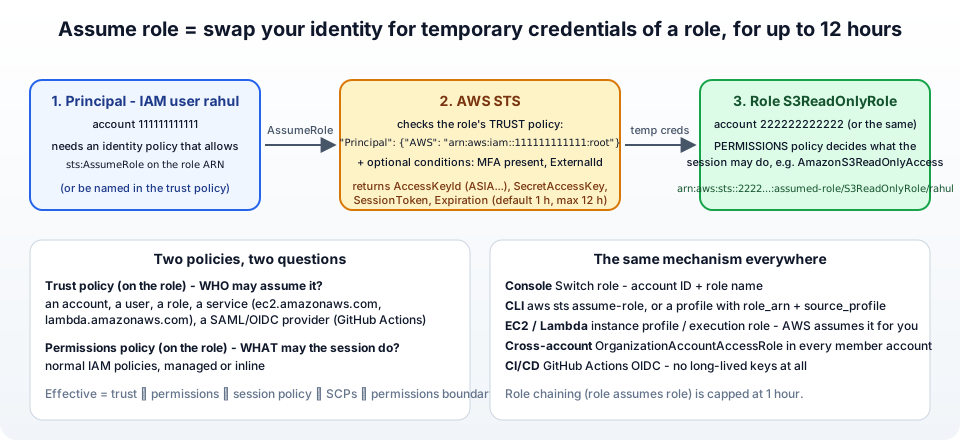
Every role has two kinds of policy and every assume-role problem is one of the two being wrong -
1. The trust policy (also called the assume role policy) answers who may assume this role. It is a resource-based policy on the role itself, with sts:AssumeRole as the action and the trusted principal -
1{
2  "Version": "2012-10-17",
3  "Statement": [{
4    "Effect": "Allow",
5    "Principal": { "AWS": "arn:aws:iam::111111111111:root" },
6    "Action": "sts:AssumeRole"
7  }]
8}
:root here means the whole account 111111111111 (any identity in it that also has permission - see section 4), not the root user specifically. The principal can also be a specific user or role ARN, a service ("Service": "ec2.amazonaws.com") or a federated provider ("Federated": "arn:aws:iam::...:oidc-provider/token.actions.githubusercontent.com").
2. The permissions policy answers what the session may do once the role is assumed. These are ordinary IAM policies - managed or inline - exactly as on a user: AmazonS3ReadOnlyAccess, your own JSON, whatever.
The AssumeRole API adds a third, optional layer - a session policy passed at assume time that can only narrow the permissions further. The effective permissions of the session are the intersection of the role's permissions policy, the session policy, any permissions boundary and the SCPs of the organization.
3. Create a role in the console
We are going to create a read-only S3 role that the IAM user from Part-1 can assume. IAM → Roles → Create role -
Step 1 - Select trusted entity
The console offers the trust policy templates -
- AWS service - EC2, Lambda, ECS ... (section 9)
- AWS account - This account (the one you are in) or Another AWS account (enter its ID) - choose This account for now. The Options below it are the two conditions from section 8: Require external ID and Require MFA.
- Web identity - Cognito, Google, GitHub (OIDC) (section 10)
- SAML 2.0 federation
- Custom trust policy - paste JSON
Choose AWS account → This account → Next.
Step 2 - Add permissions
Search and tick AmazonS3ReadOnlyAccess. Next.
Step 3 - Name, review, and create
- Role name -
S3ReadOnlyRole. Up to 64 characters; it becomes part of the ARNarn:aws:iam::111111111111:role/S3ReadOnlyRole. - Description - who uses it and why; future you will thank you.
- The trust policy JSON is shown here and you can still edit it - this is where you would replace
:rootwith a specific user ARN. - Create role.
Open the role afterwards and note two tabs - Permissions (what) and Trust relationships (who) - and the Maximum session duration setting on the summary, which we come back to in section 7.
With the CLI -
1aws iam create-role --role-name S3ReadOnlyRole --assume-role-policy-document file://trust.json
2aws iam attach-role-policy --role-name S3ReadOnlyRole --policy-arn arn:aws:iam::aws:policy/AmazonS3ReadOnlyAccess
4. Allow the IAM user to assume the role
Here is the part the video spends the most time on, because it catches everyone. With :root in the trust policy, the account is trusted - but the user still needs permission to call sts:AssumeRole on that role. The STS docs say it exactly - attach a policy to the user that allows the user to call AssumeRole (as long as the role's trust policy trusts the account).
Create a policy and attach it to the user (or, better, to the developers group from Part-1) -
1{
2  "Version": "2012-10-17",
3  "Statement": [{
4    "Effect": "Allow",
5    "Action": "sts:AssumeRole",
6    "Resource": "arn:aws:iam::111111111111:role/S3ReadOnlyRole"
7  }]
8}
The alternative, also from the docs - name the user directly in the trust policy ("Principal": {"AWS": "arn:aws:iam::111111111111:user/rahul"}), in which case no identity policy is needed, because a resource-based policy that names a principal in the same account is sufficient on its own. For cross-account access you always need both - the trust policy on the role side and the sts:AssumeRole permission on the user side.
5. Switch role in the AWS console
Log in as rahul (Part-1) and switch role -
- Account menu (top right) → Switch role → Switch Role.
- Account -
111111111111(or the aliasjhooq). Role -S3ReadOnlyRole. Display name -s3-readonly, pick a colour. - Switch Role.
The header turns the colour you picked and shows s3-readonly @ jhooq. Open S3 - you can list and download. Try to upload - AccessDenied, because the role only has read-only, even though rahul himself has more. That is the point of roles - you work with exactly the permissions of the hat you are wearing. The menu now has Switch back, and remembers the last five roles.
You can also share a direct link - https://signin.aws.amazon.com/switchrole?account=111111111111&roleName=S3ReadOnlyRole&displayName=s3-readonly.
The console session for a switched role lasts one hour by default; it can be longer only if the role's maximum session duration is raised (section 7).
6. Assume the role from the AWS CLI - sts assume-role and profiles
Option 1 - the raw API call, which shows you what is actually happening -
1aws sts assume-role \
2  --role-arn arn:aws:iam::111111111111:role/S3ReadOnlyRole \
3  --role-session-name rahul-laptop
 1{
 2  "Credentials": {
 3    "AccessKeyId": "ASIA................",
 4    "SecretAccessKey": "....................",
 5    "SessionToken": "IQoJb3JpZ2luX2VjE...",
 6    "Expiration": "2026-10-10T15:34:41+00:00"
 7  },
 8  "AssumedRoleUser": {
 9    "AssumedRoleId": "AROA...:rahul-laptop",
10    "Arn": "arn:aws:sts::111111111111:assumed-role/S3ReadOnlyRole/rahul-laptop"
11  }
12}
Three things to notice - the access key starts with ASIA (temporary) instead of AKIA (long-term); there is a session token that must be sent with every request; and the ARN is assumed-role/<role>/<session name>, which is what CloudTrail logs. Export the three values and every CLI call is now made as the role -
1export AWS_ACCESS_KEY_ID=ASIA................
2export AWS_SECRET_ACCESS_KEY=....................
3export AWS_SESSION_TOKEN=IQoJb3JpZ2luX2VjE...
4aws sts get-caller-identity
5aws s3 ls
Option 2 - a profile that assumes automatically, which is what you use day to day. The CLI does the assume-role call for you and caches the credentials - using an IAM role in the AWS CLI -
 1# ~/.aws/config
 2[profile rahul]
 3region = eu-central-1
 4
 5[profile s3-readonly]
 6role_arn         = arn:aws:iam::111111111111:role/S3ReadOnlyRole
 7source_profile   = rahul
 8role_session_name = rahul-laptop
 9region           = eu-central-1
10# duration_seconds = 7200
11# mfa_serial = arn:aws:iam::111111111111:mfa/rahul
12# external_id = jhooq-2026
1aws s3 ls --profile s3-readonly
2export AWS_PROFILE=s3-readonly     # or make it the default for this shell
source_profile holds the credentials of the identity doing the assuming (rahul's access keys from Part-1, or an SSO profile). Terraform understands the same file - provider "aws" { profile = "s3-readonly" } or assume_role { role_arn = "..." } in the provider block, which is how Terraform and AWS multi-account setup deploys into several accounts from one pipeline.
7. Session duration - 1 hour default, 12 hours max, 1 hour for role chaining
Straight from the AssumeRole reference -
DurationSecondsdefaults to 3600 (1 hour) and can be 900 to 43200 (15 minutes to 12 hours).- It cannot exceed the role's Maximum session duration, which the role owner sets between 1 and 12 hours (IAM → Roles → the role → Summary → Edit). Ask for more than the role allows and the call fails - it is not silently capped.
- Role chaining - assuming a role with credentials that already came from a role - is capped at 1 hour, whatever the settings say. This is what bites people on EC2: the instance profile credentials are a role session, so
assume-rolefrom an instance cannot go past an hour. - The console
SessionDurationis separate from the API's; the switch-role page honours the role maximum too.
When a session expires you get ExpiredToken and simply assume again; the CLI profile approach does this for you. Long-running jobs should be designed to re-assume, not to ask for 12-hour sessions.
8. Cross-account roles, External ID and MFA conditions
The real power of roles is cross-account access - account 222222222222 (dev) trusts account 111111111111 (where the people are). The cross-account tutorial in the docs is this exact setup -
- In 222222222222 create the role with trusted entity Another AWS account → 111111111111, attach permissions. Trust policy:
"Principal": {"AWS": "arn:aws:iam::111111111111:root"}. - In 111111111111 give the users
sts:AssumeRoleonarn:aws:iam::222222222222:role/DevAdminRole. - Switch role / profile exactly as before, just with the other account ID.
Two conditions worth adding to cross-account trust policies -
Require MFA - the assuming identity must have logged in with MFA -
1"Condition": { "Bool": { "aws:MultiFactorAuthPresent": "true" } }
In the CLI profile this is mfa_serial = arn:aws:iam::111111111111:mfa/rahul; the CLI prompts for the code.
External ID - for roles that a third party (a SaaS vendor, a monitoring tool) assumes from their account. It defends against the confused deputy problem: the vendor's account is trusted by many customers, so you make them present a secret ExternalId that only your configuration carries -
1"Condition": { "StringEquals": { "sts:ExternalId": "jhooq-7f3a9c" } }
The vendor passes --external-id jhooq-7f3a9c. The docs: only someone with the ID can assume the role, rather than everyone in the account. Inside the organization from Part-2, OrganizationAccountAccessRole is a cross-account role with the management account as the trusted principal - the same pattern.
9. Roles for AWS services - EC2 instance profile, Lambda execution role
Applications running on AWS never need access keys. They get a role -
EC2 - create a role with trusted entity AWS service → EC2 (trust policy principal ec2.amazonaws.com), attach e.g. AmazonS3ReadOnlyAccess, and attach the role to the instance at launch (Advanced details → IAM instance profile) or later via Actions → Security → Modify IAM role. On the instance, the CLI and SDKs fetch rotating credentials from the instance metadata service automatically -
1# on the instance - no aws configure needed
2aws sts get-caller-identity
3# "Arn": "arn:aws:sts::111111111111:assumed-role/EC2S3ReadOnlyRole/i-0a948ac635a2010f1"
The IAM roles for Amazon EC2 page has the details, and I use it in Part-4, launch an EC2 instance. (An "instance profile" is just the container that attaches a role to EC2 - the console creates it for you.)
Lambda - every function has an execution role (trust lambda.amazonaws.com) with at least AWSLambdaBasicExecutionRole for logs; the function's code gets the credentials from its environment. Same for ECS tasks (ecs-tasks.amazonaws.com), CodeBuild, Glue ... Any time a service does something on your behalf, there is a role with that service in its trust policy. The API Gateway post creates one for its Lambda in Terraform.
10. Roles for CI/CD - GitHub Actions with OIDC, no keys at all
The last place where people still paste access keys is the CI pipeline. Roles fix that too. GitHub Actions can present an OIDC token that proves "this is repo rahulwagh/jhooq, branch master", and a role can trust that token -
 1{
 2  "Version": "2012-10-17",
 3  "Statement": [{
 4    "Effect": "Allow",
 5    "Principal": { "Federated": "arn:aws:iam::111111111111:oidc-provider/token.actions.githubusercontent.com" },
 6    "Action": "sts:AssumeRoleWithWebIdentity",
 7    "Condition": {
 8      "StringEquals": { "token.actions.githubusercontent.com:aud": "sts.amazonaws.com" },
 9      "StringLike":   { "token.actions.githubusercontent.com:sub": "repo:rahulwagh/jhooq:*" }
10    }
11  }]
12}
In the workflow, aws-actions/configure-aws-credentials with role-to-assume does the AssumeRoleWithWebIdentity call, and the job has temporary credentials for its duration. No secret in GitHub, nothing to rotate, nothing to leak. This blog deploys exactly that way - the workflow assumes a role that may only write to the site bucket and invalidate CloudFront - and the Terraform side is in Terraform and AWS credentials handling.
11. Common assume role errors and how to fix them
1. An error occurred (AccessDenied) when calling the AssumeRole operation: User: arn:aws:iam::111111111111:user/rahul is not authorized to perform: sts:AssumeRole on resource: arn:aws:iam::111111111111:role/S3ReadOnlyRole - The most common one, and it has two possible causes that produce the identical message: (a) the user has no sts:AssumeRole permission on the role (section 4), or (b) the role's trust policy does not include this user/account. Check both. For cross-account, both sides must allow.
2. Same error, but the trust policy and permission look right - A condition in the trust policy is failing - MFA not present (aws:MultiFactorAuthPresent), wrong sts:ExternalId, or a aws:SourceIp restriction. Or an SCP in the organization denies sts:AssumeRole. Or the role was deleted and recreated - the trust policy may name the old unique ID of a principal.
3. The requested DurationSeconds exceeds the MaxSessionDuration set for this role - Lower duration_seconds, or raise the role's maximum session duration (up to 12 h).
4. The requested DurationSeconds exceeds the 1 hour session limit for roles assumed by role chaining - You are assuming from credentials that are already a role session (EC2 instance profile, SSO). Drop the duration to 3600 or less.
5. ExpiredToken: The security token included in the request is expired - The session ran out. Assume again; with a role_arn profile the CLI refreshes automatically.
6. InvalidClientTokenId: The security token included in the request is invalid - You exported the access key and secret but forgot AWS_SESSION_TOKEN, or an old token is still exported. unset AWS_ACCESS_KEY_ID AWS_SECRET_ACCESS_KEY AWS_SESSION_TOKEN and start again.
7. Invalid information in one or more fields. Check your information or contact your administrator on the switch-role page -** Account ID or role name typo, or the role does not trust your account. The console gives no detail on purpose.
8. Not authorized to perform sts:TagSession -** The assuming identity passes session tags (Identity Center, some SDKs) but the trust policy allows only sts:AssumeRole. Add "sts:TagSession" to the Action list in the trust policy.
9. AssumeRoleWithWebIdentity ... Not authorized to perform sts:AssumeRoleWithWebIdentity from GitHub Actions -** The sub condition does not match (branch, environment, or repo: casing), or the OIDC provider thumbprint/audience is wrong. Print the sub claim GitHub sends and compare.
10. On EC2: Unable to locate credentials -** No instance profile attached, or IMDS is blocked (hop limit 1 inside containers). Attach the role; for containers raise the hop limit or use ECS task roles.
12. Conclusion
To summarise Part-3 -
- A role is an identity with permissions and no long-term credentials - something assumes it and gets temporary
ASIA...credentials with a session token. - Every role has a trust policy (who may assume) and a permissions policy (what the session may do); nearly every
AccessDeniedonsts:AssumeRoleis one of the two - and for a user in the same account you also needsts:AssumeRolepermission unless the trust policy names the user directly. - Assume it in the console with Switch role, in the CLI with
aws sts assume-roleor arole_arn+source_profileprofile, and in Terraform withassume_role. - Sessions last 1 hour by default, up to 12 hours if the role allows, and 1 hour when chaining roles.
- Cross-account access, External ID for third parties, MFA conditions, EC2 instance profiles, Lambda execution roles and GitHub Actions OIDC are all the same mechanism - and together they mean you almost never need access keys.
The official references are IAM roles, the AssumeRole API reference, the cross-account tutorial and using an IAM role in the AWS CLI. In Part-4 we launch an EC2 instance and give it a role instead of keys.
More videos on this topic - creating a custom IAM role and policy, assuming a role, and cross-account IAM roles, from my 2024 Solutions Architect series and the 2025 SkylineOps session -
AWS step by step series -
- Part-1 : AWS IAM user - create a user, group, policy, access keys and MFA
- Part-2 : AWS Organizations - multi-account setup, OUs and SCPs
- Part-3 : AWS assume IAM role - trust policy, switch role in console and CLI
- Part-4 : How to launch an EC2 instance - key pair, security group, SSH
- Part-5 : AWS VPC - public and private subnets, Internet Gateway, NAT Gateway, route tables
- Part-8 : EC2 launch template - versions, default version, source template, SSM parameter AMI
- Part-10 : EC2 Auto Scaling - launch template, Auto Scaling group, target tracking, ALB
- Part-11 : AWS WAF - web ACL, managed rules, rate limiting, geo blocking
- Part-12 : AWS VPC Peering - connect two VPCs, routes, security groups, DNS
- Part-13 : AWS Transit Gateway - hub-and-spoke for many VPCs and on-premises
- Part-14 : AWS NAT Gateway deep dive - public vs private, limits, cost, troubleshooting
- Part-15 : Amazon Route 53 - hosted zones, records, alias, routing policies, health checks
- Part-16 : AWS security groups - inbound and outbound rules, stateful, referencing, quotas
- Part-16 : AWS Certificate Manager - free TLS certificates for ALB, CloudFront and API Gateway
- Part-17 : AWS Lambda - function URLs, environment variables and layers
- Part-18 : Network Load Balancer - setup, and ALB vs NLB
- Part-19 : VPC endpoints - gateway and interface endpoints (PrivateLink) instead of NAT
- Part-20 : AWS PrivateLink - publish your own service with an endpoint service and NLB
- Part-20 : Amazon EBS volumes - types, attach, mount, resize, snapshots, encryption
- Part-21 : VPC Flow Logs - CloudWatch Logs, S3, record format, Logs Insights, Athena
- Part-21 : EC2 Spot Instances - pricing, interruptions, mixed instances groups
- Part-24 : AWS Control Tower - landing zone, controls, Account Factory, Identity Center
Networking fundamentals -
- What is a VPC and a subnet? AWS networking in five minutes
- What is CIDR? Calculate IP ranges for VPCs and subnets
- What is NAT? Static NAT, dynamic NAT and PAT explained
More AWS guides -
- What is AWS CloudFormation? Templates, stacks, change sets, drift, StackSets
- Learn AWS S3 - the complete course
- AWS API Gateway - REST API with Lambda, authorizers, Terraform
- AWS Advanced Networking Specialty (ANS-C01) - course companion
- AWS ECS and Fargate - how to deploy a Docker container
- AWS S3 - how to host a static website
- Terraform create EC2 instance on AWS
- Terraform AWS IAM - users, roles and policies
- Terraform and AWS multi-account setup
- Terraform - setting up an ALB and SSL
Posts in this series
- Amazon EBS Volumes Step by Step - Volume Types Compared (gp3, gp2, io2 Block Express, st1, sc1), Create, Attach, Format and Mount a Volume, Resize Without Downtime, Snapshots, Encryption, Multi-Attach, Pricing and Troubleshooting (AWS Part-20)
- Amazon Route 53 Step by Step - Hosted Zones, Record Types, Alias Records, Point a Domain at an ALB, Routing Policies (Weighted, Latency, Failover, Geolocation), Health Checks, Private Zones and Pricing (AWS Part-15)
- AWS Advanced Networking - Free 8-Hour Full Course Companion (VPC, NAT Gateway, Bastion, ALB, NLB, WAF, VPC Peering, Transit Gateway, VPC Endpoints and PrivateLink, Route 53, ACM) with Timestamps and the ANS-C01 Exam Facts
- AWS Assume IAM Role Step by Step - Trust Policy vs Permissions Policy, Switch Role in the Console, aws sts assume-role, CLI Profiles, Cross-Account Access, MFA and External ID (AWS Part-3)
- AWS Certificate Manager (ACM) Step by Step - Request a Free TLS Certificate, DNS Validation with Route 53, Attach It to an ALB HTTPS Listener, Redirect HTTP to HTTPS, CloudFront and API Gateway, Auto-Renewal, Exportable Certificates and ACME (AWS Part-16)
- AWS Control Tower Step by Step - Set Up a Landing Zone, Security OU with Log Archive and Audit Accounts, Controls (Guardrails), Region Deny, IAM Identity Center, Account Factory and Enrolling Existing Accounts (AWS Part-24)
- AWS EC2 Auto Scaling Step by Step - Launch Template, Auto Scaling Group Across Two AZs, Target Tracking Policy, Application Load Balancer, Health Checks and Instance Refresh (AWS Part-10)
- AWS EC2 Launch Template Step by Step - Create a Template, Versions and the Default Version, Source Template, Create From a Running Instance, Systems Manager Parameter Instead of an AMI ID, Launch Templates vs Launch Configurations, IAM Guardrails, CLI and Terraform (AWS Part-8 and Part-17)
- AWS EC2 Spot Instances Step by Step - How Spot Pricing Works, Launch a Spot Instance, Interruptions and the Two-Minute Notice, Rebalance Recommendations, Stop vs Hibernate vs Terminate, Spot in Auto Scaling Mixed Instances Groups, Billing Rules, Best Practices, CLI and Terraform (AWS Part-21)
- AWS IAM User Step by Step - Create a User, User Group, Attach Policies, Access Keys, MFA and Sign-in URL (AWS Part-1)
- AWS Lambda Step by Step - Create a Function, Function URL (HTTPS Endpoint Without API Gateway), Environment Variables, Lambda Layers for Python Dependencies, Versions and Aliases, Limits, Pricing and Errors (AWS Part-17)
- AWS NAT Gateway Deep Dive - How It Works, Public vs Private NAT Gateway, Setup Step by Step, Limits (55,000 Connections, 100 Gbps), CloudWatch Metrics, Cost Optimisation, NAT Instance Comparison and Troubleshooting (AWS Part-14)
- AWS Network Load Balancer Step by Step - Create an NLB with Static IPs, Target Groups, TCP and TLS Listeners, Security Groups, Client IP Preservation, Cross-Zone Load Balancing, and ALB vs NLB Explained (AWS Part-18)
- AWS Organizations Step by Step - Multi-Account Setup, Organizational Units, Service Control Policies (SCPs), Consolidated Billing and Identity Center (AWS Part-2)
- AWS PrivateLink Step by Step - Publish Your Own Service with a VPC Endpoint Service and Network Load Balancer, Allow Consumers, Accept Connections, Private DNS Name, Cross-Account and Cross-Region, Pricing and Troubleshooting (AWS Part-20)
- AWS Security Groups Step by Step - Inbound and Outbound Rules, Stateful Behaviour, Referencing Security Groups, the Three-Tier ALB-Web-DB Pattern, Quotas, Security Group vs Network ACL, CLI and Terraform (AWS Part-16)
- AWS Transit Gateway Step by Step - Connect Many VPCs and On-Premises Through One Hub, VPC Attachments, Transit Gateway Route Tables, Associations and Propagations, Isolation, Peering, Pricing (AWS Part-13)
- AWS VPC Endpoints Step by Step - Gateway Endpoints for S3 and DynamoDB, Interface Endpoints (PrivateLink) for SSM, ECR and Other Services, Private DNS, Endpoint Policies, Security Groups, Cost vs NAT Gateway, and Troubleshooting (AWS Part-19)
- AWS VPC Flow Logs Step by Step - Enable Flow Logs for a VPC, Subnet or Network Interface, Publish to CloudWatch Logs or S3, Read a Flow Log Record Field by Field, Custom Formats, Query with Logs Insights and Athena, Find Rejected Traffic, Pricing and Limitations (AWS Part-21)
- AWS VPC Peering Step by Step - Connect Two VPCs (Same or Different Account and Region), Accept the Request, Add Routes, Security Groups, DNS Resolution, Test with EC2, and the Limits (AWS Part-12)
- AWS VPC Step by Step - Create a VPC with Public and Private Subnets, Internet Gateway, NAT Gateway and Route Tables (and Test It with EC2) (AWS Part-5)
- AWS WAF Step by Step - Create a Web ACL, Attach It to an ALB or API Gateway, AWS Managed Rules, Rate-Based Rules, Geo Blocking, IP Sets, Count Mode and Logging (AWS Part-11)
- How to Launch an EC2 Instance on AWS Step by Step - AMI, Instance Type, Key Pair, Security Group, Connect with SSH or EC2 Instance Connect, Stop vs Terminate (AWS Part-4)
- What is an AWS VPC and a Subnet? Virtual Private Cloud Explained in Five Minutes (Region, Availability Zones, Public vs Private Subnets, Gateways, Route Tables)
- What is AWS CloudFormation? Templates, Stacks and Change Sets Explained, Template Anatomy Section by Section, Create Your First Stack Step by Step, Update With a Change Set, Drift Detection, Nested Stacks and StackSets, Quotas, Pricing, CLI, and CloudFormation vs Terraform
- What is CIDR (Classless Inter-Domain Routing)? How to Calculate IP Ranges for VPCs and Subnets, with Examples (/8, /16, /24, /28, /32)
- What is NAT (Network Address Translation)? How It Works, Static NAT vs Dynamic NAT vs PAT, the Translation Table, and Where NAT Shows Up in AWS
- AWS API Gateway Tutorial - REST API with Lambda Proxy and Non-Proxy Integration, Request Validation, HTTP API vs REST API, Resource Policies, Lambda Authorizers and Terraform
- Learn AWS S3 - The Complete Course (Buckets, Objects, Storage Classes, Lifecycle, Versioning, Security Defaults, Bucket Policies, Static Hosting, CLI and Terraform)
- How to release(delete) Elastic IP from AWS?
- Fix docker login 'error saving credentials: error storing credentials - err: exit status 1' (AWS ECR on macOS, Windows, Linux and WSL)