Ansible on AWS: Zero-Downtime Deploys Behind an ALB, RDS, and an AI Postmortem (Project 2)

TL;DR
- What you build: an Application Load Balancer in front of 2 EC2 app servers in 2 availability zones, talking to a private RDS PostgreSQL 16 database. 30 AWS resources inside a VPC that Terraform creates for you, from one
terraform apply. - How I run it: by hand, one tagged Ansible command at a time (
--tags common_apt,app_user,app_config,app_service, and so on), so you see the load balancer turn green server by server.make sitedoes all of it at once, and I show it at the end. - What is new compared to Project 1: a dynamic inventory (no hosts file), secrets read from SSM Parameter Store instead of a vault file, rolling deploys that drain each server from the load balancer, and an optional AI postmortem when a deploy fails.
- Cost: about 10 cents per hour while it runs (2 × t3.small, 1 × db.t4g.micro, 1 ALB).
make infra-downremoves everything, so a full recording session costs well under $2. - Safety: the rolling deploy stops at the first failure. The failed server stays out of the load balancer and the other server is never touched.
- If you have not done Part 1: start with the Docker version of this project. Everything here builds on it.
I built Project 1 so you could learn the moving parts for free on a laptop. This post is the part people actually ask me for: the same idea on a real cloud, with the pieces a team would really use. If you only want the hands-on commands, jump to section 4: thirteen small Ansible commands, run by hand in order, each one explained. The one-command make shortcut comes right after.
1. What changes when you move to AWS
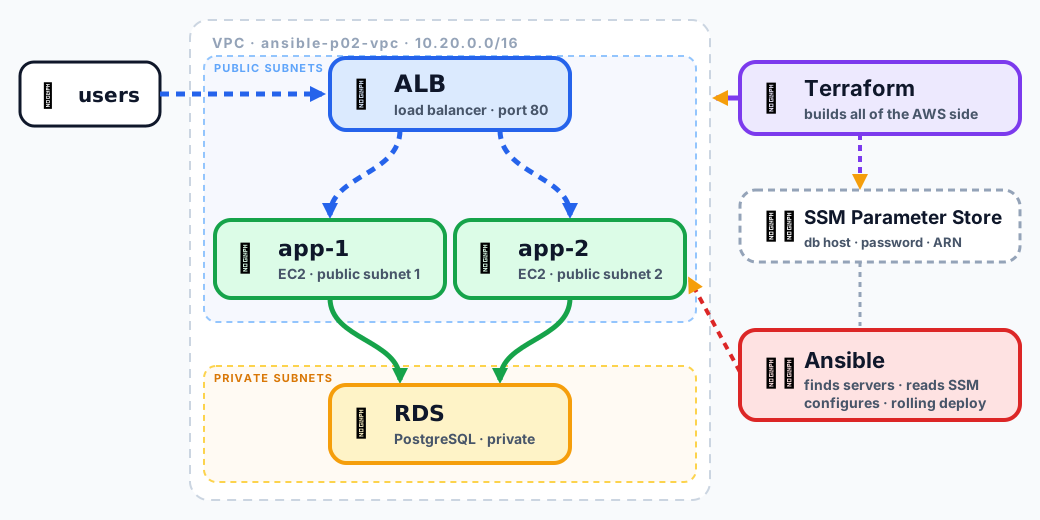
In Project 1 I ran my own nginx load balancer and my own PostgreSQL server, and Ansible configured both. On AWS I do not want to patch either of them. AWS already sells a load balancer and a managed database, so I let Terraform create those and I keep Ansible for what it is best at: configuring the servers that run my code.
| Piece | Project 1 (Docker) | Project 2 (AWS) |
|---|---|---|
| Network | Docker bridge network | your own VPC: 2 public subnets (ALB and app servers), 2 private subnets (database) |
| Load balancer | nginx, configured by Ansible | Application Load Balancer, built by Terraform |
| Database | PostgreSQL on a server, configured by Ansible | RDS PostgreSQL 16, private, built by Terraform |
| Inventory | docker.ini, written by hand | aws_ec2.yml, a filter that asks AWS |
| Secrets | Ansible Vault file | SSM Parameter Store, read with a lookup |
| Rolling deploy | nginx retries the other server | drain from the ALB, deploy, wait until the ALB says healthy |
| Roles | common, postgres, app, nginx_lb | common, app (plus ai_postmortem) |
2. Before you start
I tested this with Ansible 2.18, Terraform 1.11 and the AWS provider 5.x. You need an AWS account with credentials configured (aws sts get-caller-identity must work), Terraform, and Python with boto3, because the AWS modules and the inventory plugin use it.
1git clone https://github.com/rahulwagh/ansible-zero-to-expert-masterclass.git
2cd ansible-zero-to-expert-masterclass/project-02-aws-production-app
3make deps          # pip install boto3 + the two Ansible collections
On a Mac, also run this once in every terminal where you call ansible-playbook yourself (the make targets already do it). Without it the tasks that read SSM can die with a worker error, and the gotchas at the end explain why:
1export OS_ACTIVITY_MODE=disable
The project builds its own VPC (named ansible-p02-vpc, change it with the vpc_name variable), so your default VPC is never touched. It creates two small instances, one database and one load balancer, so please run make infra-down when you are done.
3. Terraform builds the cloud side
I split the Terraform into one short file per layer, because a single 300-line main.tf is hard to read:
| File | What is in it |
|---|---|
network.tf | the VPC, 2 public and 2 private subnets, internet gateway, route tables |
loadbalancer.tf | ALB security group, the ALB, target group and listener |
servers.tf | app security group and the 2 EC2 instances |
database.tf | database security group and RDS PostgreSQL |
ssm.tf | the 4 values Terraform publishes for Ansible |
main.tf, variables.tf, outputs.tf | shared settings, inputs, outputs |
The network is the part I wanted you to see first. The load balancer and the app servers sit in the public subnets, which have a route to the internet gateway. The database sits in the private subnets, which only have the built-in local route, so nothing can reach it from outside and it cannot reach out:
 1resource "aws_route" "public_internet" {
 2  route_table_id         = aws_route_table.public.id
 3  destination_cidr_block = "0.0.0.0/0"
 4  gateway_id             = aws_internet_gateway.main.id
 5}
 6
 7# private: only the built-in local route
 8resource "aws_route_table" "private" {
 9  vpc_id = aws_vpc.main.id
10}
Two more details here come from AWS defaults that I did not want to find out about during a recording.
The target group has a deregistration delay. AWS's default is 300 seconds, which would make my rolling deploy wait 5 minutes for every server. I set 20 seconds (AWS docs):
 1resource "aws_lb_target_group" "app" {
 2  name                 = "ansible-p02-app"
 3  port                 = 8000
 4  protocol             = "HTTP"
 5  vpc_id               = aws_vpc.main.id
 6  deregistration_delay = 20
 7
 8  health_check {
 9    path                = "/health"
10    matcher             = "200"
11    interval            = 10
12    healthy_threshold   = 2
13    unhealthy_threshold = 2
14  }
15}
And Terraform publishes what Ansible needs to Parameter Store, so nothing is copied by hand and nothing secret ends up in git:
1resource "aws_ssm_parameter" "db_password" {
2  name  = "${local.ssm}/db_password"
3  type  = "SecureString"
4  value = random_password.db.result
5}
The password is generated by Terraform, so it exists in the Terraform state file. That file is gitignored in the project and you should treat it as a secret. For a real team I would move the state to an encrypted S3 bucket.
Now build it. make infra-up does exactly this, in four commands. Put your own IP in allowed_cidr, so only you can reach SSH:
1ssh-keygen -t ed25519 -f infra/keys/lab -N ""                      # the key Ansible will log in with
2cp infra/aws/terraform.tfvars.example infra/aws/terraform.tfvars   # then set allowed_cidr = "YOUR.IP.ADDRESS/32"
3cd infra/aws
4terraform init
5terraform apply                                                    # type yes. The database takes the longest.
When it finishes, the servers exist but are empty and the load balancer is red. That is the starting point for section 4.
4. Deploy by hand, one Ansible command at a time
This is the heart of the post. Terraform has built the empty servers, the load balancer and the database. Now I configure the servers with Ansible, but not with one big command. I run one small command at a time and, after the important ones, I look at the load balancer. If you follow the steps in this order, you will understand every line of site.yml before you ever run it as a whole. At the end of the post I show the one-command shortcut.
The same site.yml is used for every step. A step only selects some of its tasks with tags (tags docs), so nothing is written twice and the shortcut at the end is exactly the sum of these steps. Run everything from the ansible folder:
1cd project-02-aws-production-app/ansible
2export OS_ACTIVITY_MODE=disable        # macOS only, see the gotchas at the end. Harmless on Linux.
3ansible --version | head -1            # must say core 2.18 or newer
4echo $OS_ACTIVITY_MODE                 # must print: disable
Where we are standing. Open the AWS console, go to EC2, then Target groups, then ansible-p02-app, then the Targets tab. Both servers are unhealthy. That is correct. The load balancer asks every server GET /health on port 8000 every 10 seconds, and nobody is listening on port 8000 yet. My goal for the next thirteen steps is to turn those two red lines green.
| Step | You run | What changes | Load balancer |
|---|---|---|---|
| 1 | ansible-inventory --graph | nothing, read only | red |
| 2 | ansible appservers -m ping | nothing, read only | red |
| 3 | ansible-playbook site.yml --list-tasks | nothing, prints the plan | red |
| 4 | --tags common_apt | package list refreshed | red |
| 5 | --tags common_packages | python, curl, PostgreSQL client | red |
| 6 | --tags app_packages | python3-venv and pip | red |
| 7 | --tags app_user | user notes and /opt/notes-api | red |
| 8 | --tags app_code | the Flask app is copied | red |
| 9 | --tags app_deps | virtualenv with Flask and gunicorn | red |
| 10 | --tags app_config | .env with the RDS address and password | red |
| 11 | --tags app_service,app_health --limit app-1 | app starts on server 1 | 1 healthy, 1 red |
| 12 | --tags app_service,app_health --limit app-2 | app starts on server 2 | both green |
| 13 | --tags verify | ask the load balancer itself | both green |
Step 1: Who are the servers?
1ansible-inventory --graph
1@all:
2  |--@ungrouped:
3  |--@aws_ec2:
4  |  |--app-2
5  |  |--app-1
6  |--@appservers:
7  |  |--app-2
8  |  |--app-1
There is no hosts file in this project. ansible.cfg points at inventory/aws_ec2.yml, and that file is a filter, not a list (plugin docs):
 1plugin: amazon.aws.aws_ec2
 2regions: [us-east-1]
 3filters:
 4  tag:Project: ansible-project-02
 5  instance-state-name: running
 6hostnames: [tag:Name]
 7compose:
 8  ansible_host: public_ip_address
 9groups:
10  appservers: "tags['Role'] == 'app'"
Ansible asks AWS for every running instance tagged Project=ansible-project-02, names each one after its Name tag (app-1, app-2), connects to its public IP, and puts everything tagged Role=app into a group called appservers. Terraform put those tags on the servers, so when I add a third server and run this again, it appears with no edits. This command only reads from AWS. It changes nothing.
Step 2: Can Ansible log in?
1ansible appservers -m ping
 1app-1 | SUCCESS => {
 2    "ansible_facts": {
 3        "discovered_interpreter_python": "/usr/bin/python3.10"
 4    },
 5    "changed": false,
 6    "ping": "pong"
 7}
 8app-2 | SUCCESS => {
 9    "ansible_facts": {
10        "discovered_interpreter_python": "/usr/bin/python3.10"
11    },
12    "changed": false,
13    "ping": "pong"
14}
This is an ad-hoc command: one module, no playbook. appservers is the group from step 1 and -m ping is the ping module. It has nothing to do with ICMP ping. It logs in over SSH as the ansible user with the key from ansible.cfg, finds Python on the server, runs a tiny task and answers pong. If you see two greens here, SSH, the key, the security group and Python all work, and changed: false tells you it touched nothing.
Now prove why the load balancer is red. Ask the servers what they are listening on:
1ansible appservers -m shell -a 'ss -ltn | grep -E ":(22|8000) "'
Only port 22 (SSH) shows up. Port 8000, where the load balancer wants to talk to the app, is closed because there is no app yet.
Step 3: Read the plan before you run it
1ansible-playbook site.yml --list-tasks
 1playbook: site.yml
 2
 3  play #1 (appservers): Configure the app servers	TAGS: []
 4    tasks:
 5      common : Update apt cache	TAGS: [common, common_apt]
 6      common : Base packages (postgresql-client lets you test the RDS connection by hand)	TAGS: [common, common_packages]
 7      app : Python tooling for the virtualenv	TAGS: [app, app_packages]
 8      app : Service user	TAGS: [app, app_user]
 9      app : Application directories	TAGS: [app, app_user]
10      app : Ship the application code	TAGS: [app, app_code]
11      app : Python dependencies in a virtualenv	TAGS: [app, app_deps]
12      app : Environment file (DATABASE_URL carries the RDS password from SSM, so 0640 and no_log)	TAGS: [app, app_config]
13      app : systemd unit	TAGS: [app, app_service]
14      app : Service enabled and running	TAGS: [app, app_service]
15      app : Apply pending restarts now (this is the moment the new version goes live on THIS host)	TAGS: [app]
16      app : Wait for the app to listen	TAGS: [app, app_health]
17      app : Health check must pass before Ansible moves to the next app server	TAGS: [app, app_health]
18      app : Report	TAGS: [app, app_health]
19      Wait until the load balancer reports the app healthy	TAGS: [verify]
20      Show who answered	TAGS: [verify]
That is the whole playbook: 16 tasks, in the order they run, nothing executed. Read the TAGS column from left to right and you can see the pattern. Every task carries the tag of its role (common or app) and one tag of its own. The role tag runs a whole role. The small tag runs one idea. Ask for the full list with:
1ansible-playbook site.yml --list-tags
1TASK TAGS: [app, app_code, app_config, app_deps, app_health, app_packages, app_service, app_user, common, common_apt, common_packages, verify]
Twelve tags. I use ten of them one by one in the next steps. Two flags are worth knowing before we start. --check --diff shows what would change without changing it, and --step asks y, n or c before every single task.
Step 4: Refresh the package list
1ansible-playbook site.yml --tags common_apt
This selects one task from the common role, the apt module with update_cache: true. A brand new Ubuntu server has an empty or stale package list, so before it can install anything it needs apt update. The task also has lock_timeout: 600: if another process holds the apt lock, Ansible waits up to ten minutes instead of failing. Expect changed on both servers.
Step 5: Install the base packages
1ansible-playbook site.yml --tags common_packages
Same role, next task. It installs python3 and python3-apt (Ansible's apt module needs it), curl, ca-certificates, and postgresql-client. I added the last one so that, when something goes wrong, you can test the RDS connection by hand from the server. Expect changed on both.
Now the idempotency demo. Run the same command again:
1ansible-playbook site.yml --tags common_packages
The recap says changed=0. Ansible compared the server with what I asked for, found nothing to do, and did nothing. Do the demo with this tag and not with common_apt: apt update reports changed every time, because the package list is refreshed on every run.
Step 6: Python tooling for the app
1ansible-playbook site.yml --tags app_packages
This is the first task of the app role. It installs python3-venv and python3-pip, because the app will live in its own virtualenv and not in the system Python. Note that the tag goes after --tags. Typing ansible-playbook site.yml app_packages makes Ansible look for a playbook called app_packages.
Step 7: The service user and its folders
1ansible-playbook site.yml --tags app_user
Two tasks share this tag. The user module creates a system user called notes with /usr/sbin/nologin as its shell, so nobody can log in as it. The file module creates /opt/notes-api and /opt/notes-api/app, owned by that user. The app will run as notes and never as root. Check it:
1ansible appservers -m shell -a 'id notes; ls -ld /opt/notes-api'
Step 8: Ship the code
1ansible-playbook site.yml --tags app_code
The copy module sends the app/ folder from your laptop to /opt/notes-api/app/ on both servers. Expect changed on both. The task ends with notify: Restart app. A handler is a task that runs only when something notified it, and only once at the end (handlers docs). The app does not exist yet, so on this step the handler finds no service to restart. I changed the handler so that this one message is not an error. Any other error still fails.
Step 9: Build the virtualenv
1ansible-playbook site.yml --tags app_deps
The pip module creates /opt/notes-api/venv and installs everything from requirements.txt into it (Flask, gunicorn, the PostgreSQL driver). It runs as the notes user, so the files belong to the app and not to root. This is the slowest step so far, because it downloads packages. Expect changed.
Step 10: The secret and the .env file
Before you run it, open inventory/group_vars/all.yml and look at the last four lines:
1db_host:          "{{ lookup('amazon.aws.ssm_parameter', ssm_prefix ~ '/db_host', region=aws_region) }}"
2db_password:      "{{ lookup('amazon.aws.ssm_parameter', ssm_prefix ~ '/db_password', region=aws_region) }}"
3target_group_arn: "{{ lookup('amazon.aws.ssm_parameter', ssm_prefix ~ '/target_group_arn', region=aws_region) }}"
4alb_dns:          "{{ lookup('amazon.aws.ssm_parameter', ssm_prefix ~ '/alb_dns', region=aws_region) }}"
These are not values. They are lookups (lookup docs), evaluated at the moment a task needs them. Terraform wrote the RDS address and the generated password into SSM Parameter Store, and Ansible reads them from there with your AWS credentials. The password is not in git, not in a vault file you pass around, and not in the output. Access is controlled by IAM.
1ansible-playbook site.yml --tags app_config
The template module renders env.j2 into /opt/notes-api/.env:
1DATABASE_URL=postgresql://{{ db_user }}:{{ db_password }}@{{ db_host }}:5432/{{ db_name }}?sslmode=require
2APP_VERSION={{ app_version }}
3PORT={{ app_port }}
Three details to point out. The file is mode 0640 and owned by notes, so only the app can read the password. The task has no_log: true, so Ansible shows changed and nothing else, and the password never reaches your terminal or your recording. And sslmode=require makes the connection to RDS encrypted. Check the file, without printing the secret:
1ansible app-1 -b -m shell -a 'stat -c "%a %U:%G" /opt/notes-api/.env'
1app-1 | CHANGED | rc=0 >>
2640 notes:notes
If this step dies with ERROR! A worker was found in a dead state, you are on a Mac without the exported variable. See the gotchas at the end.
Step 11: Start the app on one server
1ansible-playbook site.yml --tags app_service,app_health --limit app-1
Two tags, one server. --limit app-1 restricts the run to a single host. The tasks that run are:
- systemd unit. The template module writes
/etc/systemd/system/notes-api.service. The important lines areEnvironmentFile=/opt/notes-api/.env, which feeds the secret to the app,ExecStart=.../venv/bin/gunicorn --bind 0.0.0.0:8000 --workers 2 app:app, andRestart=on-failure, so systemd brings it back if it crashes. - Service enabled and running. The systemd module enables it at boot and starts it. Because the unit file changed, Ansible queues the handlers
Reload systemdandRestart app. A handler runs once, no matter how many tasks asked for it. - Wait for the app to listen. The wait_for module polls port 8000 on the server itself, up to 60 seconds.
- Health check must pass. The uri module calls
http://127.0.0.1:8000/healthand requires status 200 with"status": "ok". It retries 10 times, 3 seconds apart. If the app cannot reach the database, this task fails and Ansible stops here. - Report. It prints that the host is healthy and which version it runs.
I always run app_service and app_health together. app_service alone starts the service but does not wait to find out whether it really works.
Now switch to the AWS console and refresh the target group. After two good health checks, which is about 20 seconds (a 10-second interval and a healthy threshold of 2), app-1 turns healthy and app-2 is still unhealthy. Prove it from the terminal. The load balancer listens on port 80, plain HTTP, and forwards to port 8000 on the servers, so you never type 8000:
1ALB=$(aws ssm get-parameter --region us-east-1 --name /ansible-project-02/alb_dns --query Parameter.Value --output text)
2for i in 1 2 3 4; do curl -s http://$ALB/health; echo; done
Every answer comes from app-1. This is a rolling deploy in miniature: the load balancer only sends traffic to servers that pass the check.
Step 12: Then the second server
1ansible-playbook site.yml --tags app_service,app_health --limit app-2
Refresh the console: both targets are healthy. Run the curl loop again:
1{"db":"ok","server":"app-2","status":"ok","version":"1.0.0"}
2{"db":"ok","server":"app-1","status":"ok","version":"1.0.0"}
3{"db":"ok","server":"app-2","status":"ok","version":"1.0.0"}
4{"db":"ok","server":"app-1","status":"ok","version":"1.0.0"}
The load balancer alternates between app-2 and app-1, and "db":"ok" on every line proves that both servers can reach the private RDS database. Use http://, not https://: this project has no certificate, so port 443 is closed. For a real production setup you would add an HTTPS listener with an ACM certificate.
Step 13: Ask the load balancer
1ansible-playbook site.yml --tags verify
 1TASK [Wait until the load balancer reports the app healthy] ********************
 2ok: [app-2 -> localhost]
 3
 4TASK [Show who answered] *******************************************************
 5ok: [app-2] => {
 6    "msg": "ALB → app-1 running 1.0.0 · db ok"
 7}
 8
 9PLAY RECAP *********************************************************************
10app-1                      : ok=1    changed=0    unreachable=0    failed=0    skipped=0    rescued=0    ignored=0
11app-2                      : ok=3    changed=0    unreachable=0    failed=0    skipped=0    rescued=0    ignored=0
The first task runs on your laptop (delegate_to: localhost) and calls the load balancer's own address, retrying for up to 2.5 minutes until it answers 200. The previous steps checked each server from the inside. This one checks what a real user sees. Both servers are in rotation, nothing changed, and the manual deployment is complete.
Handy flags while you practise
| Flag | What it does | Use it on |
|---|---|---|
--limit app-1 | only that host | steps 11 and 12 |
--check --diff | shows what would change, changes nothing | steps 8 to 10 |
--step | asks y, n or c before every task | steps 4 to 10 |
--list-tasks | the plan without running it | step 3 |
-v | shows the return values of each task | when a step surprises you |
Keep the order. app_service before app_config fails, because the systemd unit reads the .env file. Running any tag twice is safe.
5. The shortcut: the same thing with one make command
Everything in section 4 is what site.yml does when you run it without tags. The project also has a Makefile, which is a list of named shortcuts. After the manual walkthrough, this is the whole thing:
1make site
Every task shows ok except one. Update apt cache reports changed on every run, because apt update refreshes the package list each time, so the recap says changed=1 per server. Everything else is ok, because Ansible compares each task with the server and finds nothing left to do. If you start from two bare servers, make site takes you from step 4 to step 13 in a single run. I did it by hand first so that you know what happens inside it. The Makefile has seven shortcuts, and each one is only a name for an ansible-playbook or terraform command:
| You type | It really runs |
|---|---|
make infra-up | terraform init && terraform apply |
make graph | ansible-inventory --graph (step 1) |
make site | ansible-playbook site.yml (steps 4 to 13) |
make smoke | ansible-playbook smoke-test.yml |
make deploy VERSION=1.1.0 | ansible-playbook deploy.yml -e app_version=1.1.0 |
make break | ansible-playbook deploy.yml -e app_version=2.0.0-broken -e db_host=db-typo.internal |
make infra-down | terraform destroy |
Click through the explorer, or press Present and use the arrow keys. Each command builds up one box at a time.
make lab-up
Files this command touches
6. deploy.yml: drain, deploy, return
This is the part I like best. For each server, one at a time, Ansible takes it out of the target group, waits until it is really out, deploys, and puts it back only when the load balancer calls it healthy (module docs):
 1- name: Rolling deploy behind the ALB
 2  hosts: appservers
 3  become: true
 4  serial: 1
 5  max_fail_percentage: 0
 6  tasks:
 7    - name: "Deploy {{ app_version }} to {{ inventory_hostname }}"
 8      block:
 9        - name: Drain from the load balancer
10          community.aws.elb_target:
11            target_group_arn: "{{ target_group_arn }}"
12            target_id: "{{ instance_id }}"
13            target_port: "{{ app_port }}"
14            region: "{{ aws_region }}"
15            state: absent
16            target_status: unused
17            target_status_timeout: 90
18          delegate_to: localhost
19          become: false
20
21        - name: Install the new version
22          ansible.builtin.include_role:
23            name: app
24
25        - name: Put it back, wait until the ALB says healthy
26          community.aws.elb_target:
27            # same arguments, state: present, target_status: healthy
28          delegate_to: localhost
29          become: false
serial: 1 is the rolling part. max_fail_percentage: 0 means one failure stops the whole rollout. Run it the same way as before, by hand, with a second terminal that keeps asking the load balancer for /health while the first one deploys:
1# terminal 2: watch what a user sees
2ALB=$(aws ssm get-parameter --region us-east-1 --name /ansible-project-02/alb_dns --query Parameter.Value --output text)
3while true; do curl -s http://$ALB/health; echo; sleep 0.3; done
4
5# terminal 1: roll out version 1.1.0
6ansible-playbook deploy.yml -e app_version=1.1.0
make deploy VERSION=1.1.0 is the same command.
7. When a deploy fails: an AI postmortem
Run export ANTHROPIC_API_KEY=sk-ant-... first if you want the AI answer, then make break, which is this command:
1ansible-playbook deploy.yml -e app_version=2.0.0-broken -e db_host=db-typo.internal
It deploys version 2.0.0-broken with a database host that does not exist. The app crashes on start, the health check never passes, and the block fails. A rescue section takes over:
- It collects the service status and the last 25 log lines from the failed server.
- It sends them to the Claude Messages API (API docs) from my laptop, so the API key never touches a server.
- It prints the answer, then stops the rollout.
 1- name: "Ask Claude for the root cause. The key stays on your laptop."
 2  ansible.builtin.uri:
 3    url: "{{ ai_url }}"
 4    method: POST
 5    headers:
 6      x-api-key: "{{ anthropic_api_key }}"
 7      anthropic-version: "2023-06-01"
 8    body_format: json
 9    body:
10      model: "{{ ai_model }}"
11      max_tokens: 500
12      messages:
13        - role: user
14          content: "... failed task, Ansible message and the evidence ..."
15  delegate_to: localhost
16  no_log: true
The whole thing is optional. Without ANTHROPIC_API_KEY the role prints the evidence and says how to turn the AI on, and a failing API call never hides the original failure. I tested those three paths (answer, no key, API unreachable) against a local stand-in for the API before running the real thing:
1TASK [ai_postmortem : AI postmortem is switched off]
2    "msg": "export ANTHROPIC_API_KEY=... to let Claude explain the failure. Everything else works without it."
3
4TASK [ai_postmortem : Claude did not answer]
5    "msg": "AI postmortem unavailable (HTTP -1). The evidence above is still all you need."
The AI step explains, it does not fix anything. I want a human to decide what changes on a production server.
8. Smoke test and clean-up
The smoke test asks the load balancer 10 times who answers, checks that every app server appeared at least once, writes a note through the ALB into RDS and reads it back:
1ansible-playbook smoke-test.yml
make smoke is the same command. When you are done, remove everything so the bill stops (make infra-down runs this):
1cd ../infra/aws && terraform destroy
That removes all 30 resources, including the database, because the project sets skip_final_snapshot for the demo.
9. Gotchas I hit while building this
- The SSM lookup has a new name. Older tutorials use
aws_ssm. In the collection version I used (amazon.aws 9.0) the lookup isamazon.aws.ssm_parameter, andaws_ssmis gone. - RDS picks a very new PostgreSQL by default. When I asked AWS for the default version in us-east-1 it returned 18.3. I pinned
engine_version = "16"so the client library and thesslmode=requiresetting behave the way I tested. - Do not run apt at boot. The same lesson as in Part 1: a boot-time
apt-getin the startup script holds the apt lock and makes the first Ansible run fail. The instances only create theansibleuser, and the roles uselock_timeout: 600as a safety net. - macOS:
ERROR! A worker was found in a dead state. On a Mac, the first task that read a value from SSM killed Ansible's worker process with no message at all. The macOS crash report (~/Library/Logs/DiagnosticReports/Python-*.ips) showed a segmentation fault inside Apple'sNetworkframework, reached throughos_log: the dynamic inventory plugin had already used the network in the main process, and every forked worker that touched the network again crashed. The two fixes you will find online,OBJC_DISABLE_INITIALIZE_FORK_SAFETY=YESandno_proxy='*', did not help here.export OS_ACTIVITY_MODE=disabledid, three runs out of three. Themaketargets set it for you; when you runansible-playbookyourself, export it first (or put it in front of the command:OS_ACTIVITY_MODE=disable ansible-playbook site.yml --tags app_config). On Linux you never see this. - A handler that fails because the service is not there yet. When I ran the steps one at a time,
--tags app_configended withCould not find the requested service notes-api: the.envtask notifies theRestart apphandler, and the systemd unit only exists after a later step.make sitenever showed it, because by the time the handler ran the unit file existed. The handler now ignores exactly that one message and still fails on any other error. - The deregistration delay. Covered above: left at 300 seconds, every deploy would take minutes longer.
Conclusion
Part 1 taught the pieces on a laptop. This part runs them on AWS the way a team would: managed load balancer and database, no hosts file, secrets from the cloud, deploys that drain before they touch a server, and an AI that reads the logs when something breaks. If you want the fundamentals behind every line, they are all in my Ansible course, and the Docker lab post shows how to practise for free before you spend anything on AWS.
Did this save you a debugging session? Stay in the loop -
- Subscribe on YouTube - every post here has a screen-recorded companion video.
- Code on GitHub - the repositories, Terraform and scripts behind these posts.